TumbleRig · release 1.13.0 · 2026-09-25 · changes since v1.12.0

TumbleRig 1.13

Every GPU node now also runs on OpenCL when there is no CUDA card, every viewport tool gets a toolbar and a panel, one control bends a whole spline, and replacement shapes swap mouths by name. TumbleRig now installs on Macs with Apple silicon, too. Over forty node panels now explain every setting. New node versions install next to the ones you already use.

5new nodes and major versions
16GPU nodes that also run on OpenCL
40nodes with a Tool Panel
25changes shown with pictures
Get TumbleRig 1.13 on TumbleTrove WindowsLinuxmacOSFree on TumbleTrove, the marketplace for Houdini packages. Install it with TumbleTrove Desktop, or with hpm:
hpm add tumblehead/tumblerig@1.13.0
then hpm install. Older node versions stay installed, so saved scenes keep working.

Try them Every example on this page is in the Asset Browser under TumbleRig › Changelog › 1.13. Drag one into a network and it works, with a note on what to try.

New and updated nodes in 1.13
The big ones

Highlights

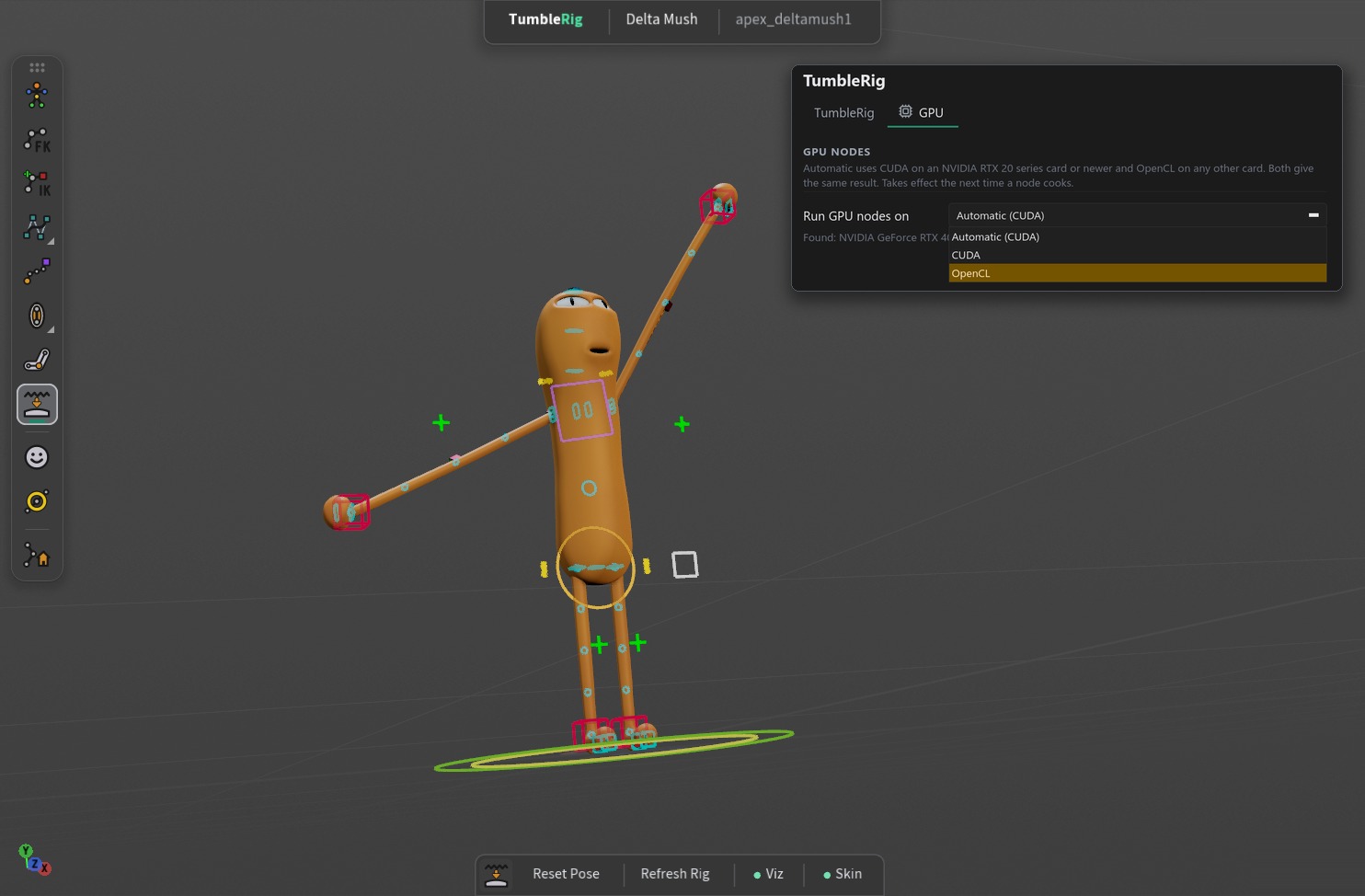
Posed on OpenCL. The noodle example with its joint capture, bone deform and delta mush running on OpenCL, picked on the GPU page of TumbleTrove Settings.
New

TumbleRig now runs on OpenCL

Sixteen GPU nodes no longer need a CUDA card. Without an RTX-class NVIDIA card, and on a Mac, they run on OpenCL with the same result: joint capture, bone deform, delta mush, elastic delta mush, blendshapes, lattice, wrap, shrinkwrap, rivet, normals, subdivide, wrinkles, Solidify (ARAP), attribute copy, attribute transfer and attribute math. Automatic picks for you, and one menu in TumbleTrove Settings sets it for all of them.

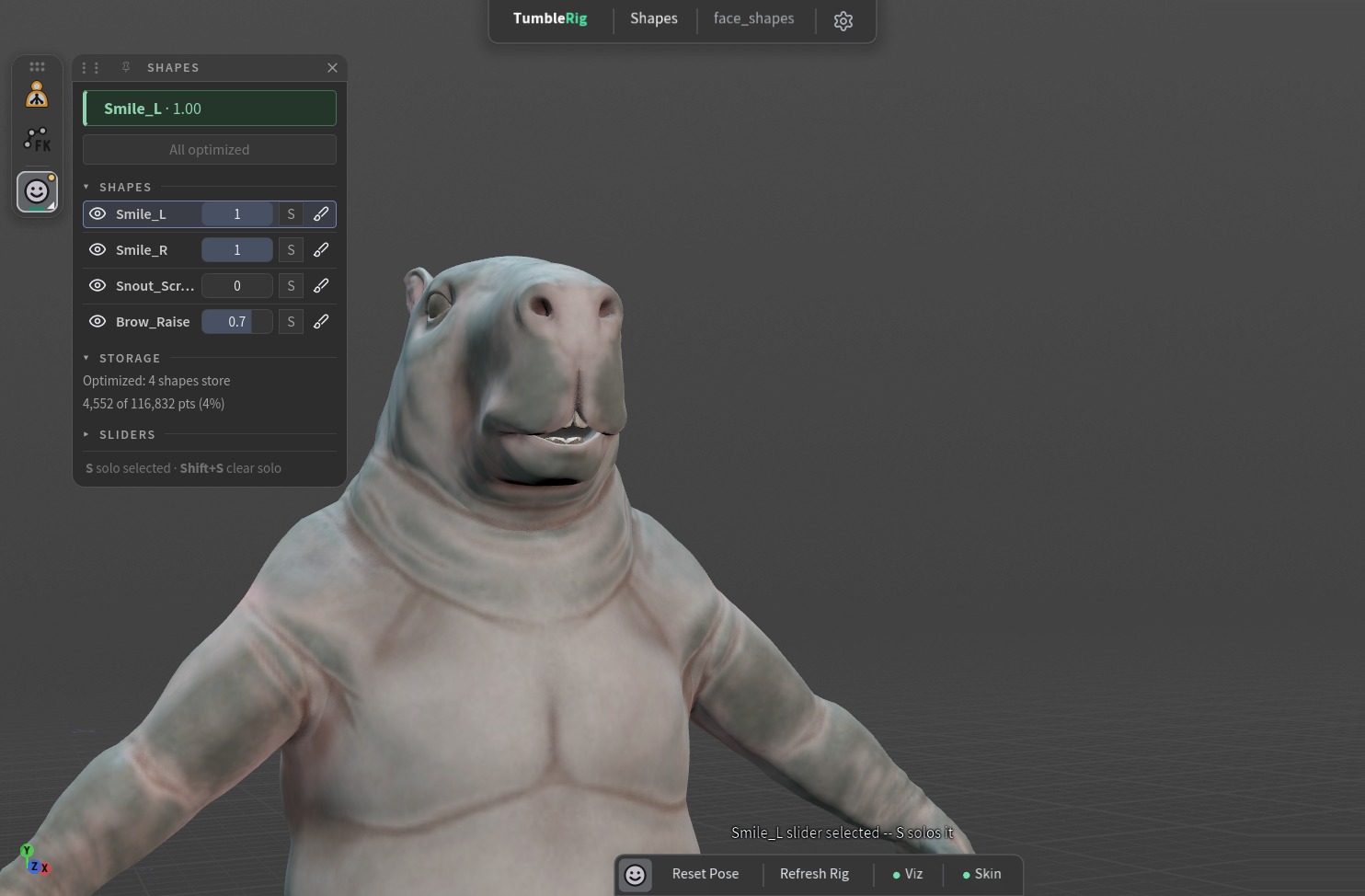
Every viewport tool gets a header, a toolbar and a panel. The capybara face in the Shapes tool: the header bar on top, the toolbar on the bottom edge with plain labels and lit Viz and Skin lamps, the floating icon bar of node tiles on the left and the Shapes Tool Panel beside it.
New

A toolbar and a panel for every viewport tool

Every TumbleRig tool now has the same toolbar on the viewport's bottom edge, with plain labels and a lamp on each switch, and a narrow Tool Panel beside the viewport. A small floating bar of node icons jumps between the tools of every node in the scene. IK Chains, Rig Defaults, Visibility, Space Switch and Driven Keys get panels of their own.

Video One middle control bends the whole brow. Each eyebrow is an apex_spline 6.0 chain with a CV at each end and Layer 2 switched on. The middle Layer 2 control is the cyan ring: pull it up and the brow arches, pull it down and it frowns, sliding along the forehead. The same ring on each brow then plays surprised, angry and skeptical, and back to neutral.
Newth::apex_spline::6.0

apex_spline 6.0: one control bends the whole curve

A new curve: the CVs shape it like a subdivision cage, so a Layer 2 control in the middle bends the whole chain in one smooth arc, and Roundness sets how round. Layer 2 and Layer 3 switch on with a checkbox on their folder, each with its own Follow CVs, Smooth and Smooth Width, and their controls are coloured and sized by layer. The rig at rest now matches the skeleton exactly with layers, Roll and per-CV values, and turning the whole rig no longer reshapes the curve.

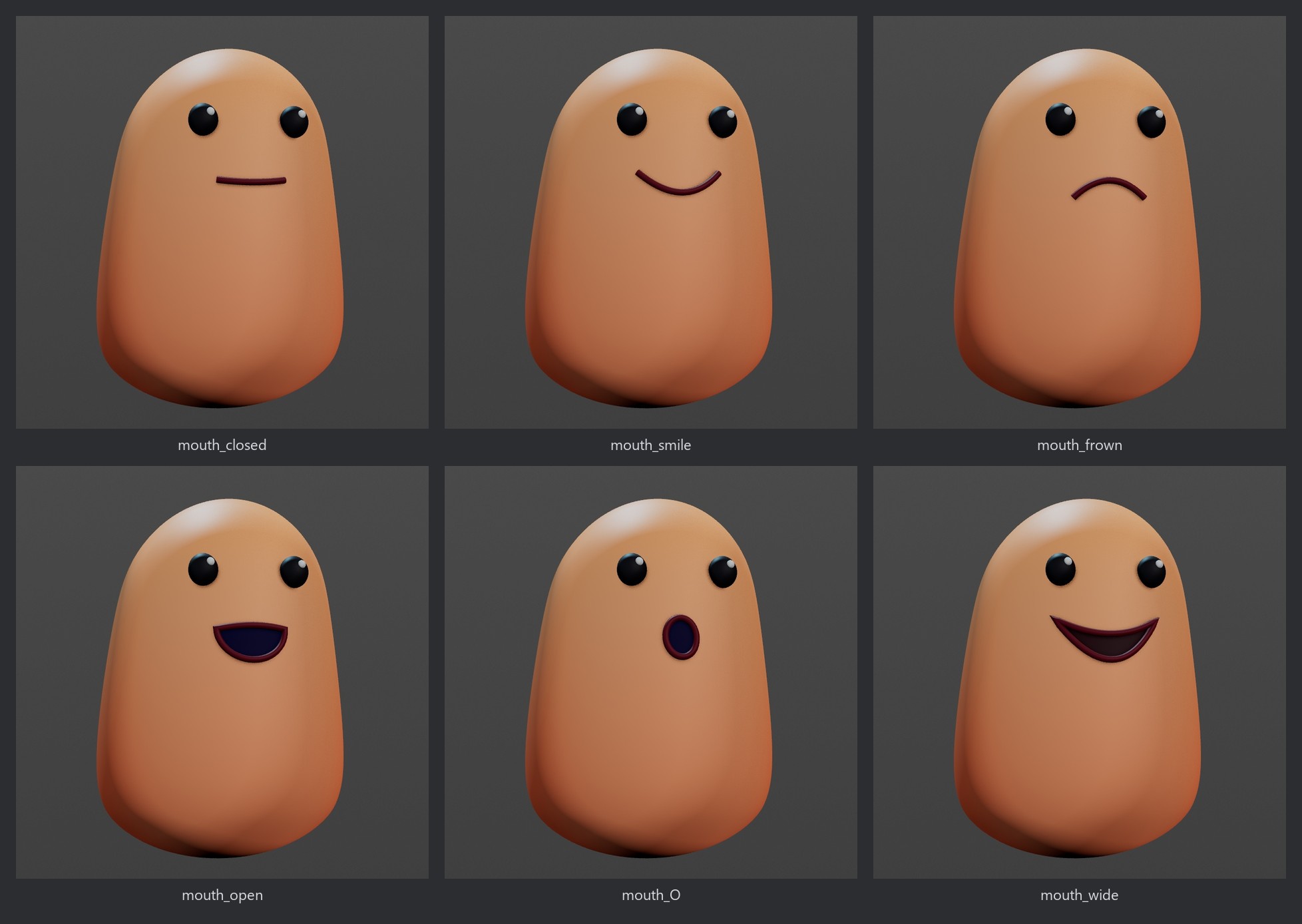
Six mouths, one switch. apex_visibility 2.0 swaps the mouth on a simple capsule character by name: mouth_closed, mouth_smile, mouth_frown, mouth_open, mouth_O and mouth_wide, from the same camera.
Newth::apex_visibility::2.0

Replacement shapes for mouths, brows and lids

A Replacement switch shows one named piece at a time, like a stop-motion mouth. Pieces are keyed by name, so remodelling or reordering never breaks the switch, and every field that selects geometry tells you how many pieces it matched.

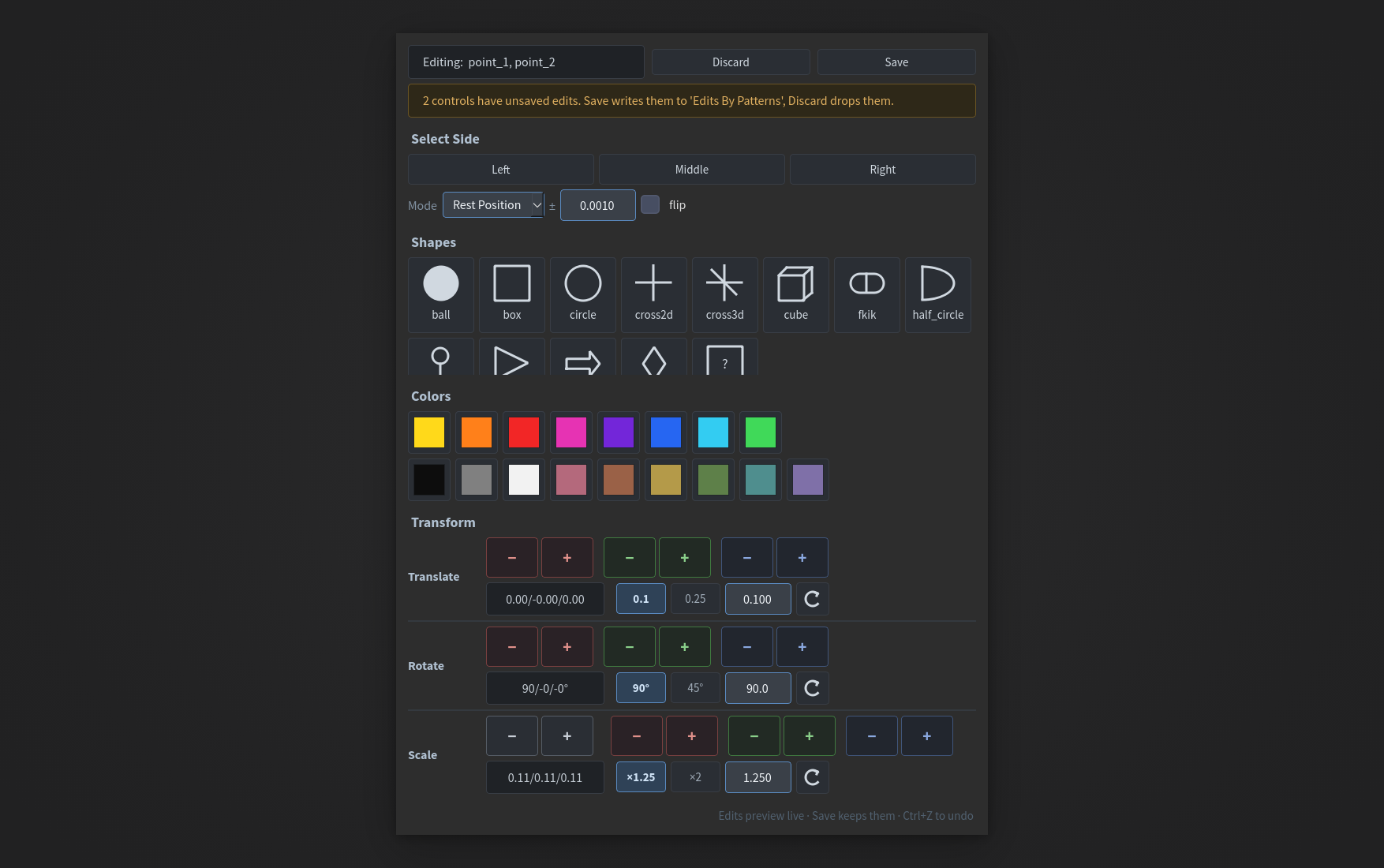
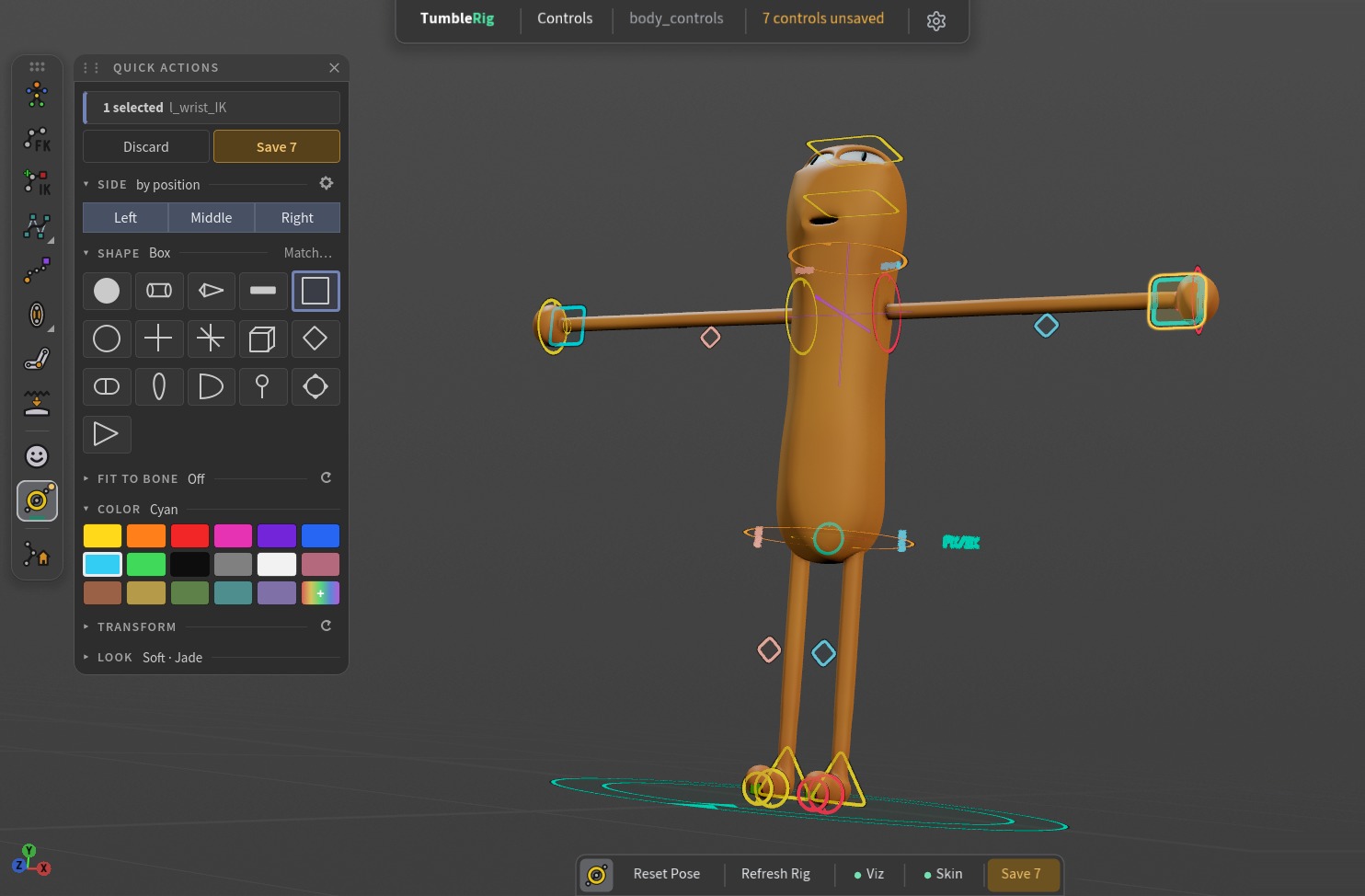
Seven controls restyled on the noodle, not saved yet. A circle on the neck and hips in orange, a purple cross on the chest, cyan boxes on the hands and yellow triangles on the feet; the header counts 7 controls unsaved and Save 7 waits in amber in the strip and the toolbar.
Newth::apex_ctrls::2.0

Control shapes: Quick Actions and Fit to Bone

Change control shapes, colours and sizes live in the Animate state from a Quick Actions strip on the viewport; Save shows how many controls are unsaved. New Fit to Bone stretches a Cylinder, Bone, Stick or Box along each bone, with a gap at each end and a thickness relative to the bone or in scene units.

Graphics cards

GPU nodes without CUDA

The same nodes and the same result without a CUDA card, on Windows, Linux and now macOS. Nothing to change in your scenes: Automatic picks for you.

cuda_bonedeform 1.0cuda_deltamush 1.0cuda_bonecapture 1.0cuda_lattice 1.0cuda_wrap 1.0cuda_shrinkwrap 1.0
Newth::cuda_bonedeform::1.0

OpenCL when CUDA is not there

Each GPU node has a GPU Backend setting: Automatic (the default) runs CUDA on an NVIDIA RTX 20 series card or newer, and OpenCL on any other card, with a note on the node. Inside a rig, the mesh stays on the graphics card from bone deform into delta mush.

  • Runs both ways: joint capture, bone deform, delta mush, elastic delta mush, blendshapes, lattice, wrap, shrinkwrap, rivet, normals, subdivide, wrinkles, Solidify (ARAP), attribute copy, attribute transfer and attribute math.
  • GeForce RTX 20 and GTX 16 cards now run the CUDA path too.
  • A card that can run neither now stops with a readable message on the node instead of a wrong result.
  • Checked on NVIDIA's OpenCL against CUDA: the results match to within 0.00001 units, and no node is slower.
Video Posed live on OpenCL. The noodle waves and leans in the Animate state with every GPU node in the chain running on OpenCL instead of CUDA.
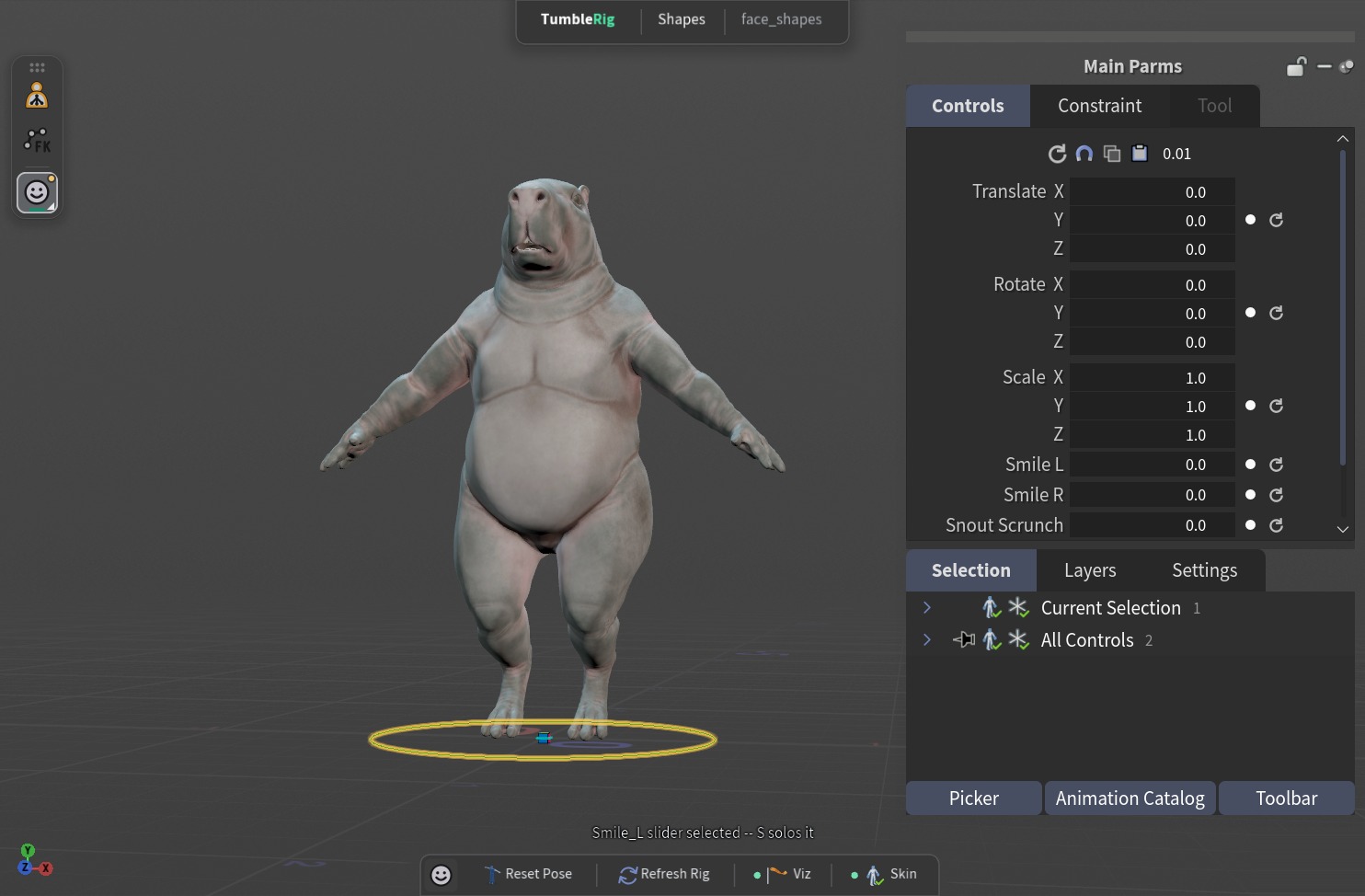
Video Pick a shape and drag its value, and the face follows live on OpenCL. Click Smile_L in the Shapes panel and its row lights up: the highlighted row is the shape you are driving, and the chip at the top names it with its value. Drag the field to 2 and the mouth corner pulls up. Click Smile_R, the highlight moves to that row, and dragging it to 2 completes the smile.
New

TumbleRig on macOS

TumbleRig 1.13 installs on Macs with Apple silicon, next to Windows and Linux: the same package on TumbleTrove and the same hpm add. macOS has no CUDA, so the GPU nodes use their OpenCL backend there, and Automatic picks it for you.

  • Tested on an Apple M6 Mac against CUDA on Windows: every GPU node places its points within 0.003 units, the blendshape, delta mush, shrinkwrap and wrap test scenes to within 0.00002, and the noodle example cooks as it does on Windows.
Tool

One switch in TumbleTrove Settings

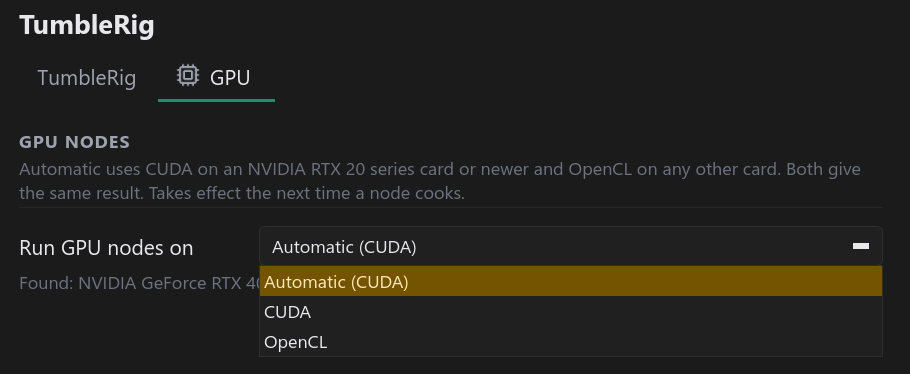
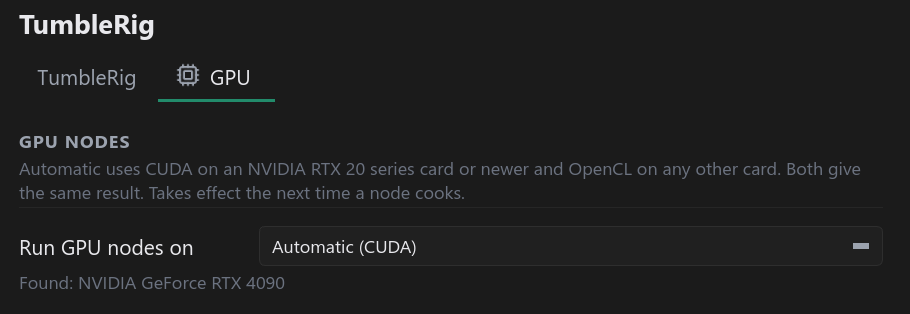
TumbleRig > GPU in TumbleTrove Settings has one menu for every TumbleRig node: Automatic (CUDA), CUDA or OpenCL. Automatic names what it picks on your machine, and the card it found is listed under the menu. It takes effect the next time a node cooks.

One menu for every GPU node. Automatic names what it picks on this machine; the card it found is listed under the menu.
Three choices, nothing else. Automatic (CUDA), CUDA or OpenCL.
In the viewport

Viewport tools

One look for every TumbleRig tool: a header on top, a toolbar on the bottom edge, a panel beside the viewport, and a bar of node icons to jump between them.

Updated

A toolbar with labels and lamps

The tool's buttons sit in one toolbar docked on the viewport's bottom edge, as plain labels led by a tile with the node's own icon that opens its Tool Panel. Switches such as Viz and Skin carry a lamp that is lit while they are on, and the header on the top edge names the tool and the node.

Labels and lamps on the toolbar. The panel tile with the node's own icon, Reset Pose and Refresh Rig, then the Viz switch on (lit lamp) and Skin off (hollow lamp, dimmed).
Video Two lamps on the toolbar: Skin and Viz. Click Skin off and the noodle mesh gives way to its skeleton; Viz off hides the skeleton too, leaving only the controls; both back on bring the character back.
New

Jump between tools from a bar of node icons

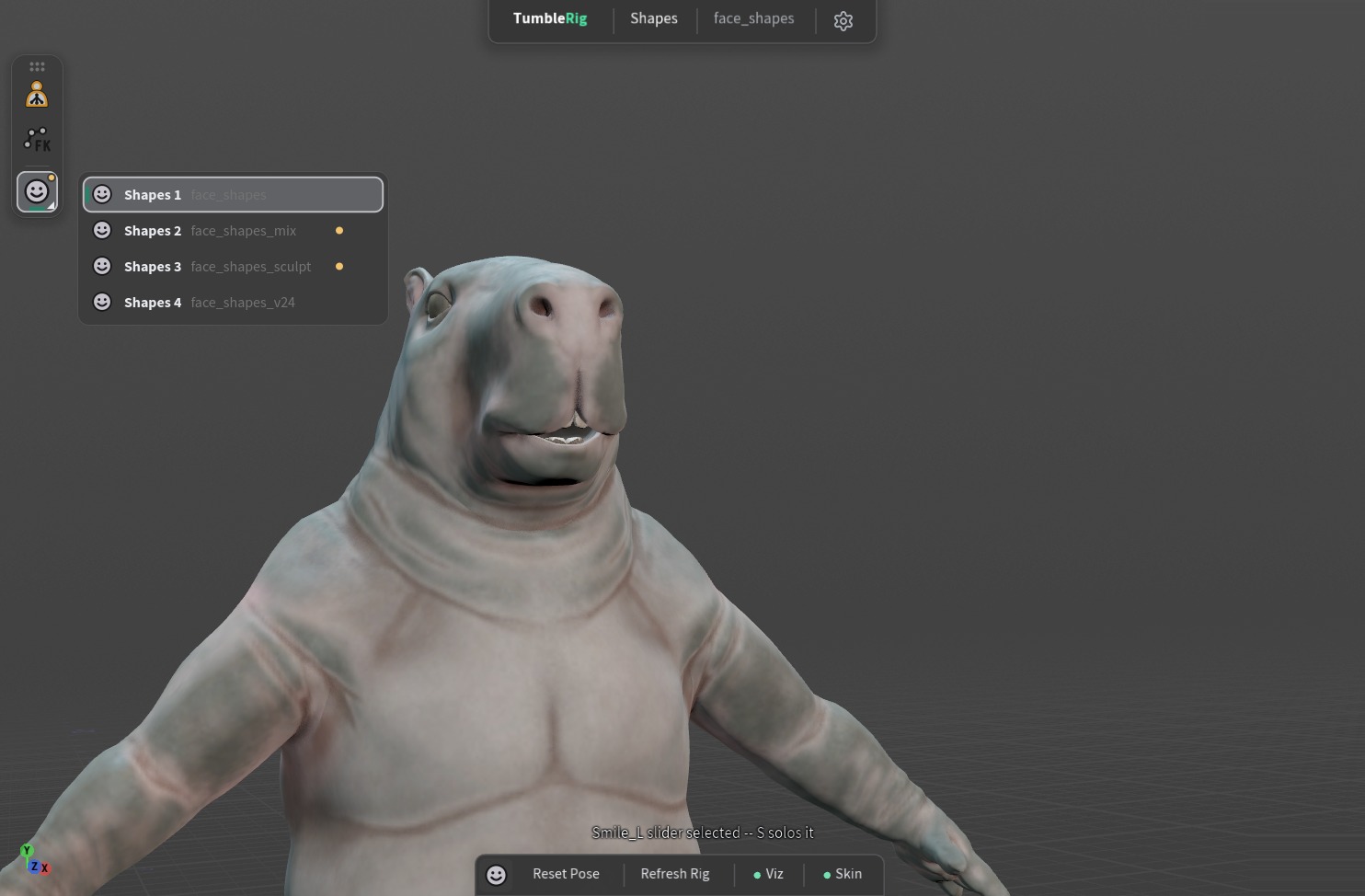
A small floating bar of node icons sits on every viewport: click a tile to open that node's tool, click the open one to show or hide its panel. Nodes of one type share a tile with a pick list, pinned nodes get their own tiles and save with the scene, and an amber dot marks a node waiting on you. Drag the bar by its grip and it snaps to the viewport's edges.

  • Houdini's Channel Widget and hotkey helper stay out of the way while a TumbleRig tool runs, and Houdini's hint line along the viewport's bottom edge ("Left mouse tumbles...") is off by default; one setting brings it back.
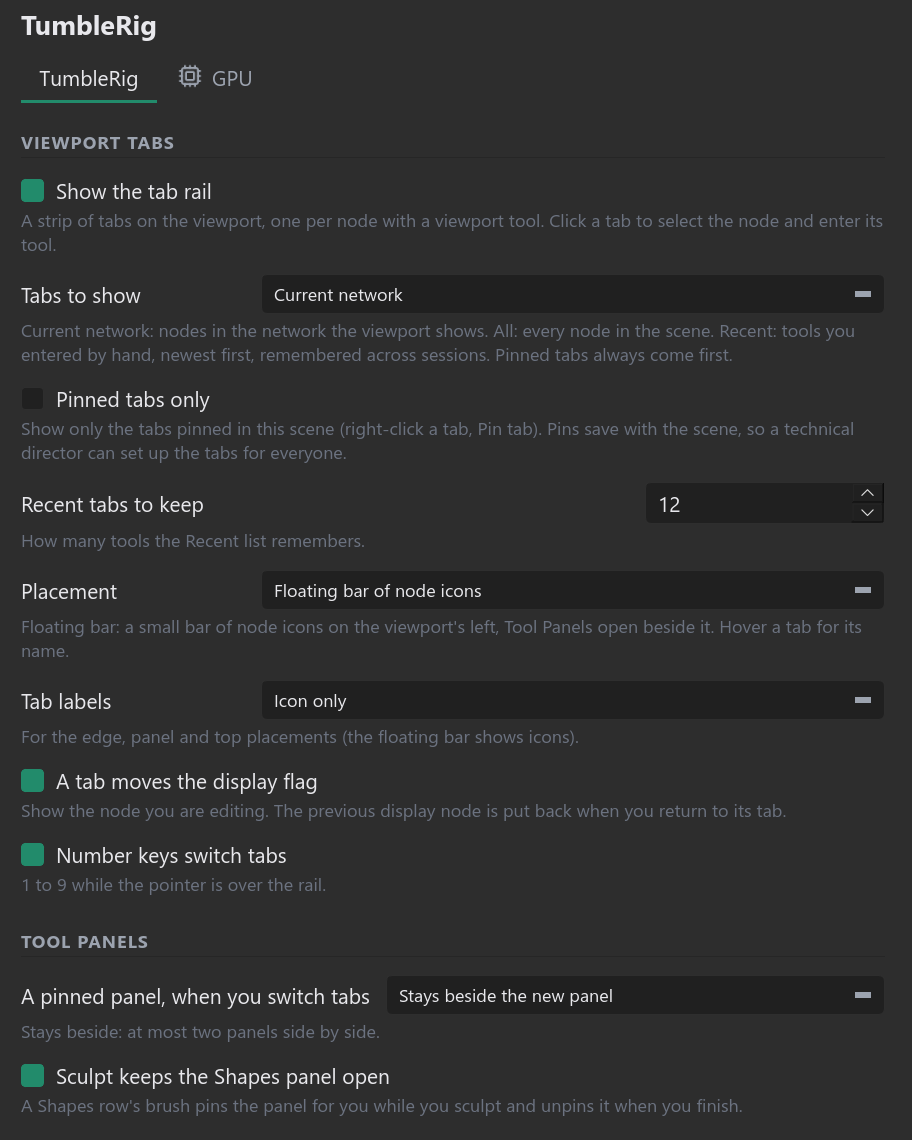
  • Every option lives on TumbleRig's page in TumbleTrove Settings: which nodes get tiles, placement, labels, and what a pinned panel does.
Video One bar for every tool, wherever you want it. Click the Shapes tile, pick another blendshapes node from its list and the Shapes panel switches to that node; drag the bar by its grip along the top and it lies flat, drag it down the left edge and it stands up again.
One tile per node type, with a pick list. Four blendshapes nodes share the Shapes tile; click it to choose one, and amber dots mark the nodes waiting on you.
Every option is a setting. TumbleRig page in TumbleTrove Settings: which tabs show, where the bar sits, what tab labels read, and how pinned Tool Panels behave.
New

A panel that stays while you sculpt

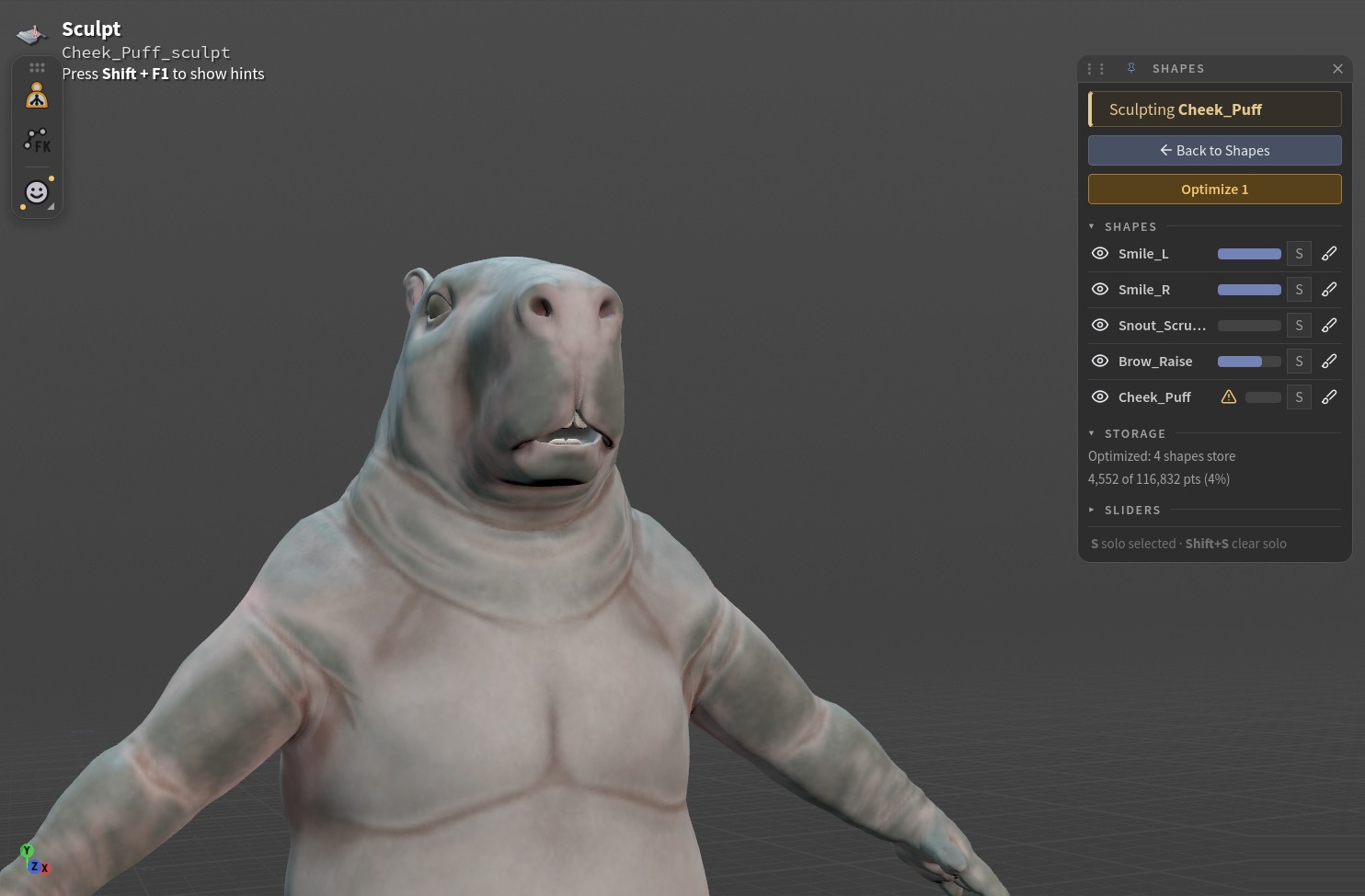
Every Tool Panel has a pin. A pinned panel stays open, paused on the right edge, while another tool such as Sculpt runs. Sculpt a shape from the Shapes panel and it pins itself for the trip; Back to Shapes returns to the blendshape tool.

Video The Shapes panel waits while you sculpt. Click Sculpt on a shape and the panel pins itself to the right edge, paused, while the Sculpt tool runs; Back to Shapes returns to the Shapes tool with the panel back in its place.
A pinned panel waits while you sculpt. Sculpt a new Cheek_Puff shape and the Shapes panel stays, paused on the right edge, with Back to Shapes one click away.
New

Tool Panels: a strip for every tool

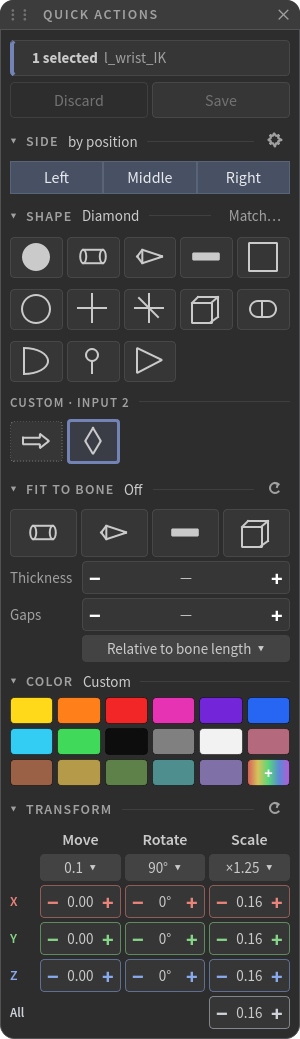
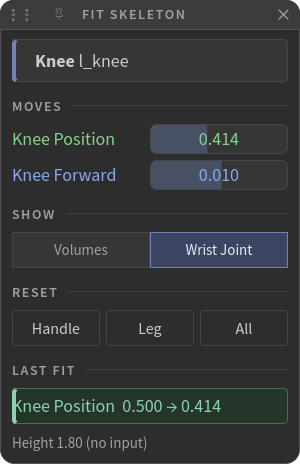
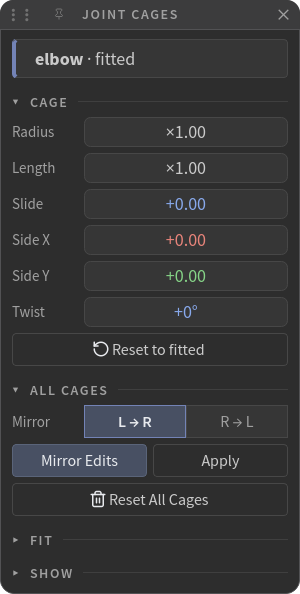
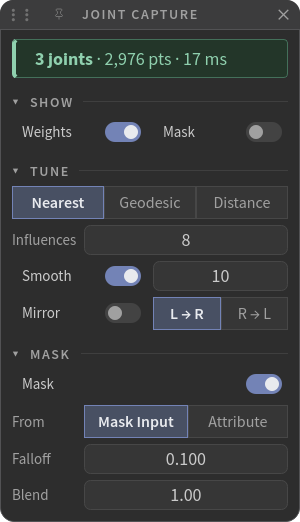
Every node with a viewport tool now has a narrow Tool Panel docked beside the viewport: what is selected, what it drives, and the actions that are faster there than in the parameter pane. Eleven tools have a panel of their own (Quick Actions, Fit Skeleton, Joint Cages, Joint Capture, Shapes, Spline Display and the five below); the other 29 nodes get a Node Panel built from their most used settings.

  • Number fields work like Blender's: the value sits centred over a bar that shows where it is in its range. Drag to scrub (Shift fine, Ctrl coarse), click to type, or use the arrows at the ends for one step.
  • Fixed steps keep their buttons: Quick Actions' Move, Rotate and Scale step by a set amount with - and +.
  • On and off are switches, and a section about the selection only shows while something is selected.
  • Tumble freely: moving the camera with Alt or Space leaves the header, the toolbar, the panels and the tab bar as they are, and a panel that was open comes back after File > Open.
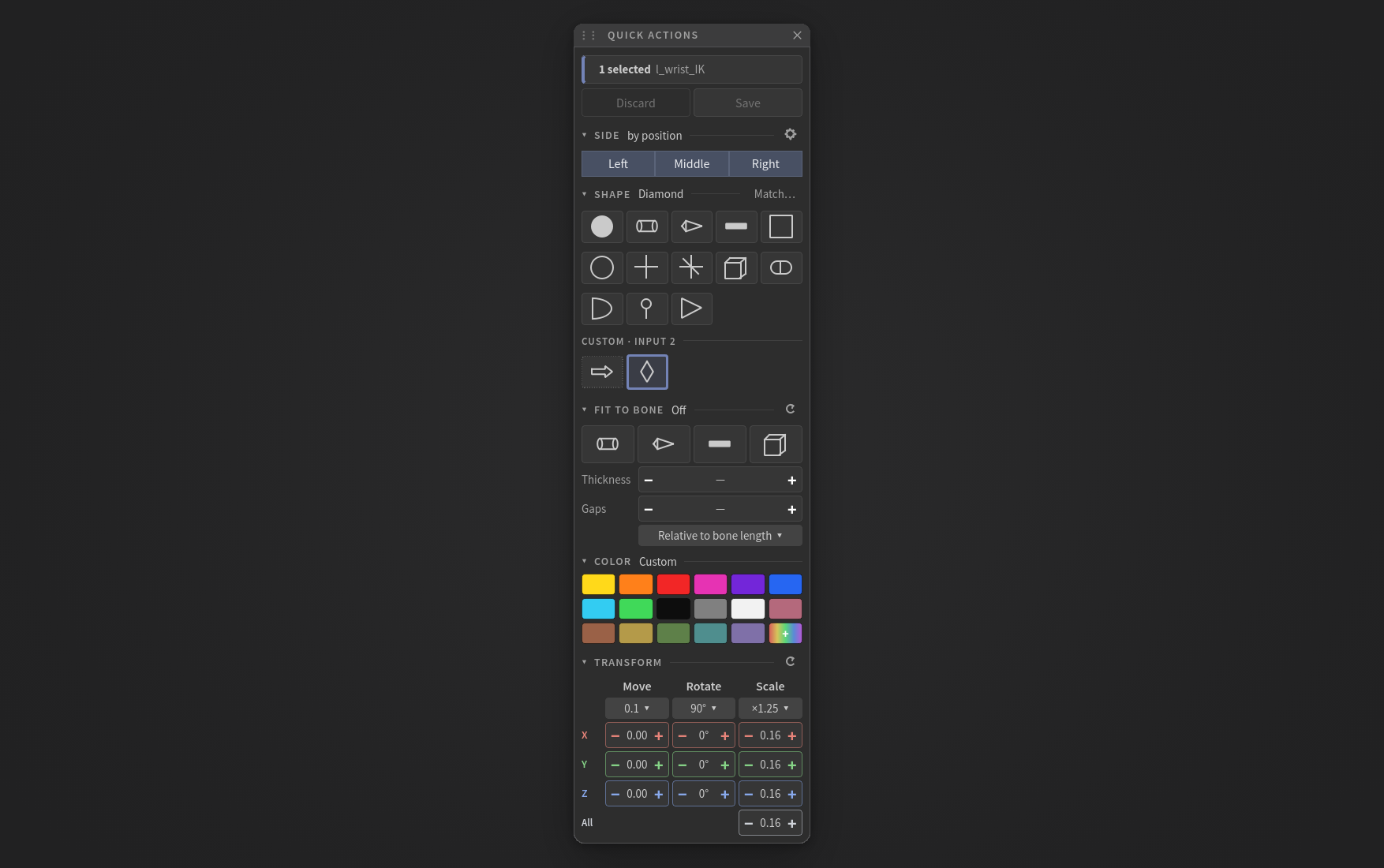
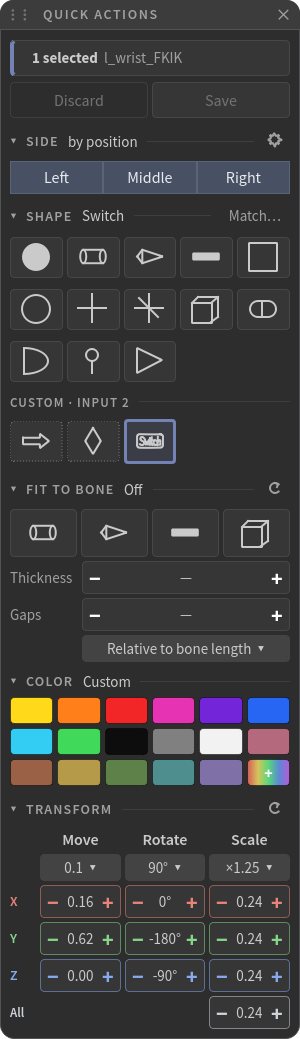
Quick Actions on the new kit. Rounded panel, centred values in the Move / Rotate / Scale steppers, and the custom diamond picked for the selected wrist control.
Fit Skeleton with the knee handle picked. Knee Position and Knee Forward are fields with a bar that shows where the value sits; Last Fit appears once a value changes.
Joint Cages with a cage picked. Radius, Length, Slide, Side X / Y and Twist are Blender-style fields: drag to scrub, the value centred.
Joint Capture on the new kit. Pill switches for Weights, Mask and Smooth; Influences, Smooth iterations, Falloff and Blend as centred fields.
New

Five more Tool Panels

Animators get panels for the nodes they touch most.

  • IK Chains: switch an arm or leg between FK and IK with a match, so the limb does not move; key the switch in one click.
  • Space Switch: Go follows another space and keeps the pose; Key the switch keys the old space on the frame before.
  • Driven Keys: each driver with a live meter between its Min and Max, and buttons to pose the driver there.
  • Rig Defaults: set, reset and mirror rest poses for the selected controls.
  • Visibility: one button per shape of each switch, Prev and Next, and Key.
Video FK to IK and back without a pop. Click IK and the chain switches, matched. Pick the wrist goal and drag it out and back, and the arm follows. Click FK and it switches back, matched the other way. The chain stays selected throughout.
Video Switch space without a pop, then follow the new parent. On the noodle, the left hand follows the chest: turn the chest and the hand goes with it. Go root (hip) with Keep pose on and the hand stays put; now the hips move and the hand follows them, while turning the chest leaves it alone.
Video One roll control, two driven keys in sequence: a foot roll. Turning roll from 0 to 30 degrees lifts the heel, 30 to 60 rolls the foot up onto its toes, and the shin stays upright the whole way. The Driven Keys panel fills one meter, then the next.
Video Store a rest pose, reset to it, then clear it. Bend the arm and click Set from Selected; raise it further and the toolbar's Reset Pose brings it back to the stored bend; Reset Selected clears it again.
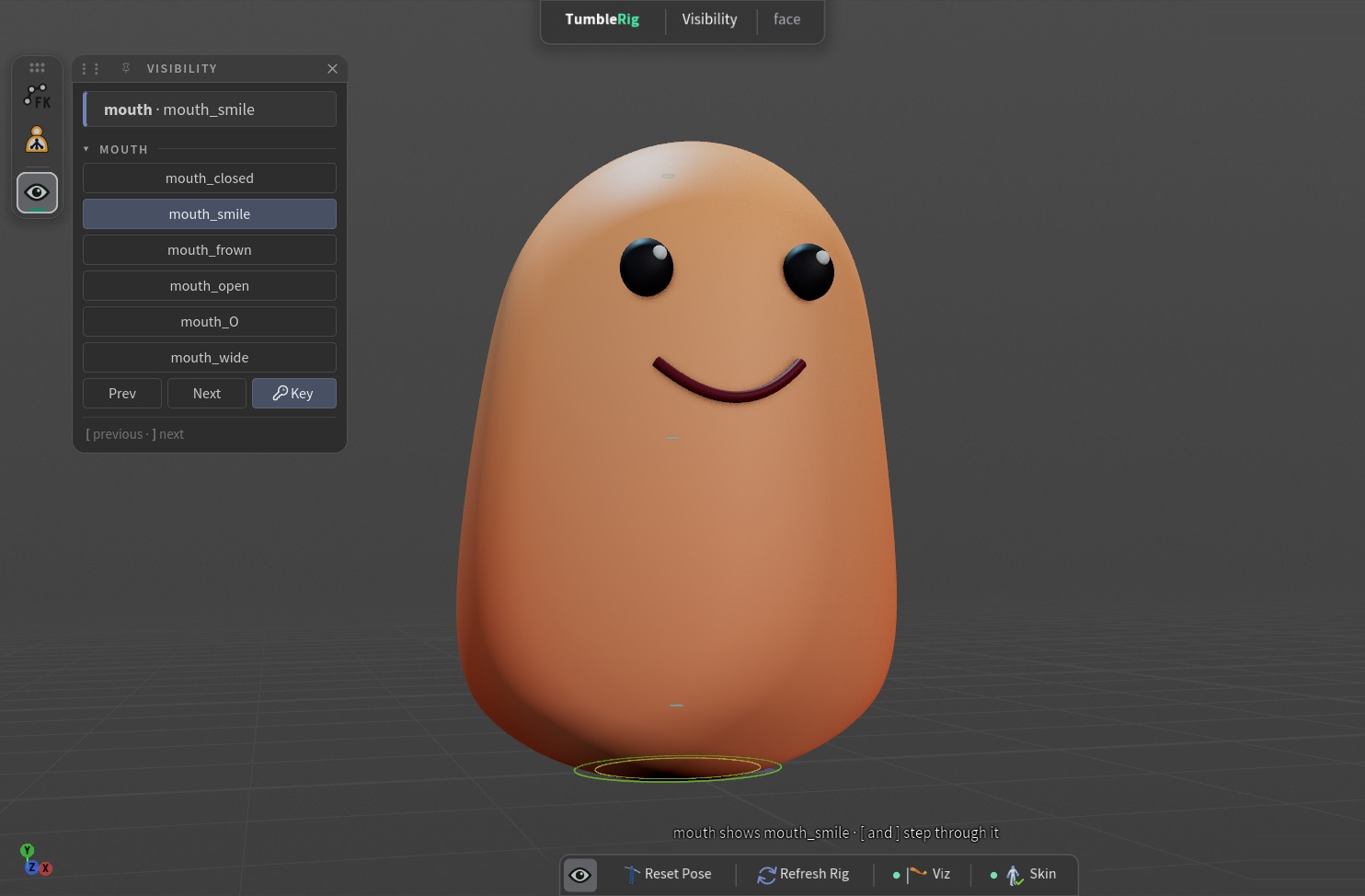
Video One click per mouth. Stepping down the Visibility panel, closed, smile, frown, open, O, wide: the lit row and the capsule change together.
Skeleton and controls

Controls you can read and edit

Restyle controls live from a strip on the viewport, wire in shapes of your own, stretch them along their bones, and fit the skeleton with handles you can grab.

apex_ctrls 2.0fit_skeleton 3.1
Updatedth::apex_ctrls::2.0

Quick Actions, a narrow strip on the viewport

Quick Actions is now a 200 px wide strip docked on the left edge of the viewport, with its own drag bar instead of a window frame. The Quick Actions button leads the button row at the bottom and opens it, clear of the Animate channel panel. One status bar holds Discard and Save, each section names the current shape and colour, and Move / Rotate / Scale steppers share one X/Y/Z grid, so nothing gets cut off while edits are unsaved.

  • New buttons in the button row: Quick Actions comes first and opens or closes the strip (mint while open); Save appears on apex_ctrls nodes with the unsaved count in amber and greys out when there is nothing to save.
The strip on the new kit: a 200 px wide column with rounded corners, centred step values and custom shapes in their own row.The old 500 px wide panel: the Shapes grid was cut off below the unsaved banner.BeforeNow
Before The old 500 px wide panel: the Shapes grid was cut off below the unsaved banner.Now The strip on the new kit: a 200 px wide column with rounded corners, centred step values and custom shapes in their own row.
Video Restyle controls one click at a time. Head, chest, hips, hands and feet change shape and colour in turn from the Quick Actions strip while the unsaved count climbs to 7; Discard brings the rig back.
Newth::apex_ctrls::2.0

Custom control shapes

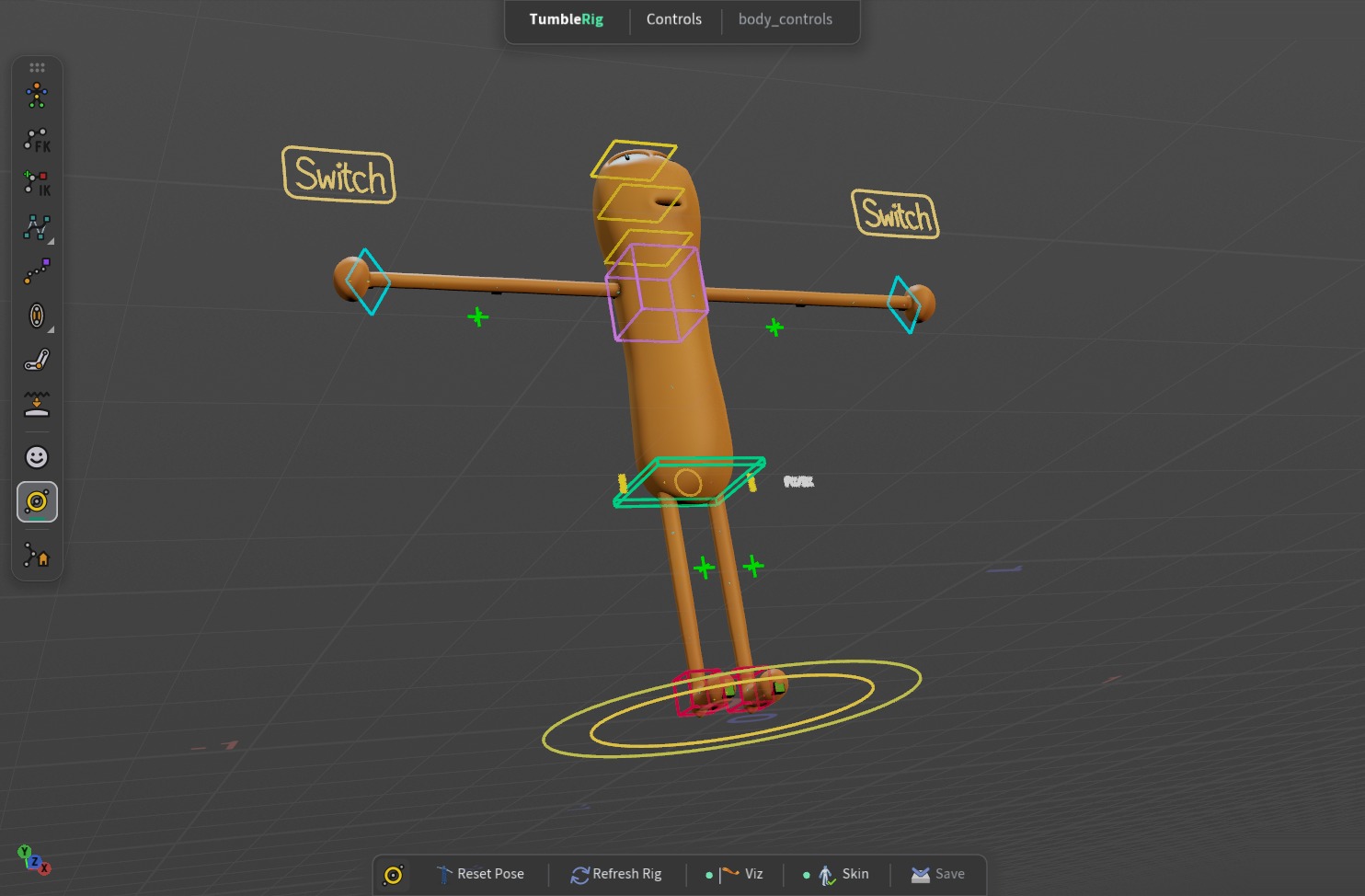
Wire your own shapes into the new Custom Control Shapes input and use them like the built-ins: here the noodle's FK/IK switch controls are the hand-lettered word Switch in a frame, floating beside each wrist.

  • Wire your shape geometry into apex_ctrls 2.0's Custom Control Shapes input (one piece per shape, named by its name attribute).
  • In the Animate state, open Quick Actions from the button row and select the controls to change.
  • Your shapes get their own row under CUSTOM · INPUT 2, with a dashed tile border; click one. It previews live and is sized like the built-ins.
  • Save (amber, with the count) keeps it; Discard reverts.
A control shape you can read: Switch. The noodle's two FK/IK switch controls are drawn as the hand-lettered word Switch in a rounded frame, floating beside each wrist; Main is back to a plain circle.
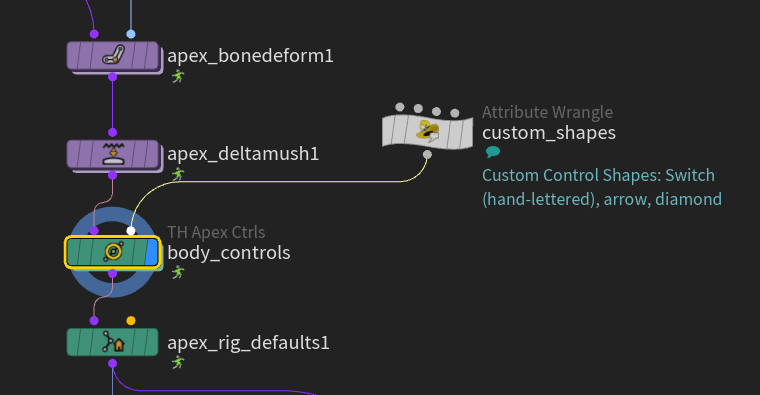
The shape library is a wrangle into apex_ctrls' second input. custom_shapes draws the Switch lettering, the arrow and the diamond as named polylines and feeds them to body_controls, the noodle's apex_ctrls, between apex_deltamush and apex_rig_defaults.
Node setup The shape library is a wrangle into apex_ctrls' second input. custom_shapes draws the Switch lettering, the arrow and the diamond as named polylines and feeds them to body_controls, the noodle's apex_ctrls, between apex_deltamush and apex_rig_defaults.
The lettered shape is a tile like any other. With l_wrist_FKIK selected the Quick Actions strip reads Shape Switch, and the Switch tile is picked in the Custom row, next to the arrow and the diamond from the same input.
Newth::apex_ctrls::2.0

Fit to Bone: control shapes that span their bone

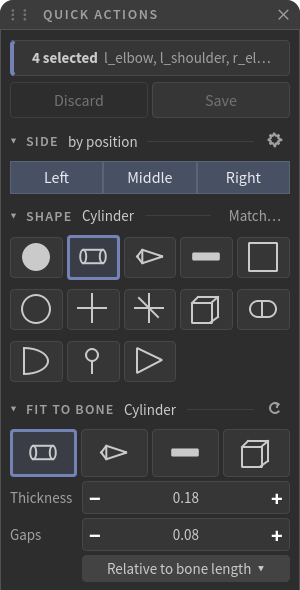
Pick Cylinder, Bone, Stick or Box and the selected controls stretch from their joint to the next, scaled to the bone with a gap at each end. Set it per Edits By Patterns row, or from the Fit to Bone section of the Quick Actions strip, which previews at once and saves into rows. Thickness is relative to each bone's length or one width in scene units.

Video Fit to Bone shapes follow their settings live. With the arm and leg controls selected, drag the Thickness field in the Quick Actions strip and every limb cylinder grows around its bone, thins down, then settles back.
Fit to Bone for four arm controls. Cylinder picked, Thickness 0.18 and Gaps 0.08 as centred step fields.
Newth::fit_skeleton::3.1

Fit Skeleton: handles you can grab, and a Fit panel

Fit Skeleton's handles were so small they hid inside the joints; now you can see and grab them, and the volume boxes draw. A Fit panel docks on the left of the viewport: pick a handle and it shows what that handle drives, with steppers and resets, and one Ctrl+Z undoes one drag. The parameter panel has a tab each for Body, Arm, Hand, Leg and Volumes, and 3.1 adds Elbow Position and a real heel joint.

Video Grab a handle and the skeleton fits to it. In the Fit Skeleton tool, click the hip handle and drag its arrow: Hip Width follows live and the skeleton redraws as you drag. The chest handle works the same way for Chest Height. Each time you let go, the panel shows the old and new value under Last Fit.
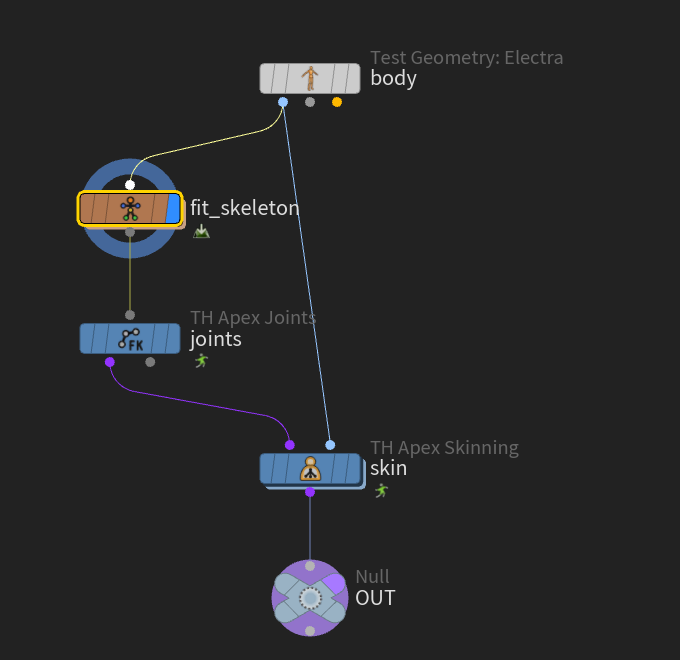
Fit Skeleton in its chain. The Electra test body goes into fit_skeleton, the fitted skeleton into apex_joints, and apex_skinning binds the body to it.
Node setup Fit Skeleton in its chain. The Electra test body goes into fit_skeleton, the fitted skeleton into apex_joints, and apex_skinning binds the body to it.
Updated

An empty Parent Control means Main

On apex_blendshapes, apex_eye_rig and apex_parent an empty Parent Control now attaches to the Main control, and a control name that does not exist warns and falls back to Main instead of failing.

Slider Parent Ctrl left empty.
An empty parent means Main. With Main selected, the Smile, Snout and brow sliders sit on it in the Animate state's channel panel.
Splines

apex_spline 6.0

A new curve that one middle control bends as a whole, and a ribbon that shows what it is doing.

Newth::apex_spline::6.0

Spline Display: see what the curve is doing

A ribbon along the spline shows what it is doing while you pose, picked from the Spline Display Tool Panel: Squash & Stretch colours it where the curve is pulled longer or pushed shorter, Twist shows the turn running down the chain, and Per-CV Value and Reach are one click away.

Video Spline Display: see what the spline is doing while you pose. Squash & Stretch colours the noodle's arm ribbon orange as the hand pulls it longer and blue as it pushes it shorter. Twist shows the turn running down the arm, and Per-CV Value shows a value along the chain. For Reach, pick one of the arm's layer CVs and the ribbon shows which joints it bends.
Newth::apex_spline::6.0

A calmer panel for a better curve

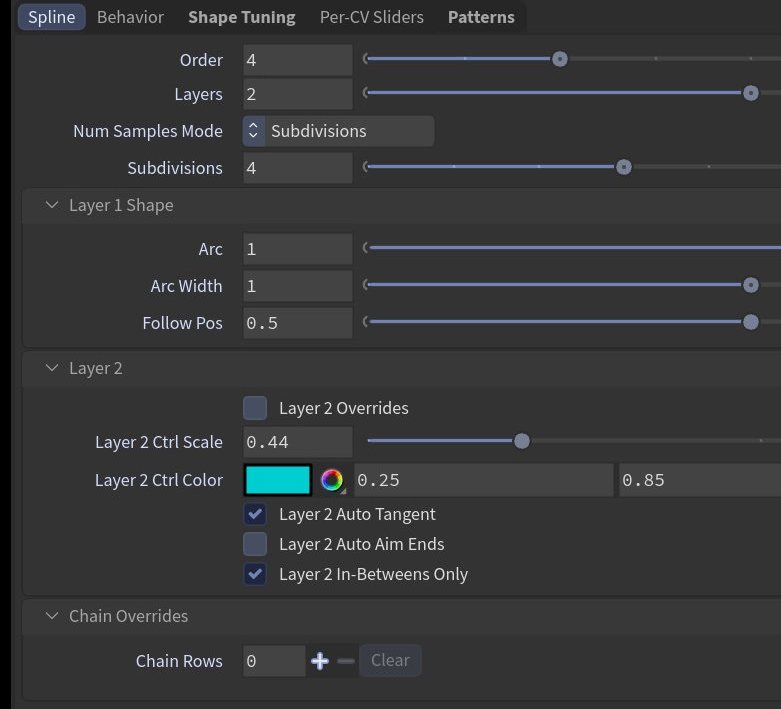
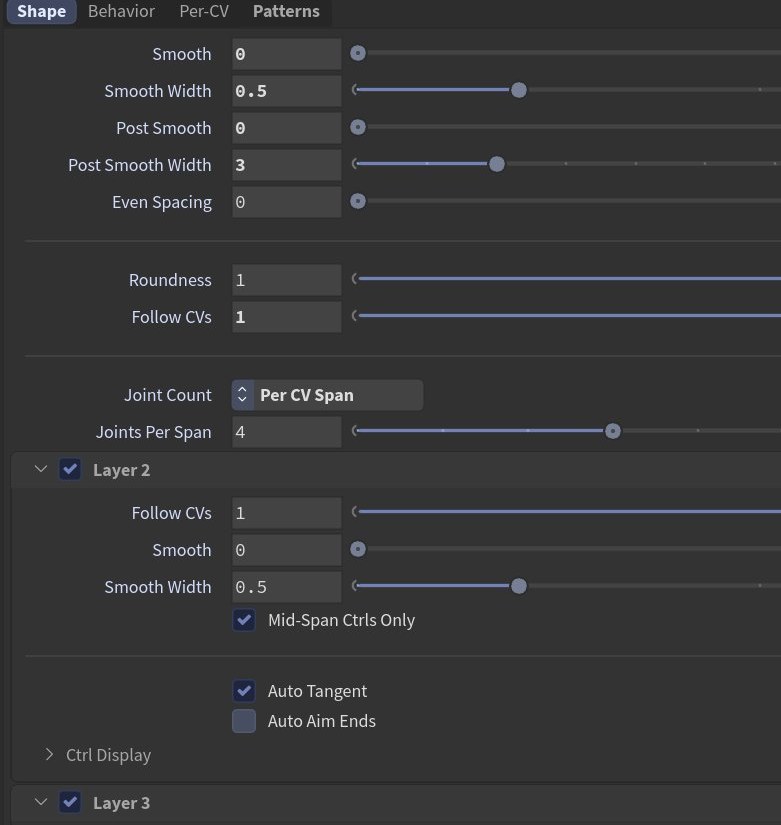
Shape is one tab with smoothing at the top. Layer 2 and Layer 3 are folders with a checkbox on the header. Roll is part of the rest pose, and fitting to a skeleton binds exactly with layers.

  • New nodes start on the settings tuned in the lab
  • Per-CV values reach the rest pose, so bind equals rest on curved chains
  • 5.1 stays installed and unchanged
  • Layer controls read at a glance: CV controls teal, Layer 2 orange and smaller, Layer 3 violet and smaller still
apex_spline 5.1: Spline tab.apex_spline 6.0: one Shape tab, smoothing first, Layer 2 and Layer 3 switched on from their folder headers.
Before apex_spline 5.1: Spline tab.Now apex_spline 6.0: one Shape tab, smoothing first, Layer 2 and Layer 3 switched on from their folder headers.
Switches and visibility

Show the right piece

Swap mouths, props and outfits by name or by one slider, and keep hidden pieces hidden.

apex_visibility 2.0apex_visibility 1.3apex_wrap 1.7
Newth::apex_visibility::2.0

Replacement (by Name)

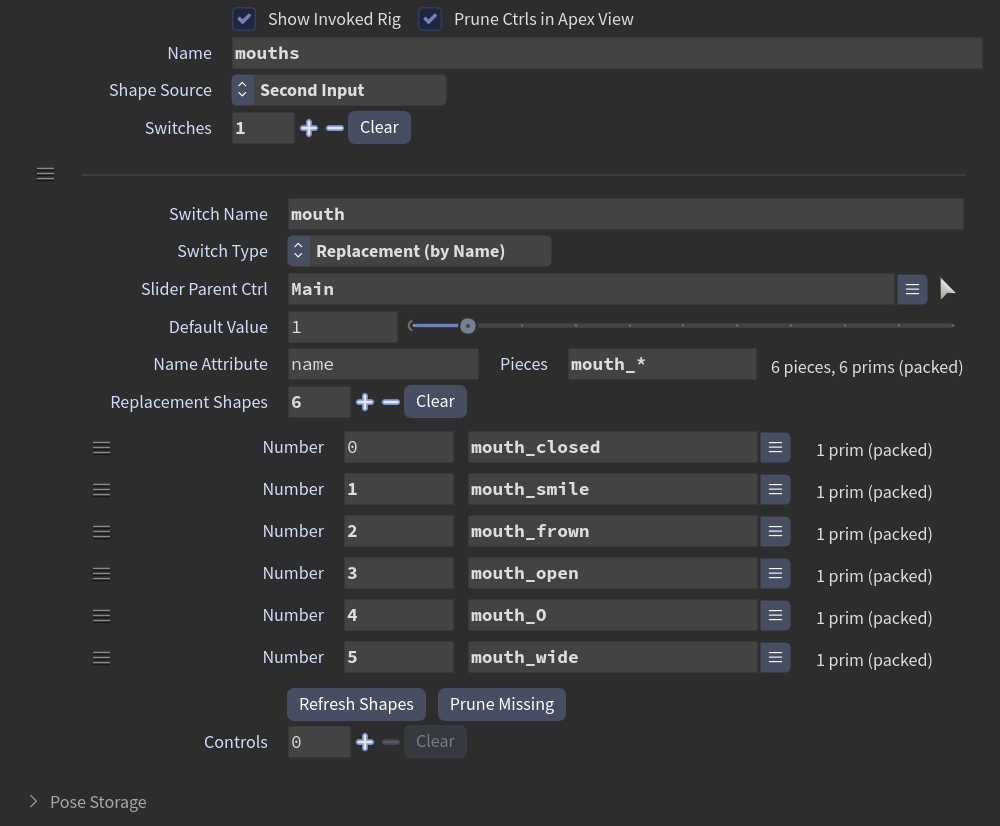
Show one piece at a time from a set, keyed by name. The table fills itself from the geometry, Refresh Shapes never renumbers so your keys keep their piece, and pieces can come from the character or from a second input.

Video Swap the mouth by name. The capsule cycles through its six mouths: closed, smile, wide, open, O and frown.
Video Key a replacement, scrub, and the mouth swaps. Pick a mouth in the Visibility panel and press Key, two frames apart for all six; then the twelve frames play back and the mouth swaps on its keys.
The Visibility panel lists every mouth by name. Click mouth_smile and the capsule smiles; the lit row, the header and the hint line all name what is showing.
The Replacement table fills itself. Refresh Shapes lists the six packed pieces, numbered 0 to 5, each 1 prim (packed); Shape Source reads Second Input.
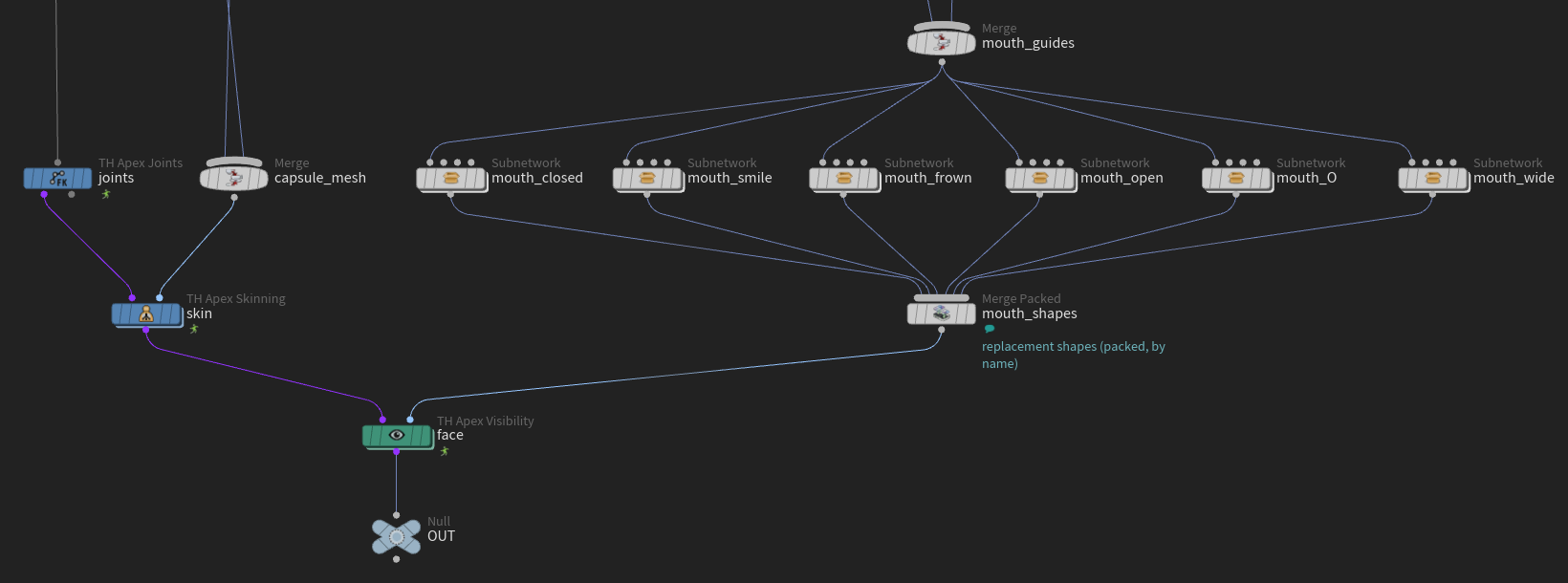
The wiring under the mouths. joints and capsule_mesh go into apex_skinning, the six mouth subnets are merged as packed shapes into face's second input (replacement shapes, packed, by name), and face goes to OUT.
Newth::apex_visibility::1.3

Slider index switching

Switch between shapes with one slider: each row lists the numbers it shows at (3, 2-4), or every piece of a stream becomes a shape. Shapes can come from a second input.

01 · hat2 · hat + bow tie
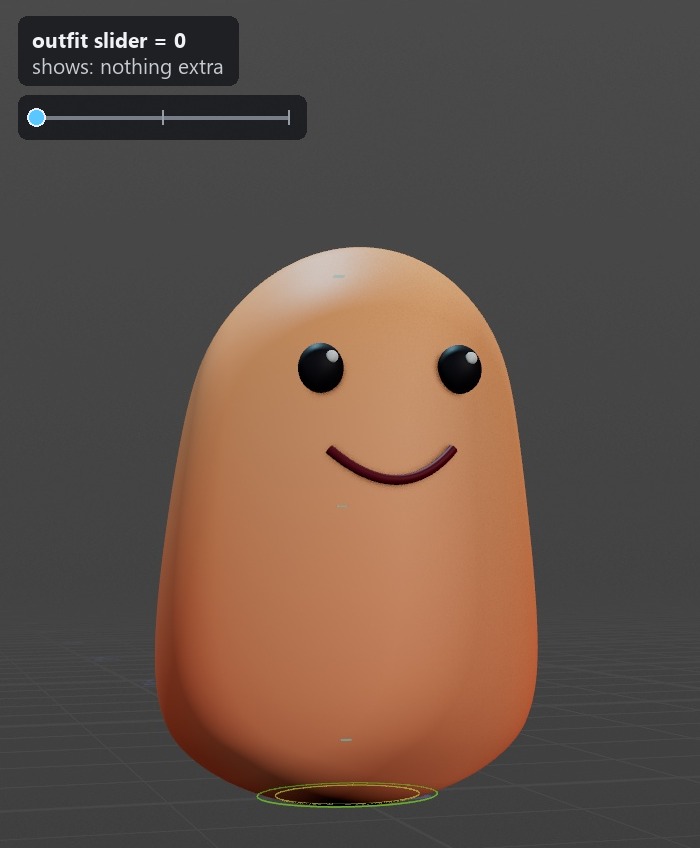
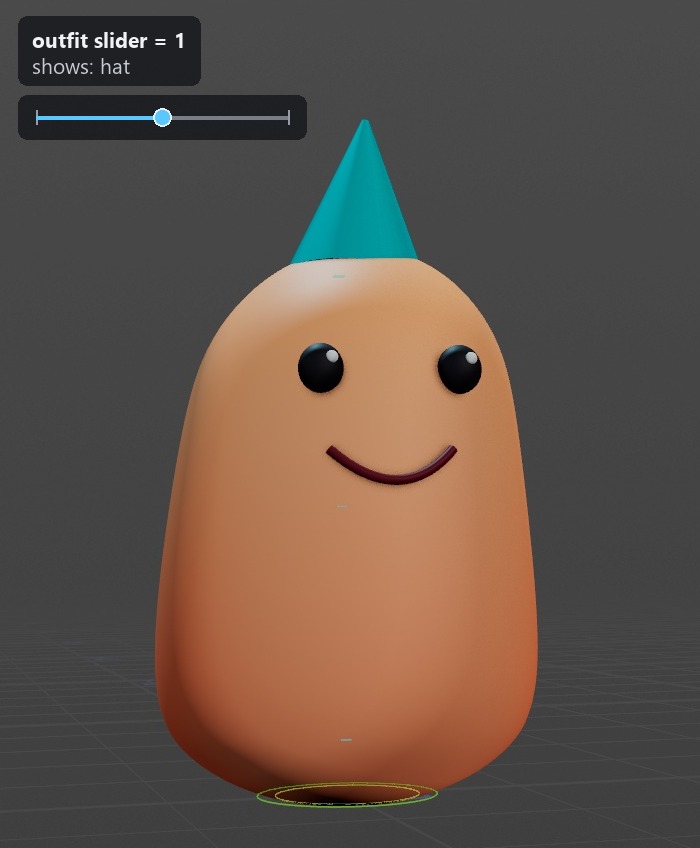
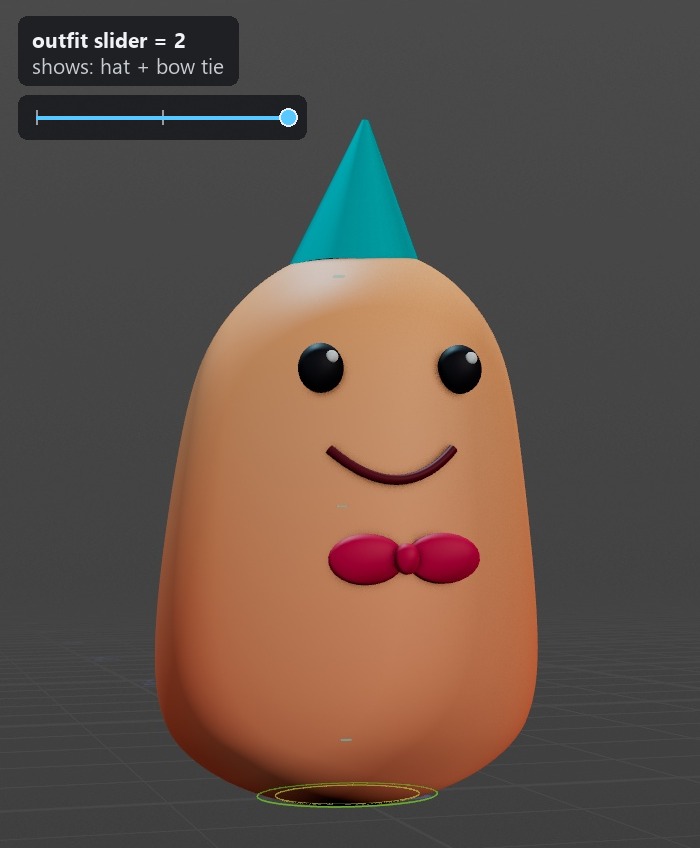
One slider, three outfits. Index 0 shows nothing extra, 1 the hat, 2 the hat and the bow tie: a row can list several numbers, so the hat stays on at 2.
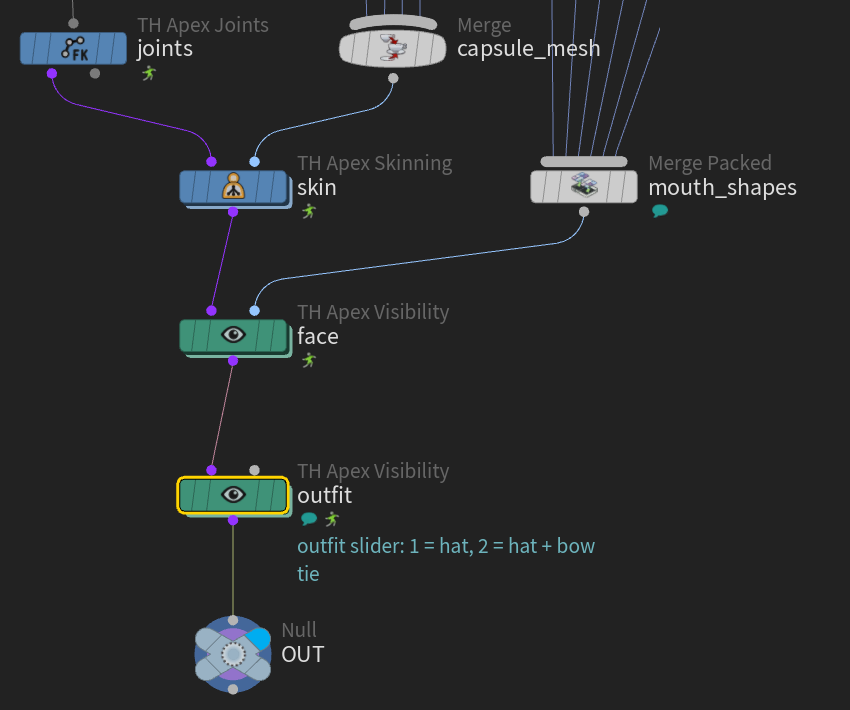
Two apex_visibility nodes in a row. face swaps the mouths; outfit is a slider switch: 1 = hat, 2 = hat + bow tie.
Node setup Two apex_visibility nodes in a row. face swaps the mouths; outfit is a slider switch: 1 = hat, 2 = hat + bow tie.
Fixedth::apex_wrap::1.7

Hidden stays hidden through apex_wrap

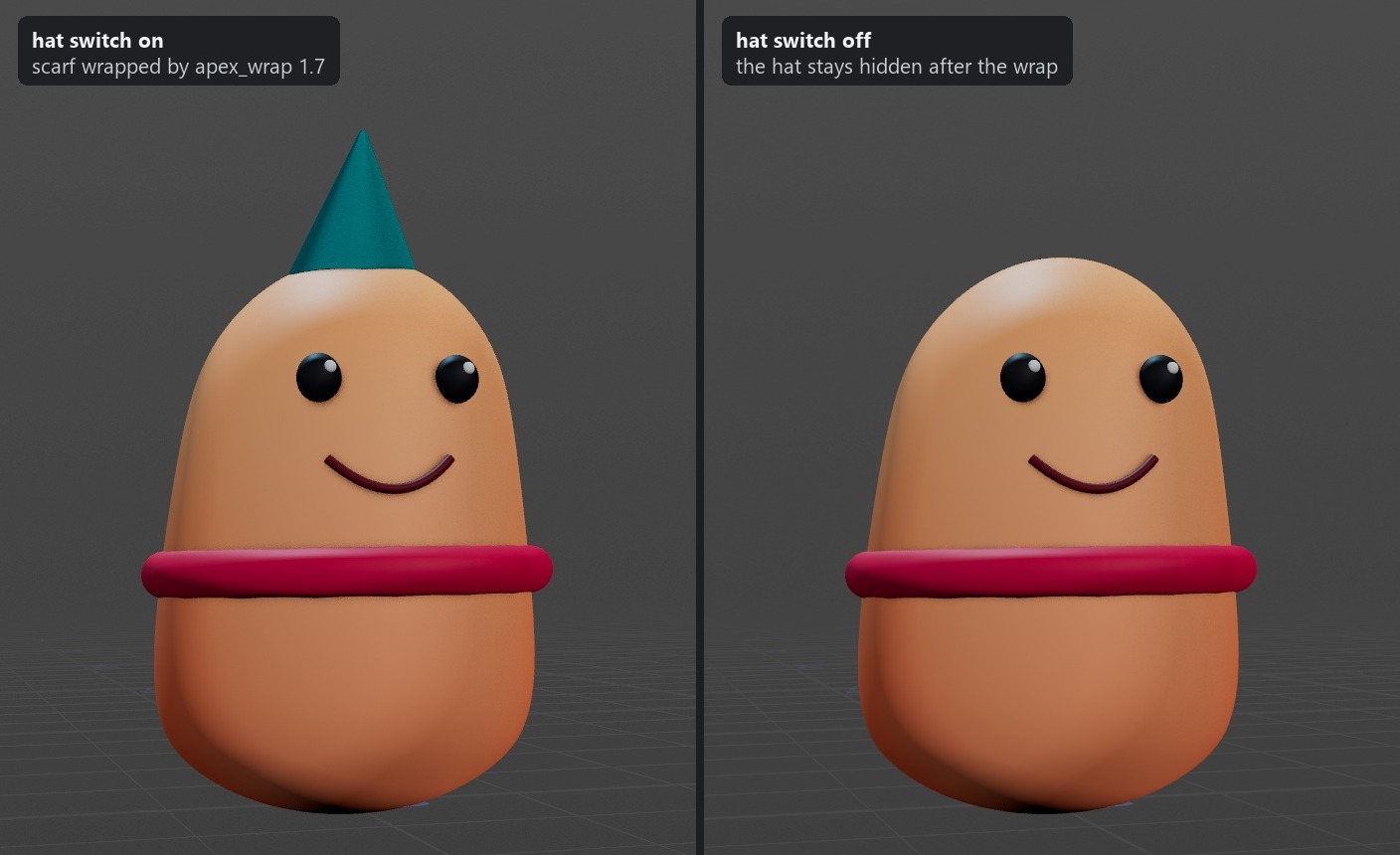
Shapes hidden by a visibility switch no longer reappear when apex_wrap deforms their stream.

Hidden stays hidden through apex_wrap. The capsule's party hat is switched off by apex_visibility; a scarf is wrapped onto the body further down the chain by apex_wrap 1.7, and the hat stays hidden.
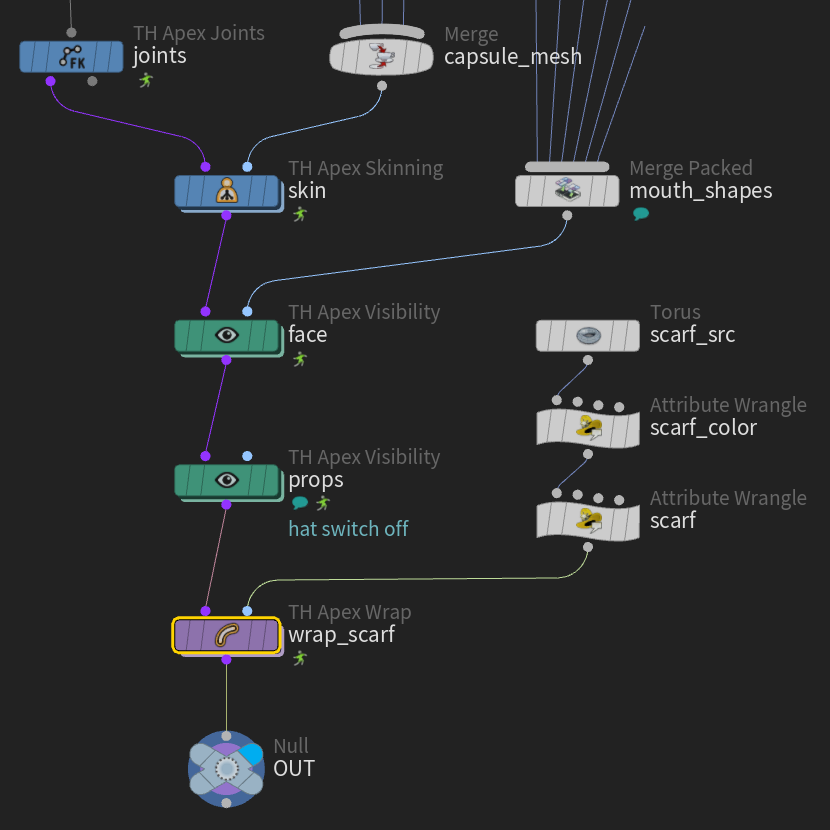
apex_wrap after an apex_visibility that hides the hat. props switches the hat off, wrap_scarf binds the scarf to the character and keeps the hat hidden.
Node setup apex_wrap after an apex_visibility that hides the hat. props switches the hat off, wrap_scarf binds the scarf to the character and keeps the hat hidden.
Faces

Shapes and sliders

apex_sliders 2.0apex_blendshapes 3.0
Updatedth::apex_sliders::2.0

Any slider can be a joystick

Set a slider row's Slider Type to Viewport Joystick on apex_sliders (on apex_blendshapes 2.4 it is the shape's Control menu) and the row becomes a handle in the viewport, next to the control it belongs to. Keys read the same values as the slider.

Video Any slider can be a joystick. Two apex_sliders rows set to Viewport Joystick stand beside the capybara's head as handles in rounded frames. Grab one and drag it up its frame, and that corner of the mouth smiles; drag it back and it relaxes. The handle stops inside the frame at both ends, and it stores the slider's own number (0 to 2 here), so its keys read the same as a channel slider's.
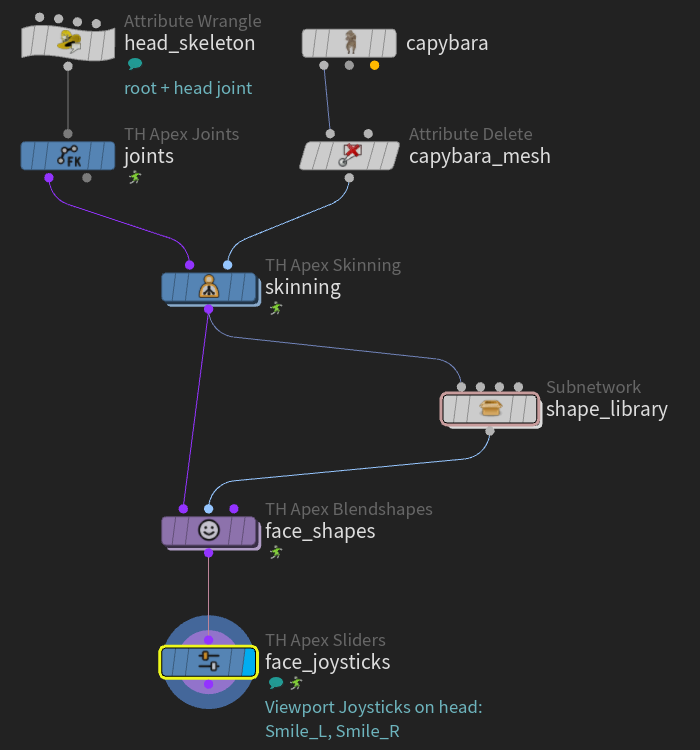
The setup. face_joysticks (apex_sliders) comes after face_shapes (apex_blendshapes). Its two rows are Viewport Joysticks on the head control, wired to the blendshapes' weight_Smile_L and weight_Smile_R inputs.
Node setup The setup. face_joysticks (apex_sliders) comes after face_shapes (apex_blendshapes). Its two rows are Viewport Joysticks on the head control, wired to the blendshapes' weight_Smile_L and weight_Smile_R inputs.
Newth::apex_blendshapes::3.0

Blendshapes 3.0: one channel per shape

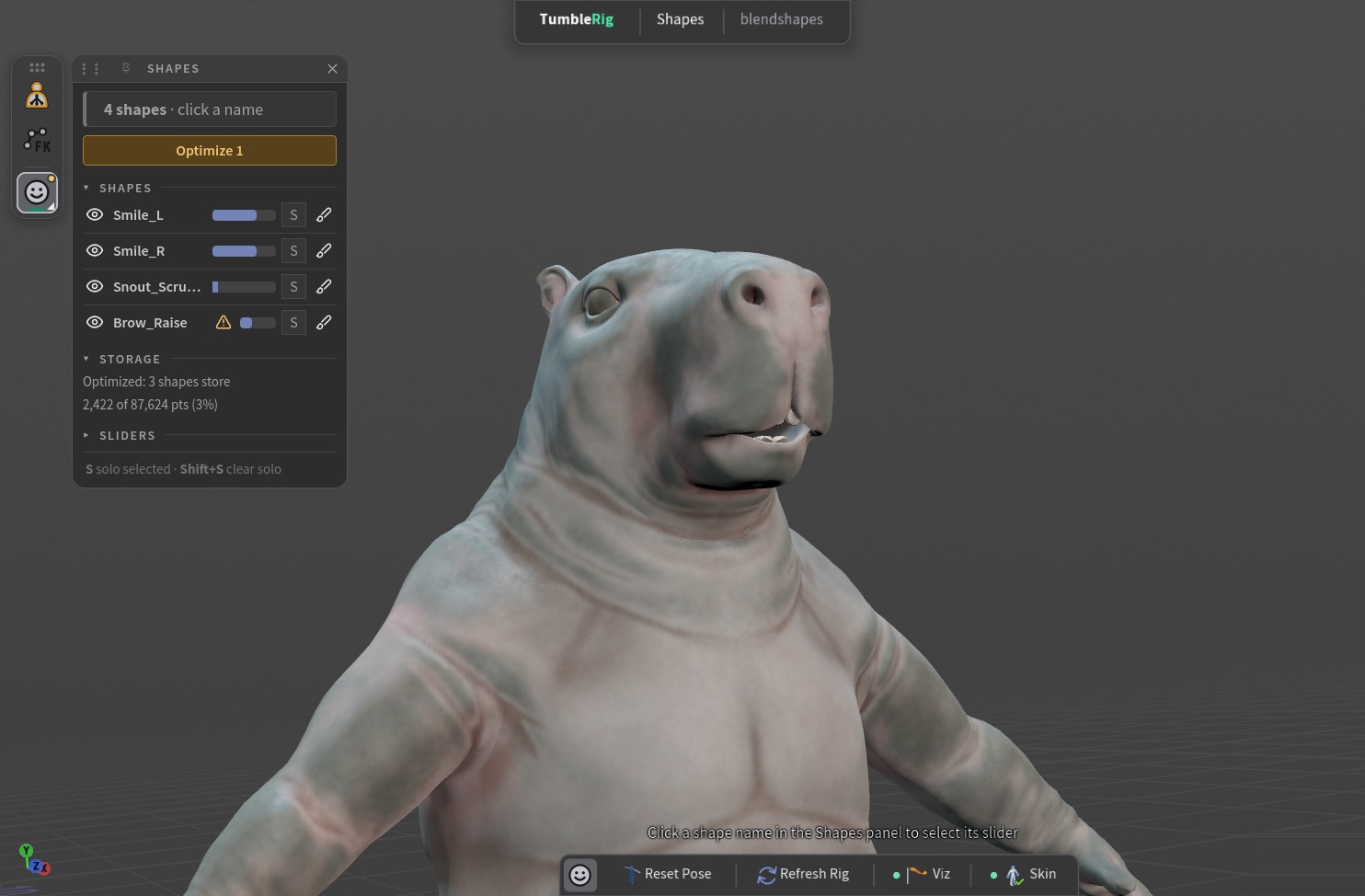
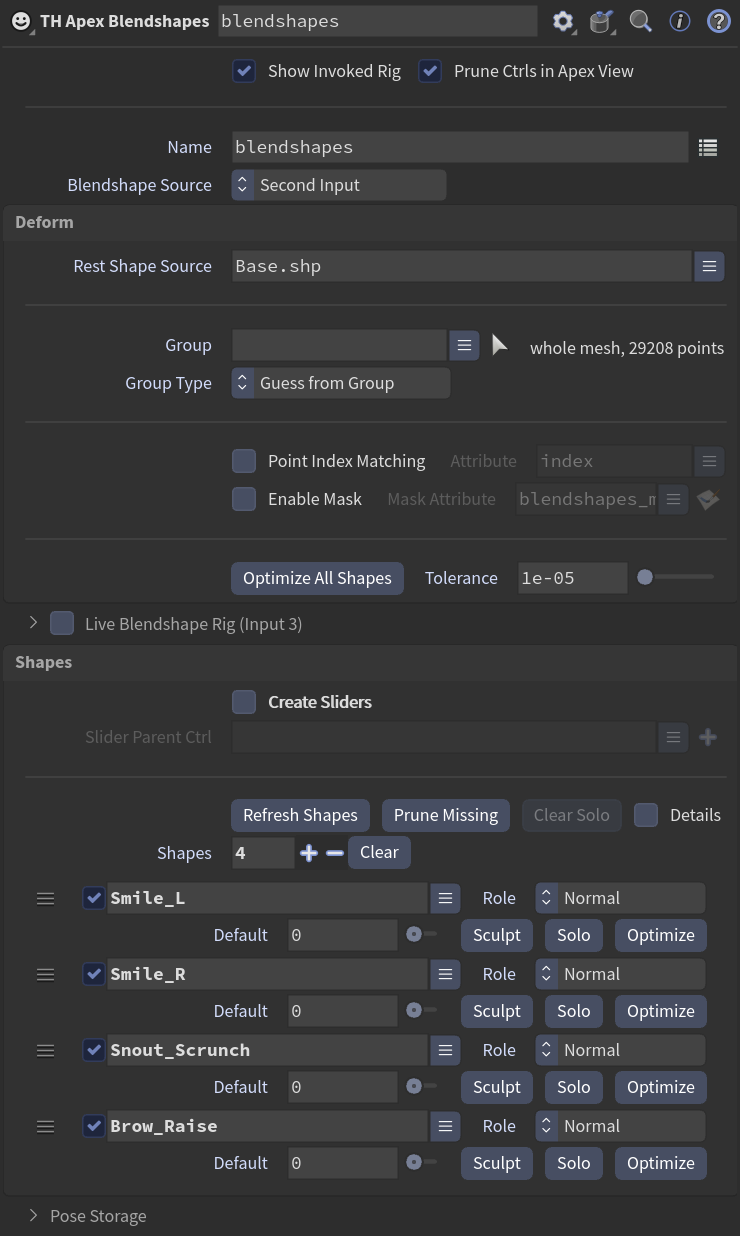
Each shape row is a name, a role and a default, with Sculpt and Solo on the same line. Shared Slider and the per-row joystick are gone: every shape drives its own channel, and its Range sets how far its slider goes, 0 to 2 to push a smile past its sculpt. Turn Create Sliders off when another node drives the channels. Optimize stores each shape trimmed to the points it moves: on the capybara the four shapes keep 4,552 of their 116,832 points (4%) with the same result. New shapes, or shapes sculpted again, are carried whole and flagged until you press Optimize.

  • The blendshape tool gets a Shapes panel on the left of the viewport: one line per shape with an on/off eye, a value you drag or type, Solo and Sculpt; click a name to select its slider, and its row lights up.
  • An amber Optimize button and a warning icon per row show which shapes the rig still carries whole, like unsaved edits; one click stores them trimmed, and every click is one undo step.
Video Press Optimize and the grey rest copies vanish. The cursor clicks Optimize 4; the panel flips to All optimized while only the orange points of Smile_L stay stored.
Shapes tool in Animate. The Shapes panel opens beside the icon bar while the capybara smile and brow sliders are posed; one shape still waits to be optimized.
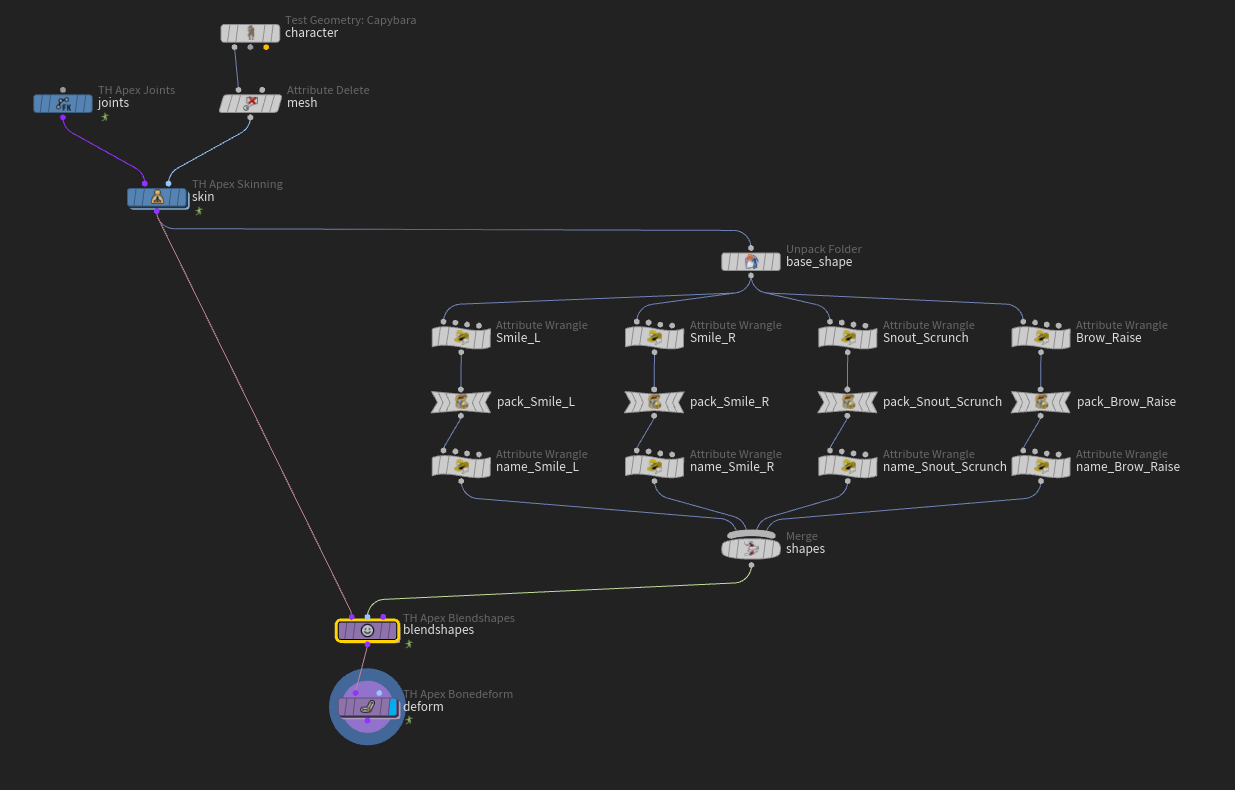
Blendshapes wiring. Four sculpted shapes are packed, named and merged into apex_blendshapes' shape library input, between apex_skinning and apex_bonedeform.
Node setup Blendshapes wiring. Four sculpted shapes are packed, named and merged into apex_blendshapes' shape library input, between apex_skinning and apex_bonedeform.
Optimize is a button, not a setting. Deform ends with Optimize All Shapes and its Tolerance, every shape row has its own Optimize next to Sculpt and Solo, and Padding, Bake and the Optimize toggle are gone.
Capture and deformation

Capture you can see and trust

cuda_joint_capture 1.0joint_cages 1.0
Updatedth::cuda_joint_capture::1.0

Mask a capture with any geometry

Wire a box or any shape into the new Mask Geometry input to limit where joints capture. The input is red on the node, the red the mask overlay paints, so it reads as the mask it makes. The node's viewport state has one-click Capture Weights and Mask views, Mirror Capture copies one side to the other, and a capture that would not fit on the graphics card now stops with a message instead of taking the machine down.

Video Resize the mask and the capture follows. Dragging the box out along the arm hands more of the arm to the hand joints, so apex_bonedeform turns it with the hand; pull it back and only the hand follows.
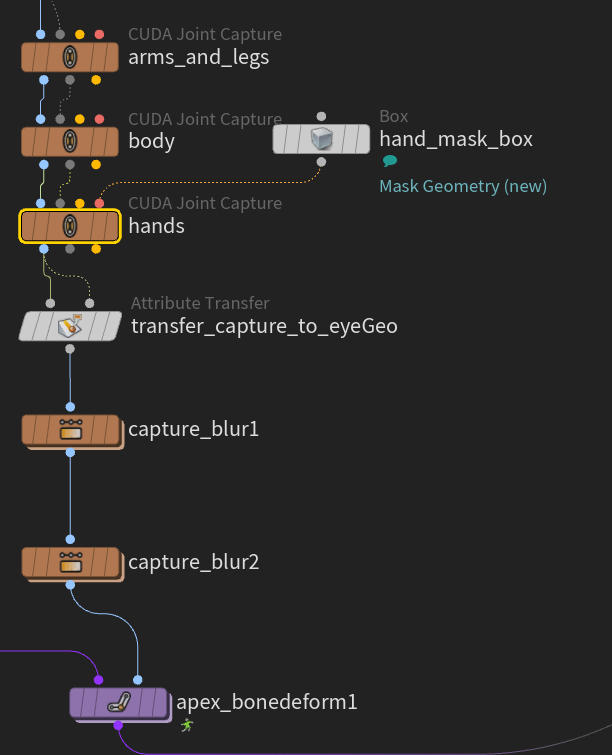
The mask box on the hands capture. hand_mask_box goes into the hands capture's new Mask Geometry input, drawn red like the mask overlay; the capture then runs through the noodle's transfer and blurs into apex_bonedeform.
Node setup The mask box on the hands capture. hand_mask_box goes into the hands capture's new Mask Geometry input, drawn red like the mask overlay; the capture then runs through the noodle's transfer and blurs into apex_bonedeform.
Newth::joint_cages::1.0out since 1.12.5

Joint cages: capture you shape by hand

The problem: automatic capture guesses where each joint's influence ends, so a spine joint grabs belly points or a hip reaches into the thigh, and fixing that means painting weights. joint_cages gives every bone a cage, a volume you can see, and Joint Capture captures exactly what is inside it. Wire it before cuda_joint_capture, then scale and move the cages in the viewport until the capture reads right: handles along the bone move a whole run of cages at once, and one Ctrl+Z undoes a drag.

  • Where the cage sits is where the crease sits: fit it to the skin for a clean fold, slide it along the bone to move the crease, scale it to take in more or less.
  • Cages are shaded the same on both sides, with a teal stick handle along each bone and a pink bead per cage; a cage you turn is captured exactly as its handle shows.
  • The panel's Radius, Length, Slide, Side and Twist are scrub fields: drag one and the cage follows, or click it and type a value.
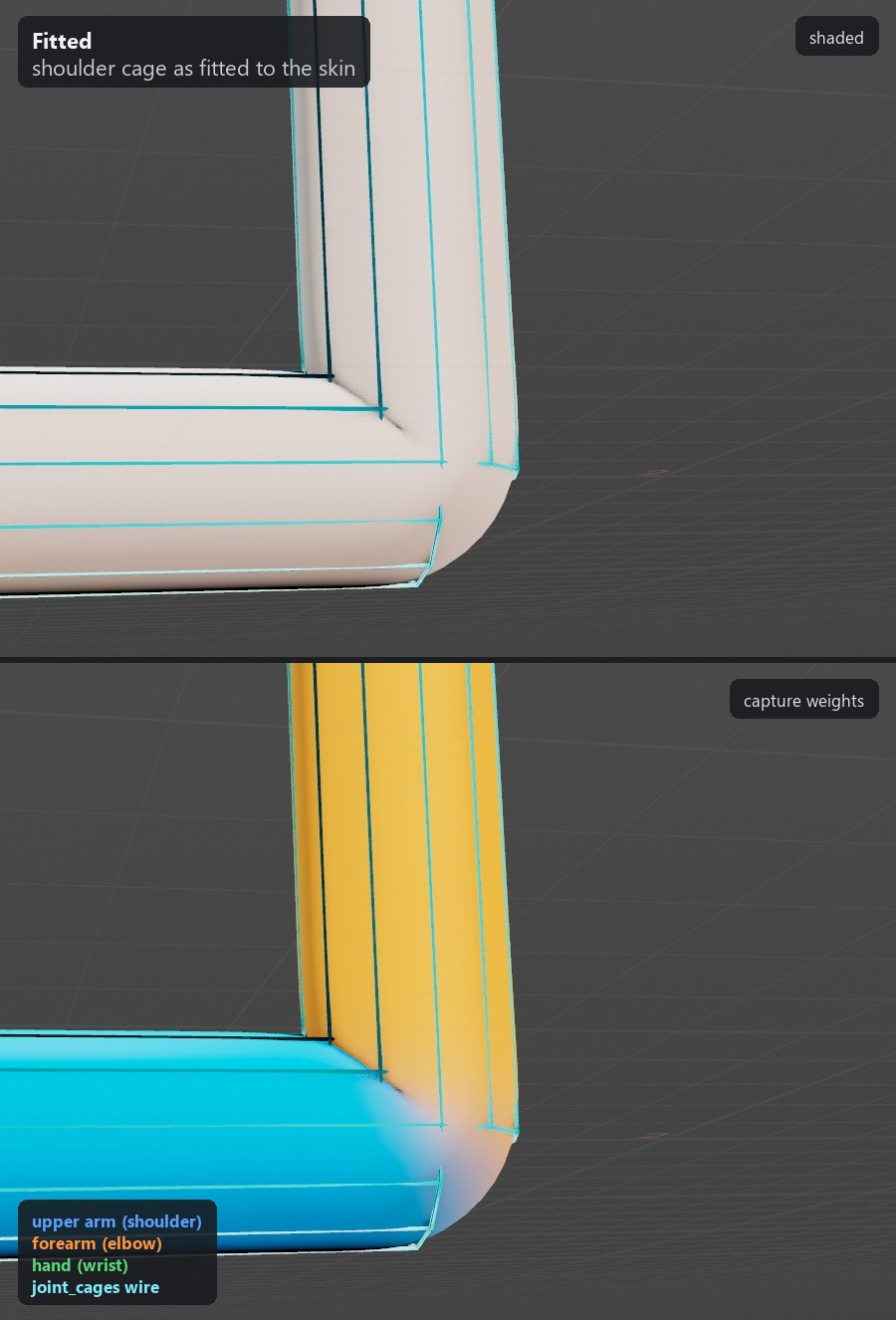
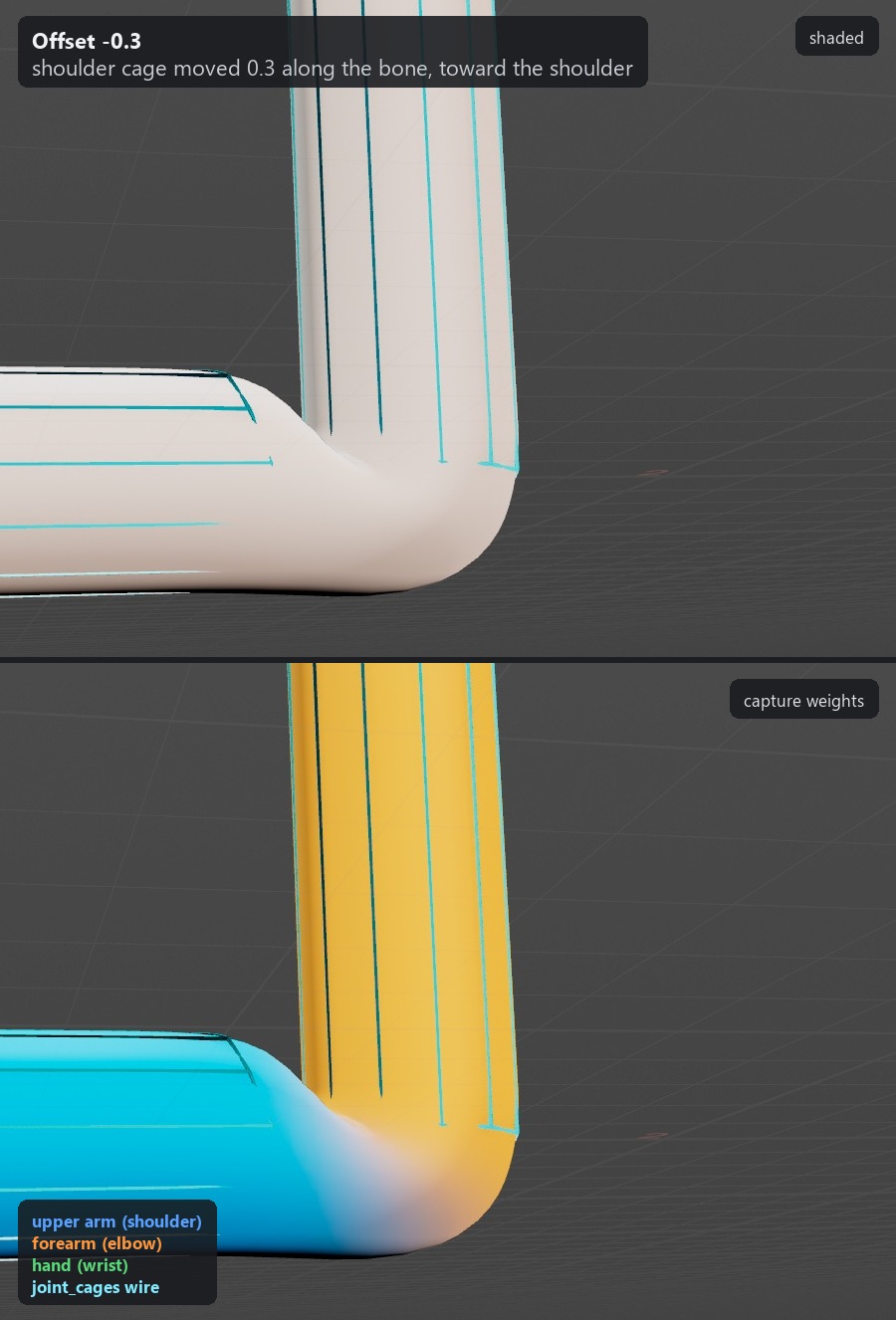
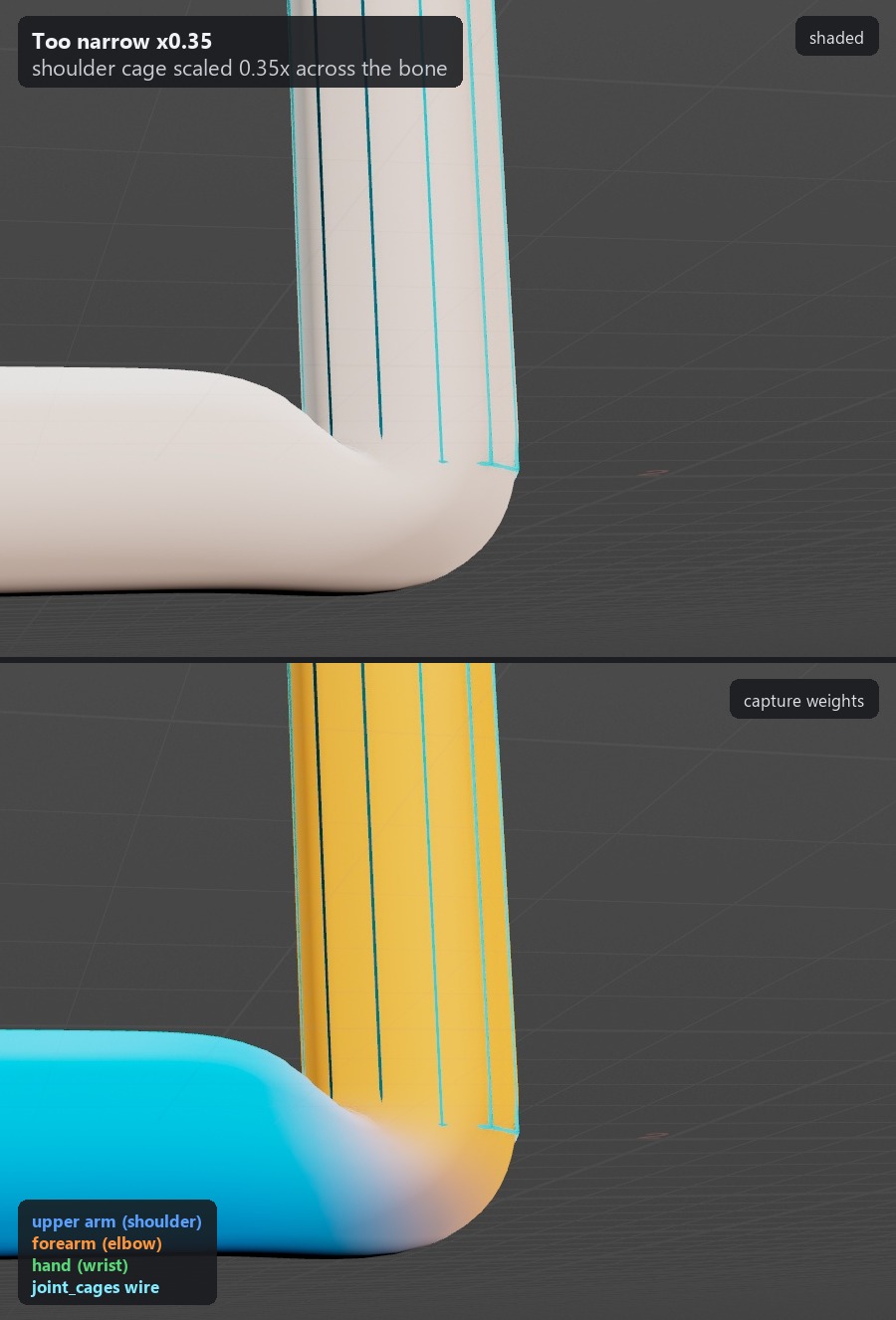
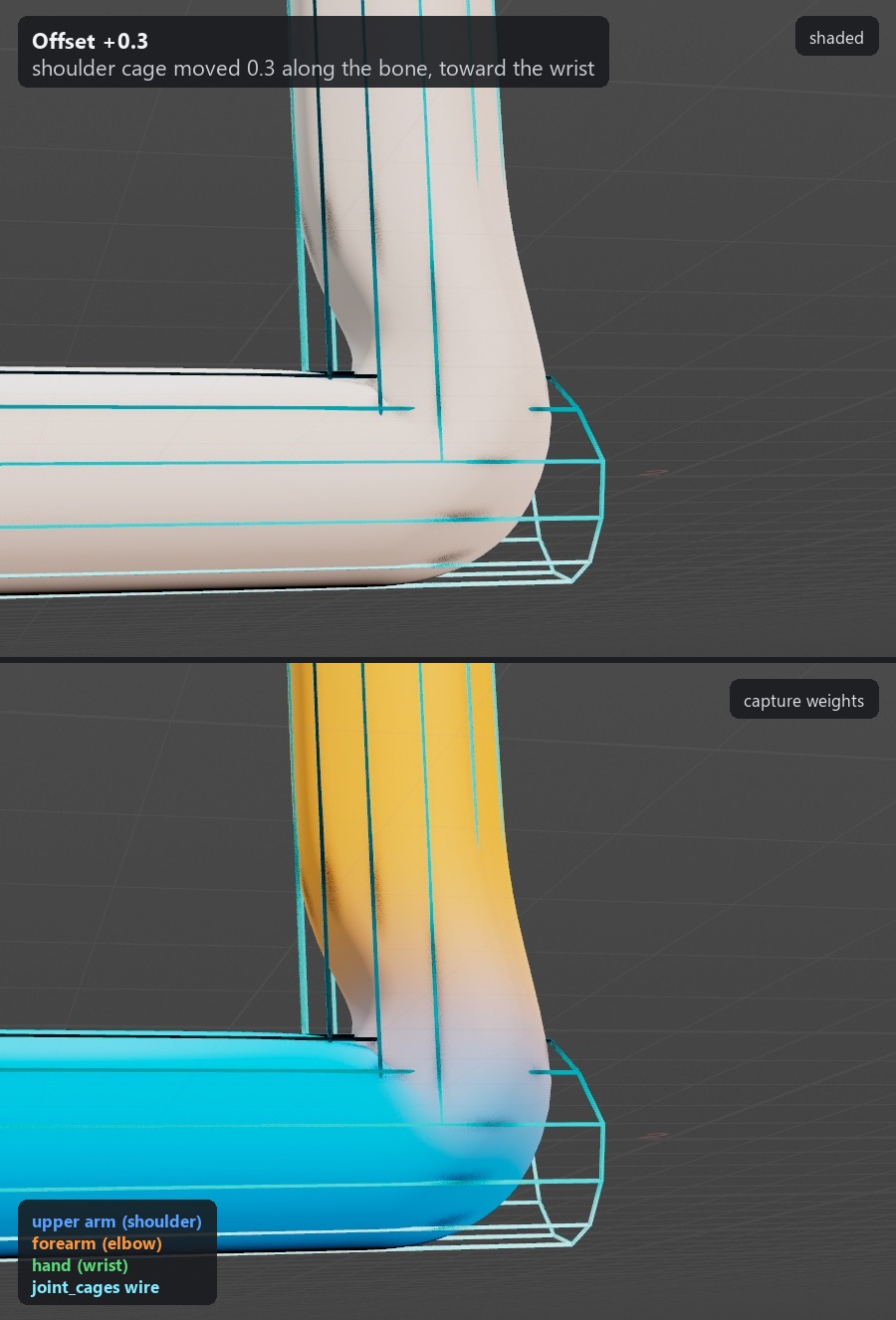
FittedToo wideToo narrowToward wristToward shoulder
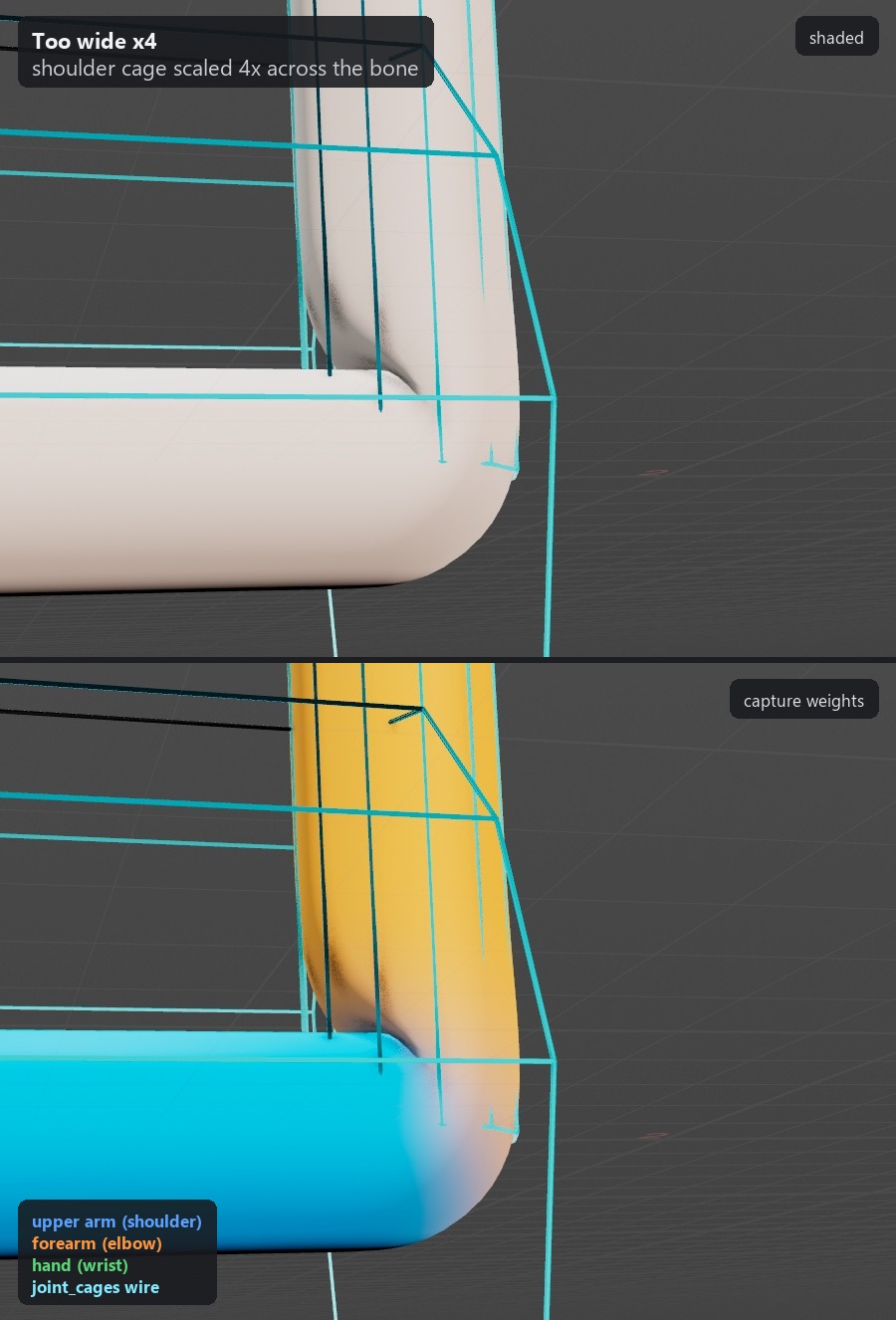
One elbow, five cages. The same arm bent to 90 degrees, shaded on top and captured below: the fitted cage folds cleanly; too wide, the upper arm reaches into the forearm; too narrow, the crease goes soft; slid toward the wrist or the shoulder, the crease moves with it.
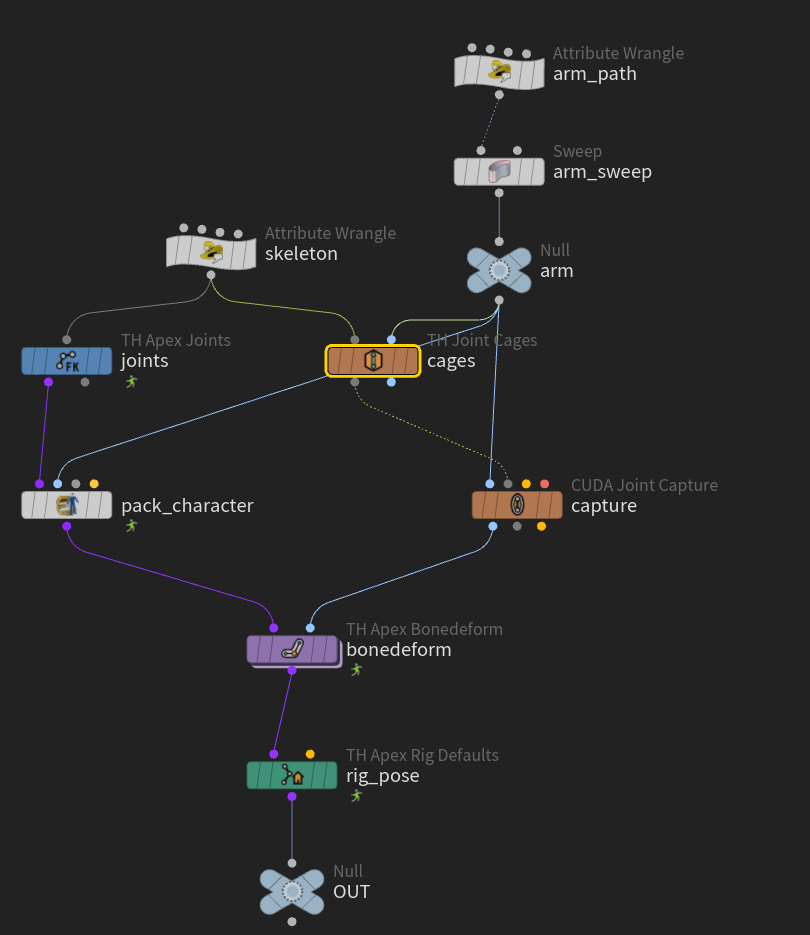
Cages on the APEX chain. The skeleton feeds apex_joints and joint_cages (selected); the cages go into cuda_joint_capture's Capture Pose input, and the captured arm into apex_bonedeform after APEX Pack Character; apex_rig_defaults holds the pose.
Node setup Cages on the APEX chain. The skeleton feeds apex_joints and joint_cages (selected); the cages go into cuda_joint_capture's Capture Pose input, and the captured arm into apex_bonedeform after APEX Pack Character; apex_rig_defaults holds the pose.
Video Bend the elbow with a fitted cage, then with one 4x too wide. The rig bends the arm 0 to 100 degrees and back through apex_bonedeform: the fitted cage folds cleanly, the wide one lets the upper arm push into the forearm.
Video Drag to scrub, click to type. Drag the Radius field out and back and the elbow cage swells and settles; click Length, type 1.5, press Enter and the cage stretches along the bone.
Parameter panels

Tidier parameter panels

Over forty nodes got help on every setting, steps in the order they run and a match count next to every group field. Nothing is renamed, so saved scenes open unchanged.

Updated

Panels that explain themselves

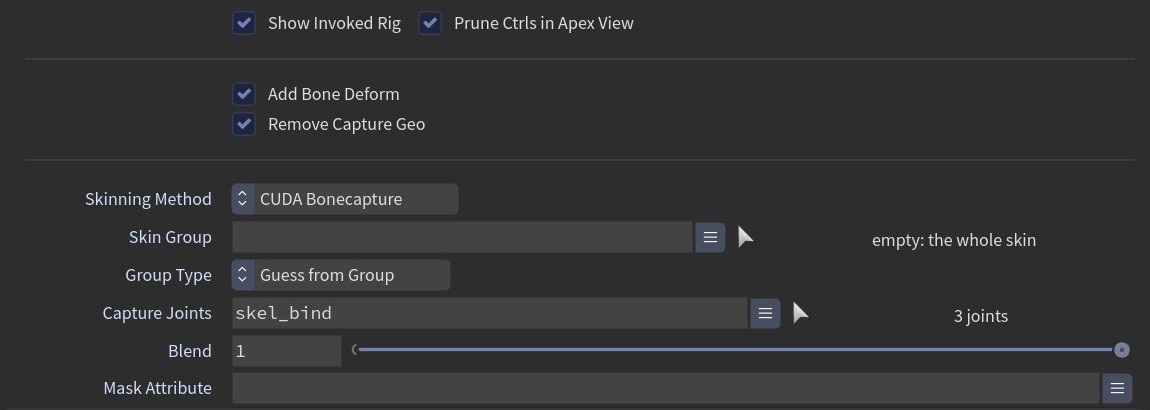
A label beside each group field reads "3 joints" or "matches nothing" before anything cooks, and the animator nodes list each driver before what it drives.

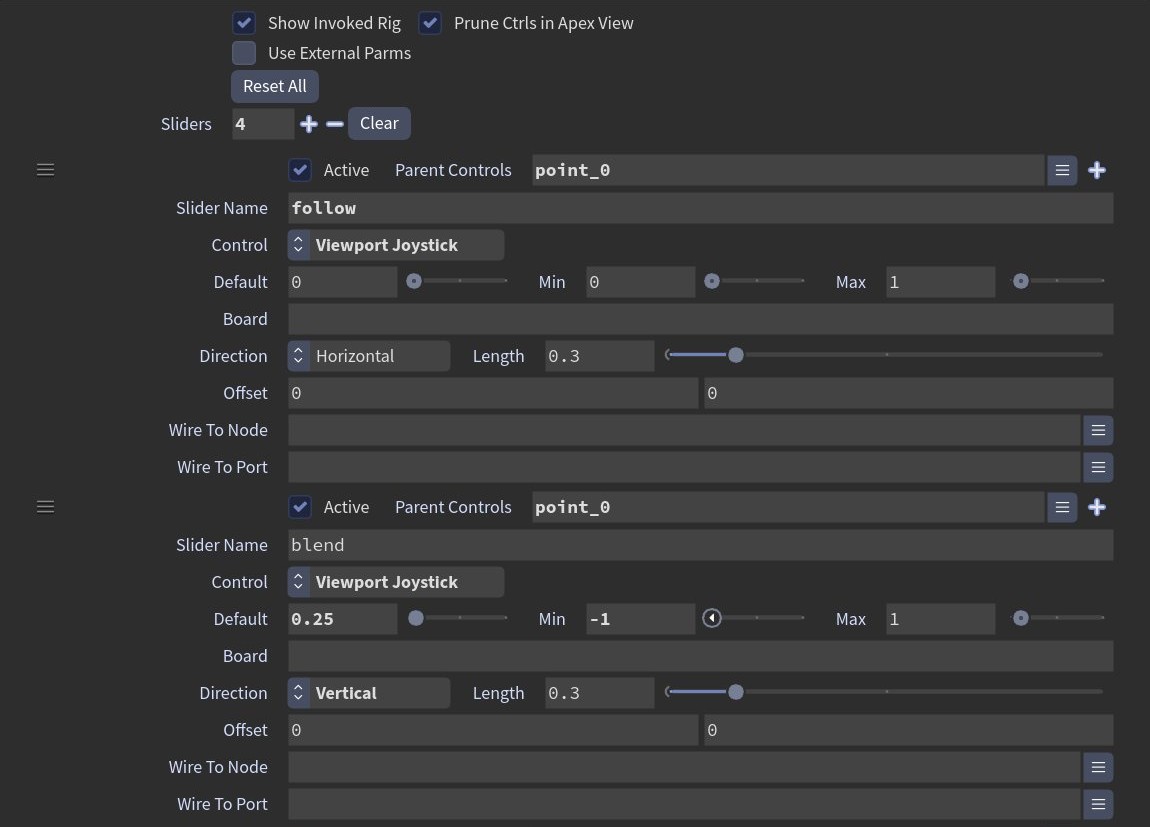
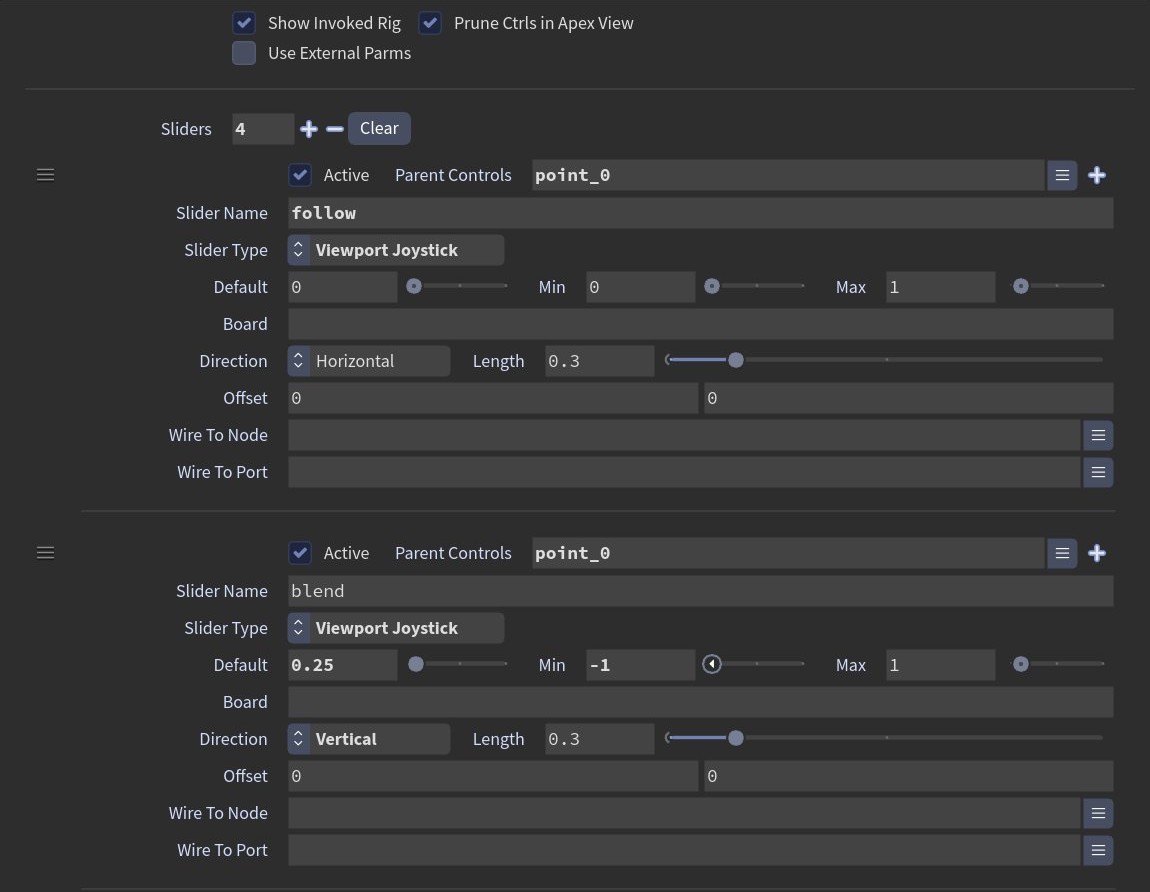
Four slider rows run together.Each slider row is its own block.
Before Four slider rows run together.Now Each slider row is its own block.
Skinning. Match counts next to Skin Group and Capture Joints; the GPU capture settings laid out like Joint Capture.
Finding things

Nodes you recognise

apex_rigExample_noodle 1.1skeleton_doctor 3.0
Updated

TumbleRig in the Asset Browser

With TumbleTrove installed, every TumbleRig node has a card in the Asset Browser under one Nodes section, filed by what it does, filterable by tags such as adds controls or GPU, with Recipes of saved node setups. A new Changelog section holds every example on this page, release by release: drag one into a network and it works, with a note on what to try. With the next TumbleTrove update the cards draw each node as it looks in the network: its colour, its icon and its inputs and outputs.

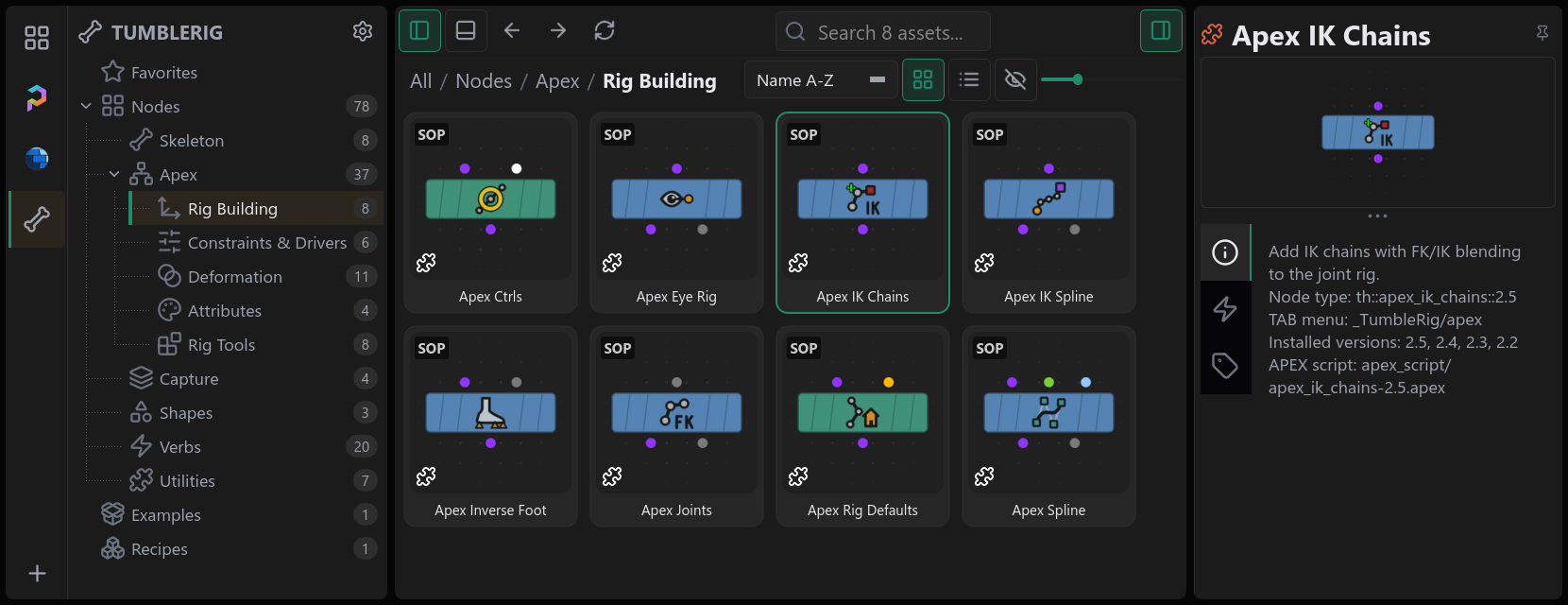
TumbleRig in the Asset Browser, drawn as nodes. Each card shows the node as it looks in the network: its colour, its icon and its inputs and outputs. Here the Nodes section is open at Apex > Rig Building, with Apex IK Chains selected and its details on the right.
Updated

A new icon for every node

Every TumbleRig icon is redrawn to show what the node works on and the controls it builds: a foot with its pivots, an eye aiming at a target, the IK pole beside the bend, fit handles in their region colours, a cage with its handle. Joints are light-grey rings, orange marks the one thing a node adds, and the nodes take a calmer palette (sage, clay, blue and violet at one brightness) with each icon's lights tinted to its node.

  • Inputs and outputs are coloured by what they carry: purple for the rig, blue for geometry, orange for a pose, grey for the rest skeleton, green for a spline and red for a mask, on every TumbleRig node in the network editor.
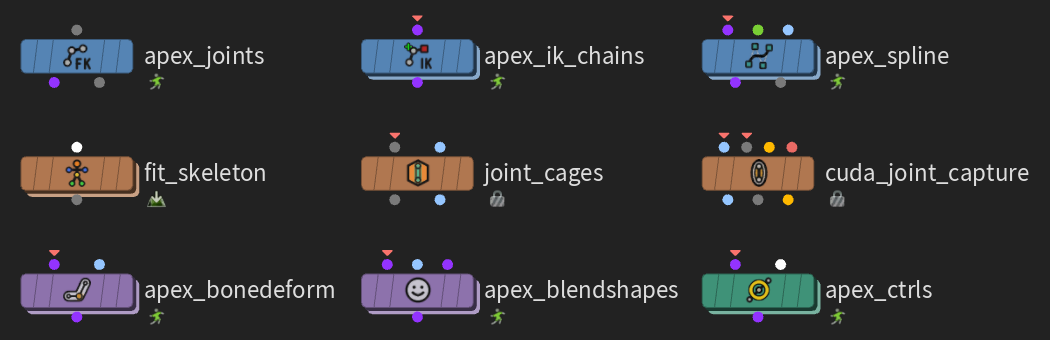
Nine free TumbleRig nodes in the new palette. Rig builders in blue, build utilities in clay, deformers in violet and controls in green, each with an icon that draws the controls the node builds.
Updatedth::apex_rigExample_noodle::1.1

The noodle example on the newest nodes

The noodle example rig now uses the newest joints, IK chains, IK spline and controls nodes. It deforms exactly like 1.0, which stays installed for scenes built on it.

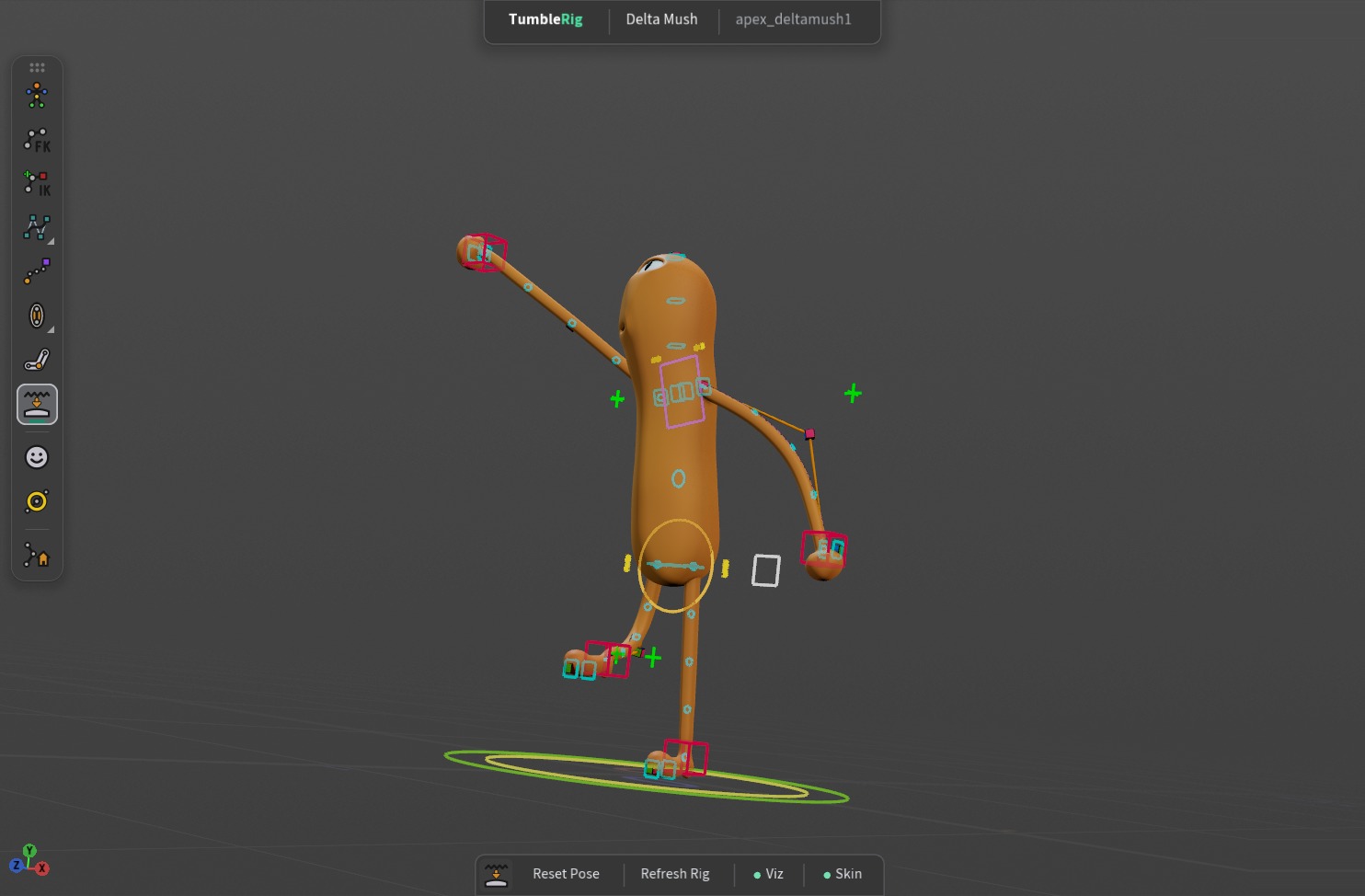
The noodle example in the Animate state. Posed through its controls: one hand reaching forward, the other swinging back, the chest twisting, the head turned and a knee lifted in a step. The FK boxes now show at their fixed size.
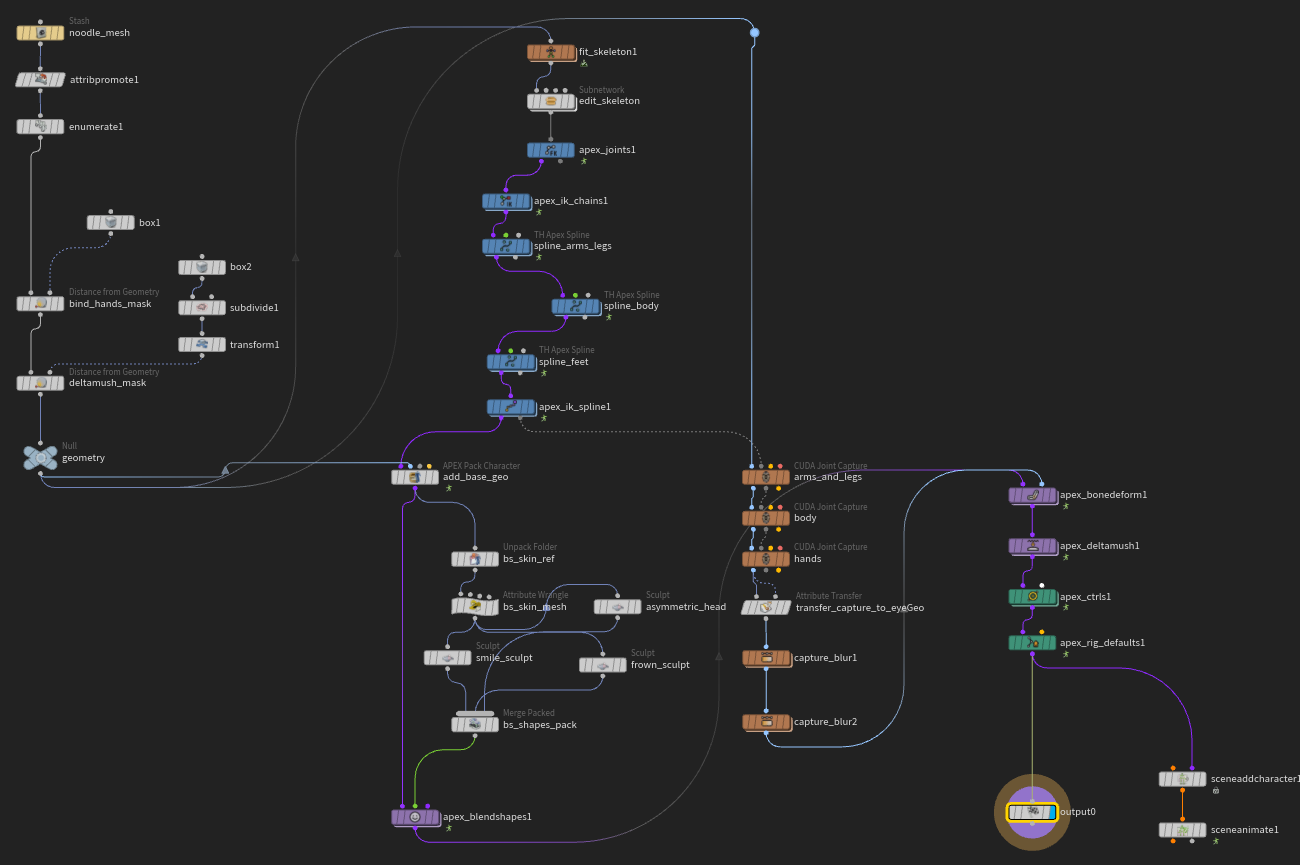
The noodle example's whole rig. Mesh prep on the left, the skeleton chain (fit_skeleton, apex_joints, IK chains, splines) in the middle, the captures on the right into apex_bonedeform, deltamush, controls and rig defaults.
Node setup The noodle example's whole rig. Mesh prep on the left, the skeleton chain (fit_skeleton, apex_joints, IK chains, splines) in the middle, the captures on the right into apex_bonedeform, deltamush, controls and rig defaults.
Updatedth::skeleton_doctor::3.0

Mirror Direction

Pick whether the skeleton mirrors right to left or left to right.

Fixed

Fixes you will notice

apex_set_driven_keys 1.0apex_eye_rig 1.1apex_blendshapes 3.0
Fixedth::apex_set_driven_keys::1.0

Driven keys: clips on one control add together

Two Animation Clip rows on the same control now add together, the way Rig Defaults rows already do, and so do two Set Driven Keys nodes in a row that both play a clip on it. Before, the last one replaced the others.

Fixed

Scenes open without "Skipping unrecognized parameter"

Every scene with apex_skinning 2.0 warned on open since 1.12.0, and scenes saved with 1.12 warned for settings 1.13 tidied away on apex_ctrls, apex_rig_defaults, fit_skeleton and Joint Capture. The old names are back as hidden settings, so those scenes open quietly.

Fixedth::apex_eye_rig::1.1

Eye Rig 1.1 cooks again

The eye rig's lid curves pick their joints again, so every eye rig builds.

Fixed

Merge Graph and Merge Skeleton load quietly

apex_merge_graph and apex_merge_skel no longer print an error each time a scene loads.

Fixedth::apex_blendshapes::3.0

Blendshapes on an isolated head

Sculpting on an isolated head and wiring the sculpt back to the full mesh no longer scrambles the head: shapes pair by topology, not point order.

For existing scenes

Upgrading

New versions install next to the old ones, and a saved scene keeps the version it was built with until you swap the node. One exception: Set Driven Keys changed in place, see its row.

NodeWasNowWhat to know
apex_spline5.16.0New curve and panel. Swap the node to use it: a node swapped from 5.1 keeps its layers and their controls. 5.1 scenes keep working.
apex_visibility1.22.01.3 adds slider switching; 2.0 adds Replacement (by Name).
apex_ctrls1.02.0Unsaved edits with Save / Discard, custom shapes and Fit to Bone. 1.0 also gets the Quick Actions strip.
apex_joints8.08.1Selection Mode and the shared panel layout. FK control Size is now relative to the skeleton (1 is the standard look); a node swapped from 8.0 keeps its control size.
apex_blendshapes2.43.0One channel per shape, optional sliders, Optimize and a Shapes panel. 2.4 stays for scenes built on it; swap the node to use 3.0.
apex_ik_chains2.42.5Shared panel layout and viz sizes.
apex_ik_spline1.01.1Shared panel layout and viz sizes.
apex_boxit1.01.1Shared panel layout.
apex_wrap1.61.7Keeps hidden shapes hidden. The GPU capture now settles near-ties the same way on CUDA and OpenCL, so a few points in existing wrap setups can bind slightly differently than in 1.12.
fit_skeleton3.03.1Elbow Position, a heel joint and volume boxes on the output skeleton.
apex_rigExample_noodle1.01.1The example on the newest nodes; 1.0 stays for scenes built on it.
apex_set_driven_keys1.01.0Changed in place. Several Animation Clip rows on one control now add together; before, the last one replaced the others. A scene that relied on that shows the combined pose after updating. Scenes with at most one clip row per control, and all Rig Defaults rows, are unchanged.
No longer in the release
  • apex_attach_joint_geo: replaced by joint_cages and no longer ships. Scenes that use it will not find the node after updating: rebuild those setups with joint_cages.
  • apex_optimize_rig: a profiling and finalize tool, no longer published. Scenes that use it will not find the node after updating.
  • skin_layer: deprecated: hidden from the Tab menu and the Asset Browser but still installed, so scenes that use it open as before. Use the Mask on Joint Capture instead.
  • AVBD soft-body solver nodes: not in this release.
  • apex_boolean, apex_motion_effects: held back for now. Scenes that use them will not find these nodes after updating to 1.13.
From the commit history

Every change

210 changes since v1.12.0

Shipped in 1.13.0 (202)

  • cuda_joint_capture: mask input red muted to sit with the other connector colours
  • cuda_joint_capture: the Mask Geometry input is red, the mask visualizer's colour
  • GPU nodes on OpenCL compute every point on Apple silicon; Subdivide and Solidify (ARAP) work on macOS
  • Header bar: a settings gear that opens TumbleTrove Settings on TumbleRig's page
  • noodle example 1.1: the colour theme colours the controls by side
  • apex_ctrls 2.0 Look: polished control shapes, colour themes and role shapes
  • apex_zipper: keep sep_weights / sep_zipper as hidden parms so saved scenes load quietly
  • Changelog 1.13 recipes: slider joysticks thumbnail shows the rounded frames
  • skeleton_doctor: keep sepparm as a hidden parm so saved scenes load quietly
  • Changelog 1.13 recipes: every example on the 1.13 what's new page, ready to drop
  • Toolbar buttons drop Houdini's icons: labels, and a lamp on switches
  • Joystick boards: Center Lines setting to draw plain frames
  • Joystick boards: 1D rows drawn as boxes, more room around the handle
  • Houdini's hint line on the viewport's bottom edge is hidden by default (a TumbleRig setting)
  • Camera moves leave the HUD alone: no "Can't edit yet", no greyed-out panels, no jumping tab bar
  • apex_joints 8.0 -> 8.1 swaps keep the FK control size
  • GPU settings page: a CUDA-off build reads "this build has no CUDA"
  • GPU nodes build without CUDA: macOS and --no-sops get every verb on OpenCL
  • Asset Browser: a Changelog section for the examples on each release's what's new page
  • GPU settings page: find GPUCache on macOS (.dylib, with and without the lib prefix)
  • Spline Display Reach: name the control the artist picked, count the chain it moves
  • Shapes panel: the selected shape's row is highlighted
  • Set Driven Keys: clip rows on the same control stack
  • Spline Display: every visit to Animate starts on the joint boxes
  • Fit Skeleton: a click inside a handle's box, ball or ring selects it
  • Viewport Tabs: the bar steps below a SideFX tool's title (Sculpt) instead of covering it
  • Fit Skeleton: a handle dragged back onto its press point restores its slider; Reset goes back to the scene's fit
  • Viewport tools keep the transform gadget's mode across their rig reloads
  • Shapes panel: drag a shape's value right in the panel; the hint names the control you clicked
  • Tool Panels grow and shrink with what they show: status lines, folded Quick Actions sections
  • apex_blendshapes 3.0: a shape's Range sets its slider's range, so a smile can go to 2
  • apex_spline 6.0: swapping from 5.x keeps the layers and their controls
  • cuda_bonecapture: VRAM reserve capped at 1 GB, so small captures no longer fail on a busy card
  • apex_spline 6.0 audit: keyed per-CV sliders move the skin, a whole-rig turn no longer reshapes the spline, layers no longer thin the joints, display ribbon right on layered / fit / multi-node rigs
  • Tool Panels: a panel that was open comes back after File > Open
  • HUD: header and toolbar lifted to a lighter grey, in the tab bar's family
  • HUD: soft macOS-style shadows, no header / toolbar flicker, panels survive camera moves
  • Port colours: every node's inputs and outputs follow the colour convention
  • HUD depth: soft glow around the header and toolbar, drop shadow on the tab bar
  • apex_wrap icon pops on the deformer node: bolder bands, no thin grey line
  • GPU settings page: menu is Automatic (CUDA) / CUDA / OpenCL, found card as a line under it
  • Tool Panels: selection survives writes, Joint Cages fields type, Space Switch follows any selection
  • Tool Panels for every node with a viewport tool; Blender-style number fields
  • Quick Actions: custom shapes under a 'Custom · input 2' row, dashed tile border
  • apex_spline 6.0: display ribbon (Squash & Stretch, Twist, Per-CV Value, Reach) + Spline Display Tool Panel; Rotation Pin ramp
  • Icons stay inside their box: apex_wrap redrawn, overflowing drawings fitted
  • Tool Panels: keys that leave the Animate state's F and S alone, plain hint separators
  • Small helper nodes: help cards, named inputs, match count on Selection Pattern
  • Fit joint In-Between reparents the child when a Suffix is set
  • Skeleton prep nodes: readable labels, match counts, help and named inputs
  • HUD audit fixes: every tool names itself in the header, the Channel Widget stays hidden, Viewport Tabs wait for the post-load refresh
  • Icons: black keylines on every coloured shape, softer secondary lines
  • Attribute and plumbing nodes: readable labels, menus, match counts and help
  • OpenCL backend: elastic delta mush
  • apex_spline 6.0 per-CV overrides: Twist Follow / Rotation Pin keep bind on rest, Roundness rows reach the layered final
  • ARAP runs on OpenCL too
  • Muted palette, brighter take: sage + clay at chroma 0.09, value 0.60
  • Wrinkles run on OpenCL too
  • Subdivide runs on OpenCL too; GpuDevice for one-bridge-two-backends ports
  • Muted node palette (sage + clay) and icon lights tinted to their node
  • Rig structure panels: help on every row parm, row separators, zipper corners folder and chain checks, inverse foot joint count
  • Toolbar chips: centre the lamp, icon and label as one group
  • Rivet runs on OpenCL too
  • Normals run on OpenCL too
  • GPU page shows what Automatic picks on this machine
  • Toolbar buttons get Houdini icons, and switches a lamp
  • Icons draw the controls their nodes build: IK pole, fit handles, cage handle, ctrl edit colour
  • apex_ctrls 2.0 Fit to Bone: Thickness Mode, Relative to Bone or Absolute
  • GPU page in TumbleTrove Settings: one switch for every GPU node
  • Surface deformer panels: real labels and help, steps grouped in run order, match counts next to every group field
  • Shrinkwrap runs on OpenCL too
  • Tool Panels rounded like the tab bar; no divider after the toolbar's icon tile
  • Wrap runs on OpenCL too; capture ties no longer depend on rounding
  • Lattice, geo merge and register positions run on OpenCL too
  • apex_ctrls 2.0: Fit to Bone -- control shapes that span their bone, in Edits By Patterns rows and the Quick Actions strip
  • Skinning, Wrap and Lattice panels: help on every parm, match counts next to the group fields, cuda capture laid out like Joint Capture
  • Viewport Tabs: snap by the pointer (no flicker near edges), running vs selected marks, the toolbar's panel toggle as an icon tile
  • apex_spline icon: its CVs drawn as the teal layer-1 controls it builds
  • apex_spline 6.0: pick CVs by their controls in Scene Animate; new Baked Rows start empty
  • IK Chains, Rig Defaults and Visibility Tool Panels: switch FK / IK without a pop, store rest poses from the selection, click through replacement shapes
  • apex_ik_spline icon: its ends drawn as the controls it builds
  • th::cuda_blendshapes: OpenCL backend (Auto falls back on unsupported cards)
  • Viewport Tabs: drag the icon bar by its grip, snapping to the viewport's edges; the SideFX Tool Info HUD stays off in TumbleRig tools
  • apex_ik_chains icon: the chain ends in the IK control, a dark-red square
  • Viewport Tabs: floating icon bar by default, one tile per node type with a pick list, Channel Widget and viewport prompt hidden in TumbleRig tools
  • Space Switch and Driven Keys Tool Panels: switch a control's space and keep its pose; check a driven key from its driver
  • cuda_bonecapture: OpenCL backend (GPU Backend parm, Auto falls back on unsupported cards)
  • Tool Panels: left-drag on number fields and stepper values
  • Asset Browser catalogue: node sections under a root Nodes section
  • Node thumbnails show their input and output dots
  • cuda_bonedeform + cuda_deltamush: OpenCL backend, GPU Backend parm (Auto/CUDA/OpenCL)
  • macOS build path: split src/sops into CPU-only and CUDA tiers, hpm macos scripts
  • macOS build path: CPU-only SOP verbs build everywhere, Apple silicon CI dry run
  • Asset Browser + website: node thumbnails
  • Shrinkwrap panel: Setup always open, match counts next to Seed Edges, Collider Group and Region
  • Eye Rig 1.1 cooks again: its lid curves select the lid joints as points
  • Sliders, Set Driven Keys, Space Switcher and Eye Rig panels: clearer rows, animator labels, help on every parm
  • Viewport tools: header bar in the toolbar's look
  • CUDA nodes: build for RTX 20 / GTX 16 (sm_75), clear error on unsupported GPUs
  • Button toolbar docks on the viewport's bottom edge
  • Rig tools: no dark band behind the button toolbar
  • Viewport tools: the buttons sit in one toolbar strip
  • Tool Panel: extra height goes above the key hints (panel as tall as its tabs)
  • Viewport Tabs review 2: button row back in place, panel flush with the tabs
  • Viewport Tabs: 'On the panel's edge' as Blender-style flags
  • Viewport Tabs: the tab rail on every Scene Viewer
  • Viewport tools: chip buttons, a pin on every Tool Panel, TumbleRig settings in TumbleTrove
  • apex_bonedeform 2.2: compat parms, so apex_skinning and older scenes load without warnings
  • apex_blendshapes 3.0: fixture re-saved, labels right after a scene load, long shape names end in ...
  • Deprecate skin_layer: still shipped, hidden from the Tab menu and the Asset Browser
  • Stop publishing th::attach_joint_geo (the compiled verb of the retired apex_attach_joint_geo)
  • apex_merge_graph / apex_merge_skel 1.0: repair the corrupt TypePropertiesOptions section
  • apex script refresh: a deferred view-flag sync on a deleted node is a skip, not a traceback
  • Compat parms: scenes saved with 1.12 load without 'Skipping unrecognized parameter'
  • apexgraph: recompile rig, sdk, thctrl, thsliders from the committed sources
  • apex_blendshapes 3.0: Optimize is an explicit, stored step
  • apex_blendshapes Shapes panel: GUI-verified; solo meters, narrower meter, hint; map built
  • apex_blendshapes 3.0: Shapes tool + Tool Panel (layout A)
  • Stop publishing apex_optimize_rig
  • Tool Panels never outlive their tool: lifecycle audit fixes
  • Icons: ring joints, FK / IK joint icons, orange audit fixes
  • Joint Cages and Joint Capture on the Tool Panel kit: Cages and Capture strips docked left
  • apex_blendshapes 3.0: Sculpt and Solo on the Default line (two-line rows)
  • Tool Panel prototypes for Joint Cages and Joint Capture (not wired yet); kit Stepper and toggle parts
  • apex_blendshapes 3.0: plain optional sliders, published setup, Optimize Shapes
  • Icons: drop the white outline (duotone), switch apex_rig_defaults to the shared icon
  • apex_spline 6.0: layer controls get their own colours and step down in size
  • Fit Skeleton tool: reload through state_ui.reload_quietly (the kit's undo-free reload)
  • Fit Skeleton tool on the Tool Panel kit: Fit strip, tinted toggles, hint line, toasts
  • Tool Panel kit: ship a Lucide icon set (28 SVGs, ISC) and state_ui.icon()
  • fit_skeleton 3.1: re-apply and precompile from the LF source
  • fit_skeleton 3.1: Elbow Position, heel joint, volumes on the output, spline flags by name
  • Tool Panel kit (state_ui): declared buttons, keys, hint line and a left-docked panel for every tool
  • fit_skeleton 3.0: volume boxes draw again (unit box had collapsed to a point)
  • fit_skeleton 3.0: handles drawn at their intended size (were 6 mm)
  • apex_rigExample_noodle 1.1: the noodle example on the newest node versions
  • Quick Actions strip: no system frame, its own drag bar
  • apex_bonedeform 2.2, apex_deltamush 1.0, cuda_joint_capture 1.0: tidier parameter panels
  • Icons: redraw every node icon to read on the node (house style v2)
  • Rig tool: Quick Actions button leads the row, under the left-docked strip
  • apex_rig_defaults 1.0 + apex_blendshapes 2.4: tidier parameter panels
  • fit_skeleton 3.0: region tabs, artist labels and help on every parm
  • Rig tool button row fits beside the Animate channel panel
  • Quick Actions strip docks on the viewport's left edge
  • Quick Actions: narrow strip docked on the viewport, band button toggles it
  • Rig tool band: Quick Actions and Save buttons on apex_ctrls nodes
  • apex_spline 6.0: Roll is part of the rest, fit-mode bind exact with layers, plain tune-off message
  • cuda_joint_capture viewer state: mask overlay in Houdini's standard mask colors
  • apex_ctrls Quick Actions panel: polish pass (aligned layout, Houdini colours, steppers)
  • apex_visibility 2.0: Group count labels of all switches pad to one width, so rows line up across switches
  • joint_cages 1.0: parent handles for cages along a bone, rig-exact cage offsets
  • th::spline::7.0: per-CV shape values reach the live rest solve, so bind == rest
  • cuda_joint_capture: TumbleRig viewer state with Capture Weights / Mask toggles
  • joint_cages 1.0: shaded cages face outward on both sides
  • joint_cages 1.0: teal stick handles along the bone instead of rings
  • cuda_bonecapture: VRAM budget uses NVML's device-wide free memory
  • apex_visibility 2.0: selection labels call out packed prims ('2 prims (packed)', '4 prims (2 packed)'), rows padded to one drawn width
  • apex_spline 6.0: defaults = the tuned Spline Cage Lab settings
  • apex_ctrls Quick Actions panel: 1.0 clicks hidden by an Edits row, 10x faster panel
  • joint_cages 1.0: shaded cages in the Animate state, ring handles
  • apex_visibility 2.0: every geometry-selecting field shows what it matches
  • apex_visibility 2.0: Replacement Shapes Info is a read-only label
  • apex_sliders: Viewport Joystick mode per slider row (sliders_mode_N)
  • apex_spline 6.0 audit: fit mode on the new curve, per-CV Post Smooth, panel folders
  • cuda_bonecapture: VRAM budget check, no stale writes after out-of-memory, less resident memory
  • joint_cages tool: 3x faster drag release, one-step undo/redo, handles follow row changes
  • apex_ctrls 2.0: unsaved Quick Actions edits with a live preview, Save / Discard
  • apex_visibility 2.0 GUI pass: hide rules by menu token, Replacement Mouth recipe
  • joint_cages 1.0: parameter panel pass (Joints / Cage Shape / Fit to Skin)
  • apex_visibility 2.0: Replacement (by Name) switch type + parameter review
  • Retire apex_attach_joint_geo from the release: superseded by joint_cages
  • cuda_joint_capture: Mask Geometry input, Mask menu (Mask Input / Attribute), mask on by default
  • capture_blur 1.0: capture-weight visualizer + parameter panel pass
  • apex_ctrls 2.0: Custom Control Shapes input
  • apex_spline 6.0: Per-CV tab -- one 'Tune with Sliders' toggle, clear sliders vs baked
  • apex_spline 6.0: Layer 2 / Layer 3 folders get a header checkbox
  • Controls folders collapsed by default on apex_joints 8.1, apex_ik_chains 2.5, apex_ik_spline 1.1
  • apex_joints 8.1 Selection Mode; parameter panels of joints / ik_chains / ik_spline / boxit reorganised
  • apex_spline 6.0: obsolete 5.x shape parms really hidden
  • apex_spline 6.0 + th::spline::7.0: subdivision-cage position stage from the Spline Cage Lab
  • apex_ctrls: parameter panel reorganised for artists (labels, help, order; no parm renamed)
  • Viz convention round 2: FK control size relative, apex_boxit 1.1, shared parm spots
  • Viz size convention: apex_joints 8.1, apex_ik_chains 2.5, apex_ik_spline 1.1
  • apex_joints 8.0: Orient Scale 0.03, Joint Thickness 0.002 as the viz defaults
  • apex_spline 5.1: Dev Prototype toggle -> th::spline_dev::1.0 (subdivision cage + follow)
  • apex_ctrls: Quick Actions side buttons pick by rest position or name prefix, not just tags
  • cuda_joint_capture: the mask composites over the incoming capture, upstream weights untouched
  • Icons: unique artwork for the 22 catalogue nodes still on a shared or placeholder icon
  • Asset Browser: TumbleRig sections, filter tags and a Recipes section
  • cuda_joint_capture: Mirror Capture; Mask sits above Mode and works in every Mode
  • apex_wrap 1.7: hidden shapes stay hidden when the wrap deforms their stream
  • Noodle rig example: use the character render as its icon
  • apex_visibility 1.3: slider index switching, second-input shapes
  • Asset Browser: rename the TumbleRig "Categories" section to "HDAs" and make it selectable
  • parent_ctrl standard: an empty parent control means the rig's main system
  • th::spline: per-CV Smooth/Post Smooth act locally above 1; Roll reaches layered finals
  • apex_spline bake: static Smooth override no longer skews the layered rest skeleton
  • apex_spline 5.0/5.1: wire per-CV Roll sliders; CVs without a slider keep the global
  • cuda_blendshapes: pair Group shapes by topology, not point order
  • cuda_blendshapes: pair Group-isolated shapes by region
  • skeleton_doctor 3.0: Mirror Direction menu (R to L / L to R)
  • tumbletrove: TumbleRig catalogue in the Asset Browser

Shipped in 1.12.6 (1)

  • joint cages: END-child joints get cages; single merged cage per branching joint

Shipped in 1.12.5 (4)

  • joint_cages: Selection folder open by default; rows multiparm in a collapsed folder
  • joint_cages: absolute channels, shaded always-visible Cages.shp
  • joint_cages: lint pass (submenu, selector actions, pose-storage exemption)
  • joint_cages 1.0: pure-SOP capture cages + apexanimate handle rig

Shipped in 1.12.3 (2)

  • fit_skeleton 3.0 + noodle example: definition updates from the 2026-09-14 rig session
  • ik_chains: stop Main translation leaking into the IK rest scale

Shipped in 1.12.2 (1)

  • ik_chains: gate the solver roll fix on rest-chain ambiguity