TumbleRig 1.19

Beta What's new in 1.19 is in beta: it works in our tests, but it hasn't had long use in production yet. Tell us in the community what you run into.

New and updated nodes in 1.19

Highlights

In depth

Selection Sets and the Character Picker

Pick controls the way an animator does: by the body, in sets you make on the fly.

Animate
NewBeta

A picker shaped like the character

1.0 put every control on a flat sheet, so a picker had buttons where the joints happened to land. 1.1's Body layout draws the character behind the buttons (from its skin, or the skeleton when there is none) and shapes them by what they do: capsules for spine and head, diamonds for IK and poles, FK/IK pills and a grid per hand. Open it in Animate: G for the channel widget, then Picker. Face controls get their own zoomed tab.
Video Pick by the body. Head, then a hand's IK diamond, then ALL IK.
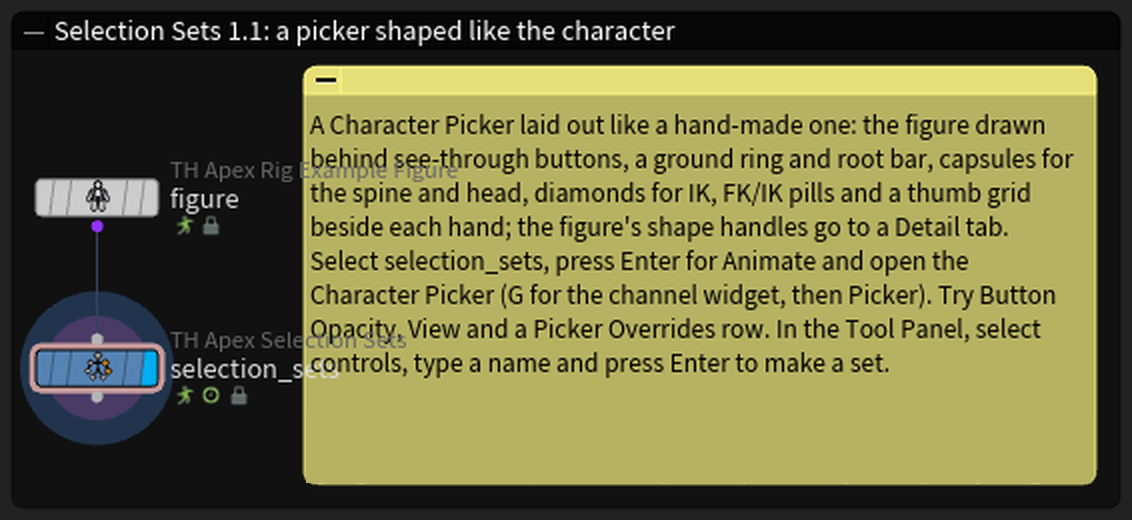
Node setup. Asset Browser > Changelog > 1.18 (Selection Sets 1.1: a picker shaped like the character).
Node setup Node setup. Asset Browser > Changelog > 1.18 (Selection Sets 1.1: a picker shaped like the character).
UpdatedBeta

See-through buttons

Houdini's picker draws every button solid, so the character behind them disappears. Button Opacity (in the node's parameters) makes them see-through and keeps it through Edit-mode saves; a selected or hovered button draws solid, so the selection still reads.

Video See-through. The buttons fade from solid to see-through (Button Opacity 1.0 down to 0.25) and back; the figure shows through.
ToolBeta

A live Sets panel

The Tool Panel lists every set with its colour and how many controls it holds, and shows which sets hold the selection. Click a set to select it, + / - to edit it, or select controls, type a name and press Enter to make one. Mirror set and To front / To back are one click. New set no longer drops IK and pole controls.

Camera 1.1

Depth of field you can see and drag, plates for layout, and a way in from LOPs.

Camera
NewBeta

Live depth of field

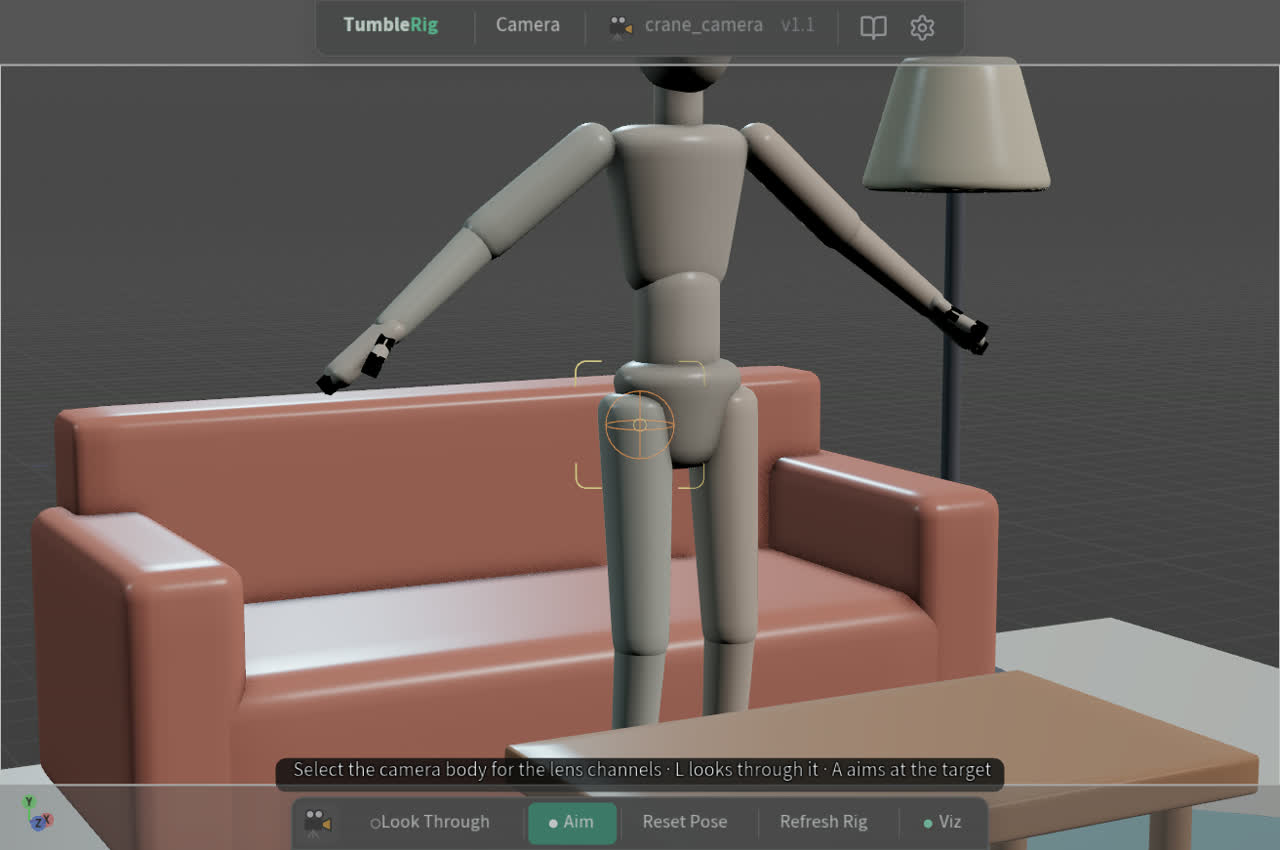
Setting an f-stop by number and rendering to see the blur is slow guesswork. Camera 1.1 draws the focus plane and its near and far limits as capsules along the view: drag one and the f-stop follows, with a live band showing what is sharp. Fill Focus Plane draws the plane see-through, so you see what the focus cuts.

Video Drag a limit. The near capsule is dragged; the f-stop follows.
Node setup. Asset Browser > Changelog > Camera Rig: Living Room.
Node setup Node setup. Asset Browser > Changelog > Camera Rig: Living Room.
ToolBeta

Pull focus through the lens

Look through the camera (L), then drag the Focus chip in the camera HUD to rack focus, or use Pick focus and click what should be sharp.

Video Pull focus. Looking through the camera, the Focus chip in the HUD is dragged; the blur moves from the figure to the table.
NewBeta

Camera plates and the Camera panel

Put a plate behind the scene, over it or in a corner to line a shot up with a reference or a storyboard. Click Plates or Panel in the camera HUD: the Camera panel gathers lens, focus, guides and plates in one place. The camera's own controls are smaller, and its model is display-only so it never blocks a click.

Video Plate over the shot. In the Plates panel the plate is switched between Behind, Over and Corner with a click on each mode.
ToolBeta

Import a LOP camera

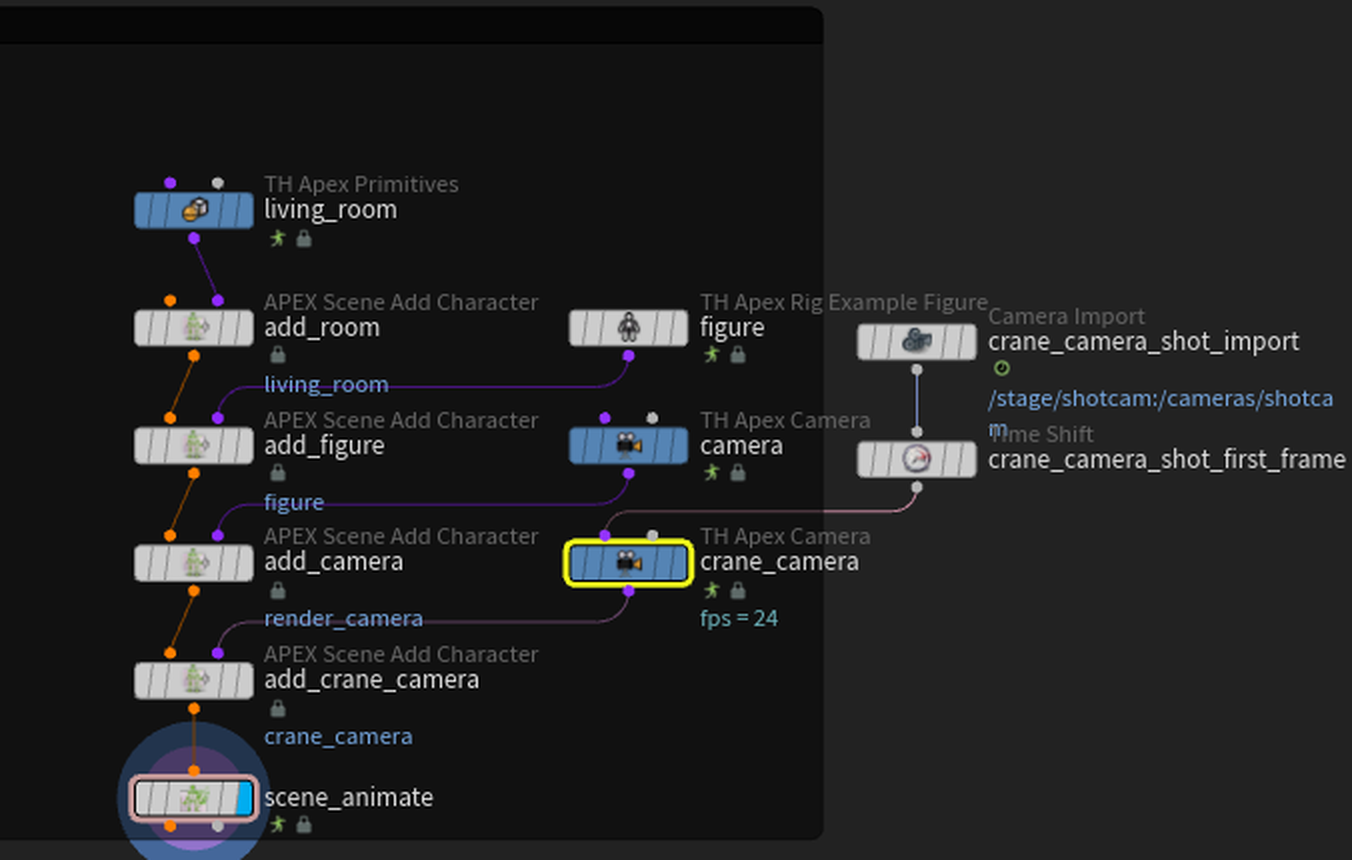
A layout camera made in LOPs bakes onto th::apex_camera, keys and all, so you can keep animating it next to the characters. Going the other way, the camera prim is written at /cameras/<Camera Name>, so LOPs imports it over the shot camera.

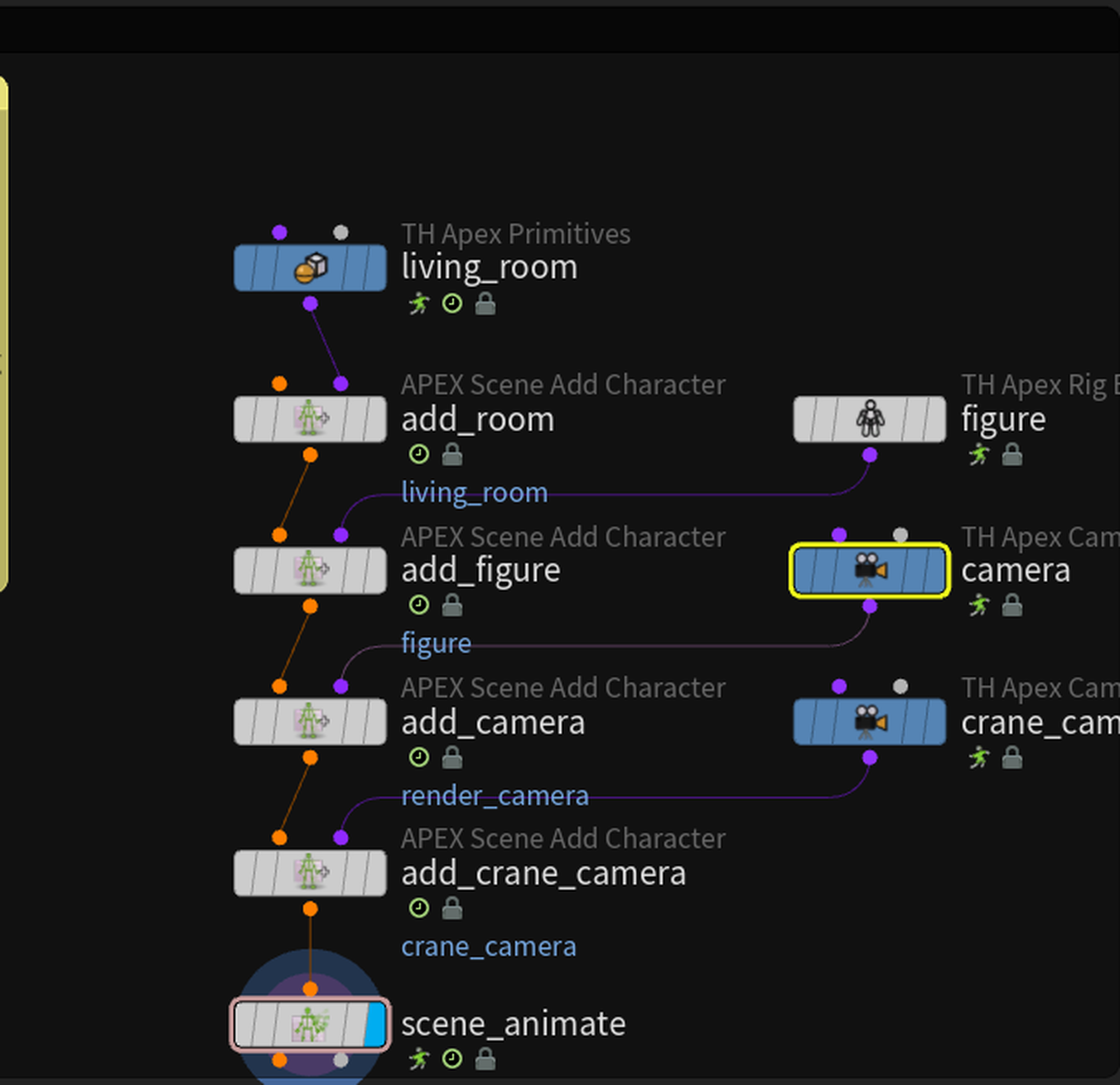
The LOP camera on the rig. crane_camera after Import LOP Camera: the rig starts where the shot starts and carries its keys.
Node setup. Camera Import and Time Shift feed the camera rig's first input.
Node setup Node setup. Camera Import and Time Shift feed the camera rig's first input.

Ragdolls, joint shapes and Animate's tools

One shape per bone feeds the ragdoll, the collisions and the viewport.

Animate tools
NewBeta

Ragdoll Setup

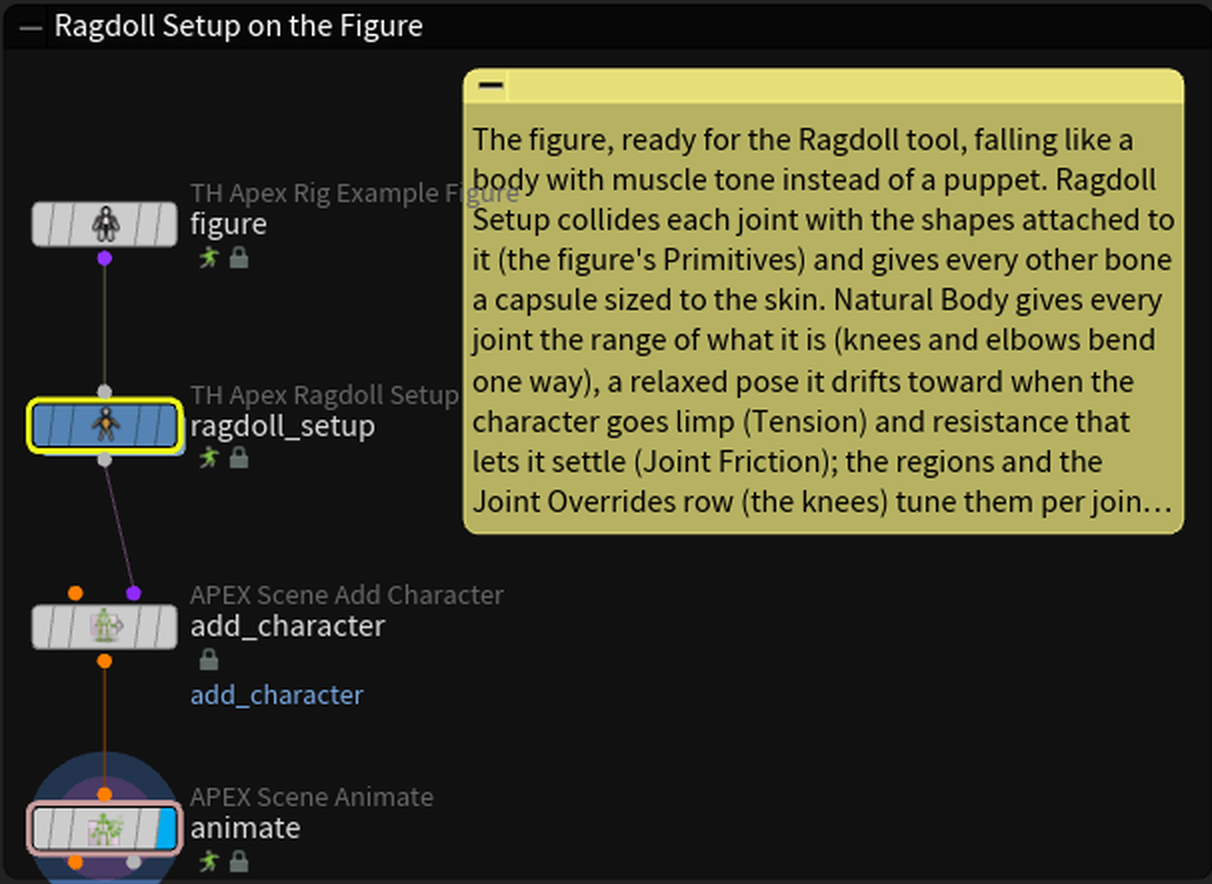
Animate's Ragdoll tool needs collision shapes and joint limits that a TumbleRig character does not carry; without limits every joint is locked and the character stands like a statue. Ragdoll Setup builds them from the bones: a capsule per bone sized to the skin, and the range of each joint (knees and elbows bend one way). Put it after the character, enter Animate, open Ragdoll, make the shapes Active and play; Bake writes the fall back onto the rig.

Video Shapes Active, then Play. Frames 1-70, Animate's Ragdoll tool at its defaults.
Node setup. Asset Browser > Ragdoll Setup on the Figure.
Node setup Node setup. Asset Browser > Ragdoll Setup on the Figure.
UpdatedBeta

One joint-attached shape system

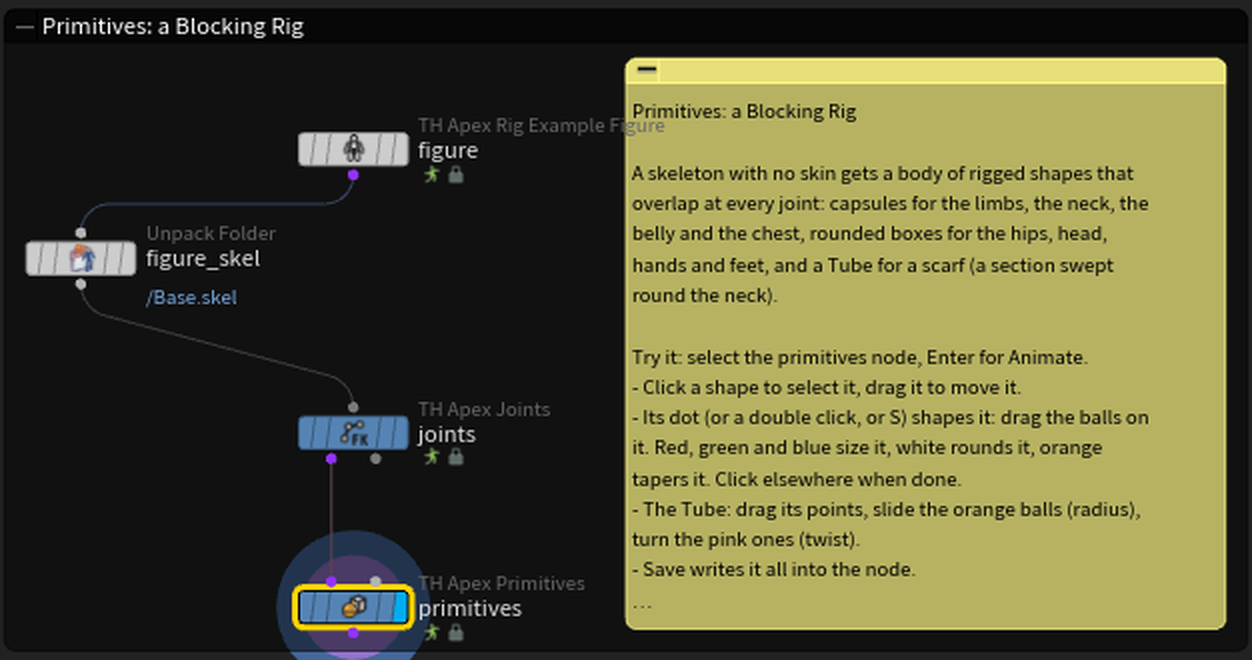
Primitives, Skeleton and Attach Joint Geo now share one kind of shape: a primitive that records its joint. Draw a shape once and Ragdoll Setup, the collisions and the viewport all read it. Primitives 1.1 brings back the handle dots as the default: switch Move / Shape in the viewport to edit them.

Video Shape mode. The Move / Shape switch is clicked and every primitive shows its handle dots.
Video Drag a dot. A point of the scarf tube is dragged; Save writes it into the node.
Node setup. Asset Browser > Primitives: a Blocking Rig.
Node setup Node setup. Asset Browser > Primitives: a Blocking Rig.
FixedBeta

Mirror, Ragdoll Bake and Secondary Motion on TumbleRig rigs

Animate's Mirror Pose, Ragdoll Bake and Secondary Motion now work on TumbleRig characters and write their poses back onto the rig's controls.

UpdatedBeta

Collisions 1.1 and 1.2

Colliders (plane, sphere, box, capsule, in the world or on a joint) with a body filter each, and the Collisions tool to place them. 1.2 takes Collider Geometry from the character stream, so a collider can be a shape on the rig.

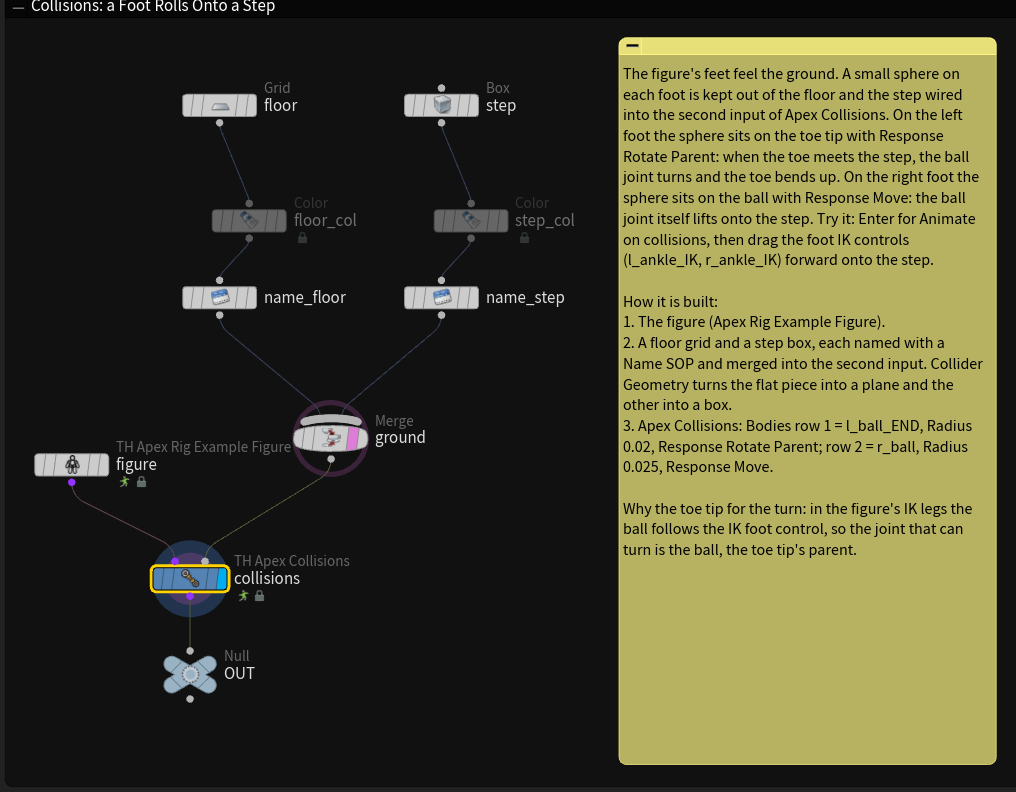
Video The ball lands on the step. The foot starts above the step and its control is dragged down. With Collisions off, the ball of the foot sinks into the step. With Collisions on, only the ball collides: it stops on top of the step and the rest of the foot carries on down.
Node setup. Asset Browser > Collisions: a Foot Rolls Onto a Step.
Node setup Node setup. Asset Browser > Collisions: a Foot Rolls Onto a Step.

Brows, splines and swap-out shapes

Brows from the skin, splines that keep their shape, and swap-out shapes that mirror.

Face rigs
NewBeta

Brow Rig

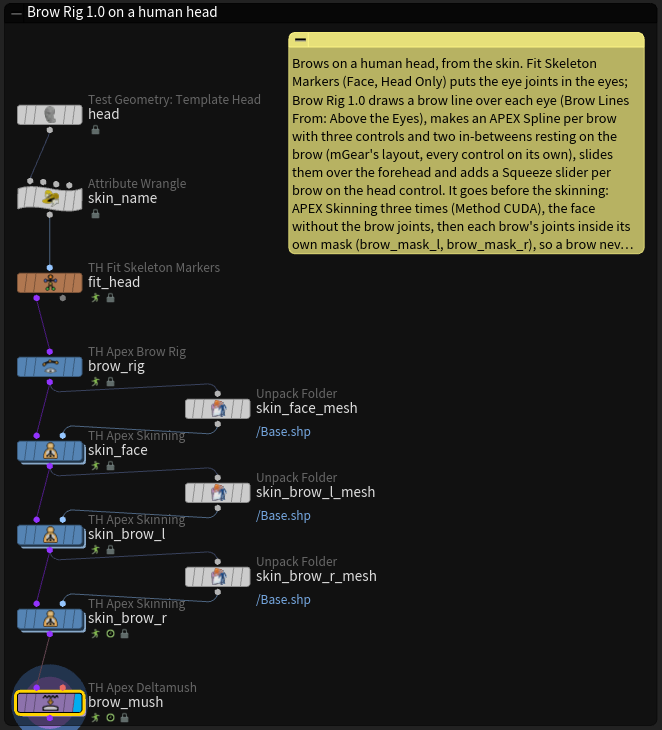
Brows from the skin, before the skinning: a smooth brow line, joints along it, a brow Delta Mush, and a Squeeze slider per brow on the head control that pulls the brows toward the middle.

Video Raise, then squeeze. A brow's middle control is dragged up and the brow follows along a smooth line over the brow ridge; then, with that brow still raised, the Squeeze slider closes both brows toward the middle.
Node setup. Asset Browser > Changelog > Brow Rig 1.0 on a human head.
Node setup Node setup. Asset Browser > Changelog > Brow Rig 1.0 on a human head.
UpdatedBeta

Apex Spline 6.3 and 6.4

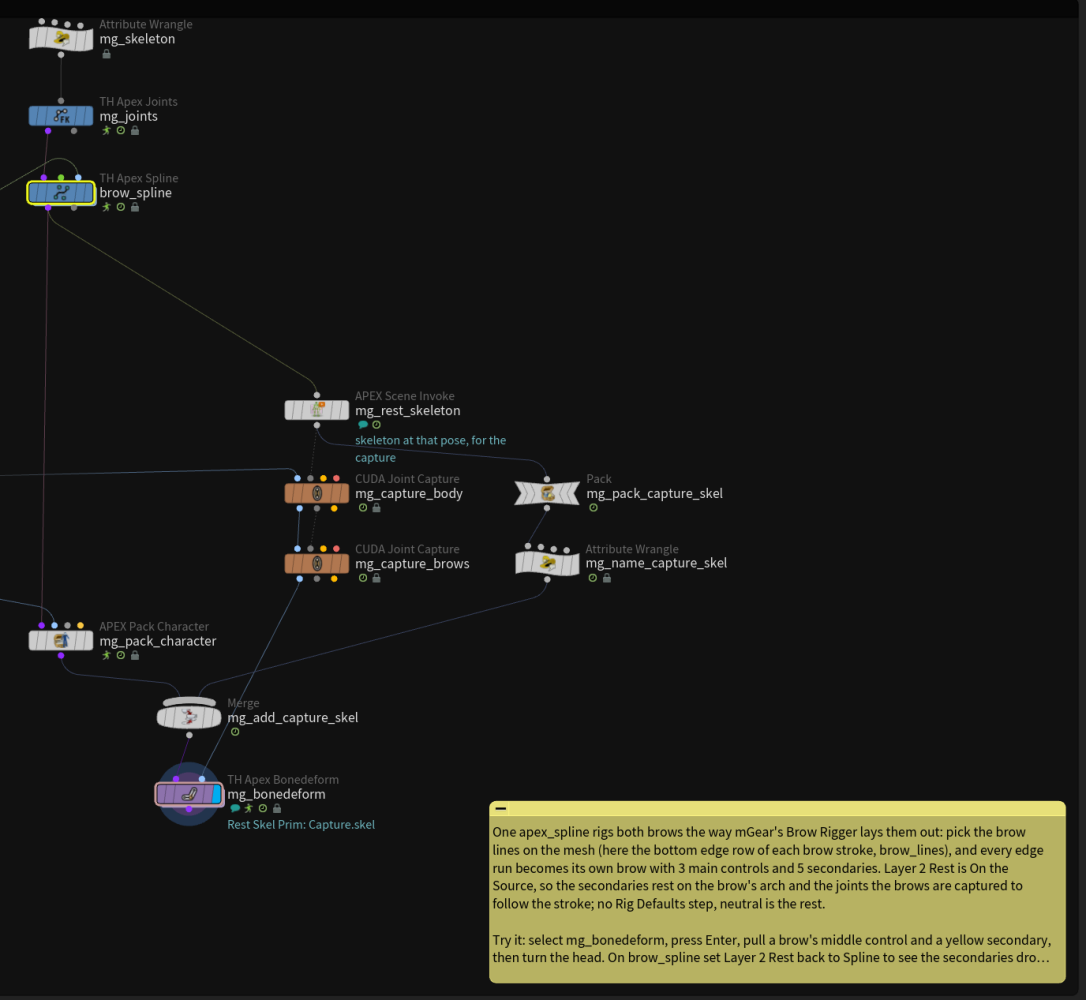
Front and Invert split a closed loop into two halves, whichever way the mesh runs, so the halves work on any head. 6.4's Layer 2 Rest On the Source keeps the rest joints on the source curve, so a brow's tail and secondaries follow the stroke (an mGear-style brow layout in one node). Several edge runs in one node each make their own joints, and Independent CVs make From Mesh Edges controls roots instead of an FK chain.

Node setup. Asset Browser > Changelog > Brows, mGear Layout (Layer 2 Rest on the Source).
Node setup Node setup. Asset Browser > Changelog > Brows, mGear Layout (Layer 2 Rest on the Source).
UpdatedBeta

Mirrored swap-out shapes

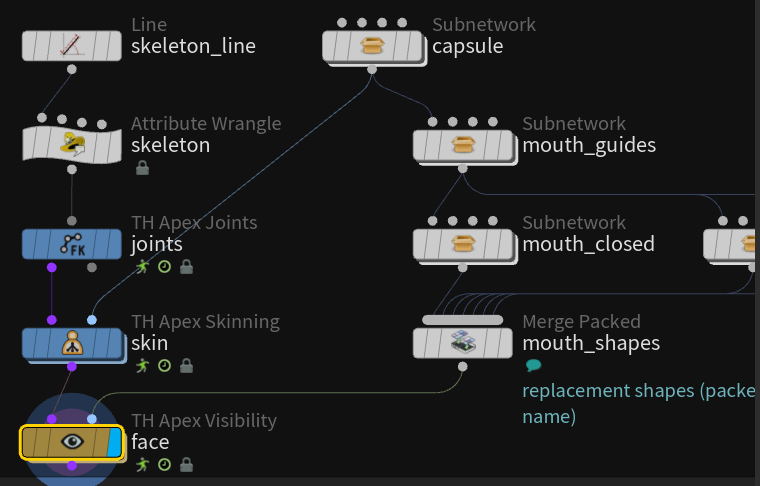
A Replacement switch's pieces can now point left or right: in the Visibility panel pick Mirrored or As Modelled, and one smirk serves both sides, keyed like any control.

Video Mirrored. The smirk is on the right as modelled; one click on Mirrored in the Visibility panel flips it to the left, and As Modelled flips it back.
Node setup. Asset Browser > Changelog > Mirrored Replacement Mouths.
Node setup Node setup. Asset Browser > Changelog > Mirrored Replacement Mouths.

Joint chains by name

Name a chain once (arm, leg, spine, finger) and the IK nodes find it.

Skeleton and IK
NewBeta

Name joint chains

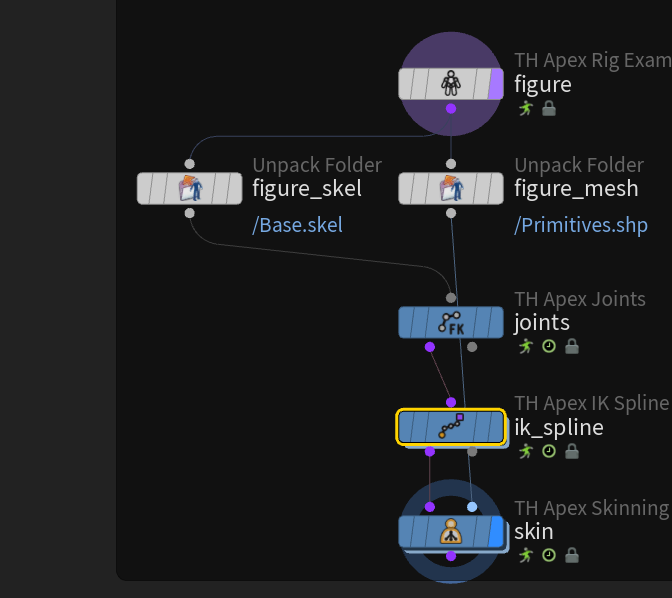
IK nodes used to need every joint picked by hand. Apex Tags 1.1 names joint chains and their regions (fingers, face) with Mirror From Name, and Fit Skeleton Markers 1.3 writes the names as it fits the skeleton. IK Chains 2.11, IK Spline 1.8 and Inverse Foot 1.2 then pick their chains by name (arm_*, leg_*, the spine).

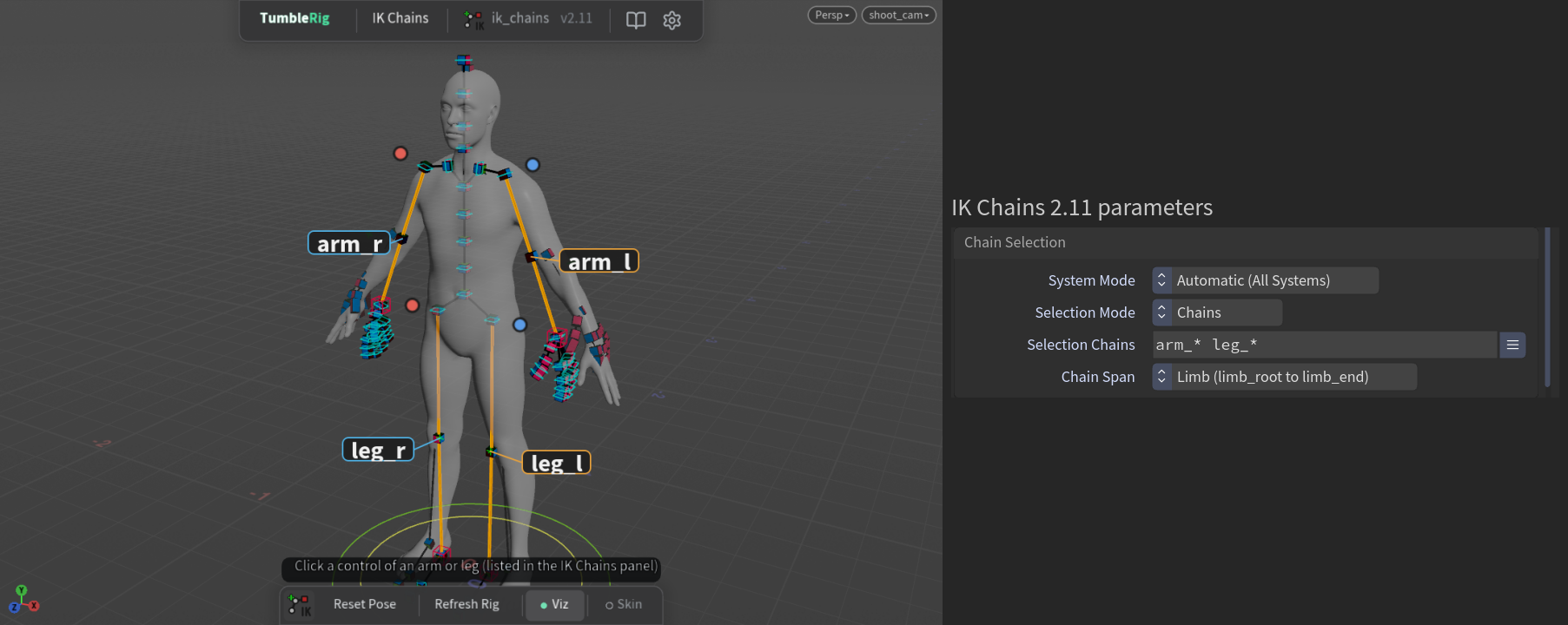
Pick by name. IK Chains 2.11 in Selection Mode Chains with arm_* leg_* builds an IK on arm_l, arm_r, leg_l and leg_r.
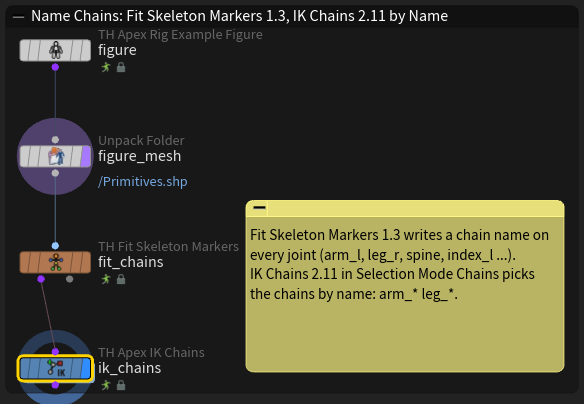
Node setup. Fit Skeleton Markers 1.3 into IK Chains 2.11.
Node setup Node setup. Fit Skeleton Markers 1.3 into IK Chains 2.11.
UpdatedBeta

Orient Joints 1.1 and 1.2

Chains you can read: Auto Chains and Split at Branches, and a Fix Flips button in the Orient Joints panel that counts the flipped joints and turns them back in one click. 1.2 reads Auto Chains from the input's named joint chains and can write them (Write Chains).

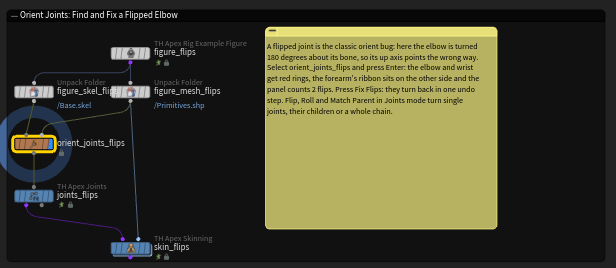
Video Fix Flips. The elbow and wrist show red rings and the panel counts 2 flips; one click on Fix Flips turns them back.
Node setup. Asset Browser > Changelog > Orient Joints: Find and Fix a Flipped Elbow.
Node setup Node setup. Asset Browser > Changelog > Orient Joints: Find and Fix a Flipped Elbow.
UpdatedBeta

Fit Skeleton Markers: the face, and proper orients

Markers used to stop at the neck, so a head was fitted by hand. 1.2 adds a Face step: place the jaw, eyes and ears as markers like the rest of the body, with look targets in front of the eyes, or use Head Only to fit just a head. Joint Set gives proper joint orients, which the Figure 1.1 example is built on. 1.1 brings the wrist frame, knee arrows and heel removal.

Video The Face step. Jaw, chin, eyes and ears are markers on the head; an ear tip is dragged out and back, and the other side follows (Mirror).
UpdatedBeta

IK Chains 2.10: Match Rest Twist

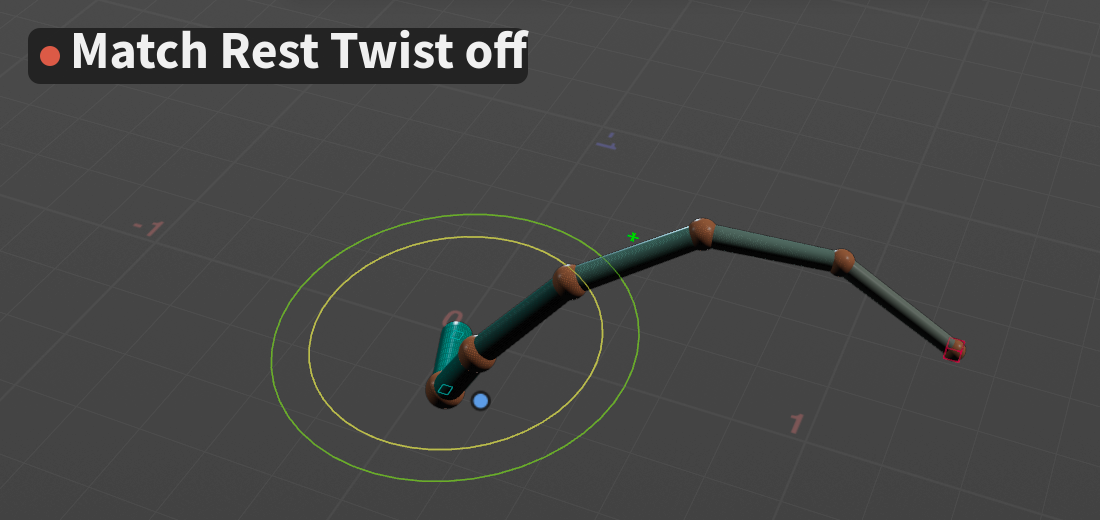
A curved chain of three or more bones rolled when it went into IK. Match Rest Twist (IK Chains, Controls folder, on by default) cancels that roll, so the chain keeps the twist it was built with.

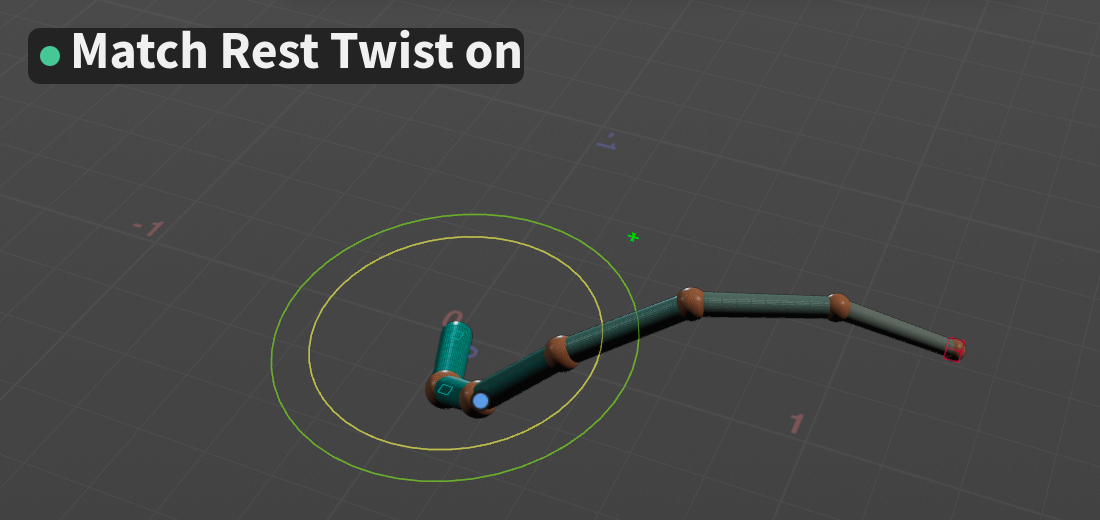
Match Rest Twist on. Same chain, same camera: it keeps the curve and the twist it was built with.Match Rest Twist off. A six-bone curved chain goes into IK and the solver rolls it: the bones leave the shape they were built in.Match Rest Twist offMatch Rest Twist on
Match Rest Twist off Match Rest Twist off. A six-bone curved chain goes into IK and the solver rolls it: the bones leave the shape they were built in.Match Rest Twist on Match Rest Twist on. Same chain, same camera: it keeps the curve and the twist it was built with.
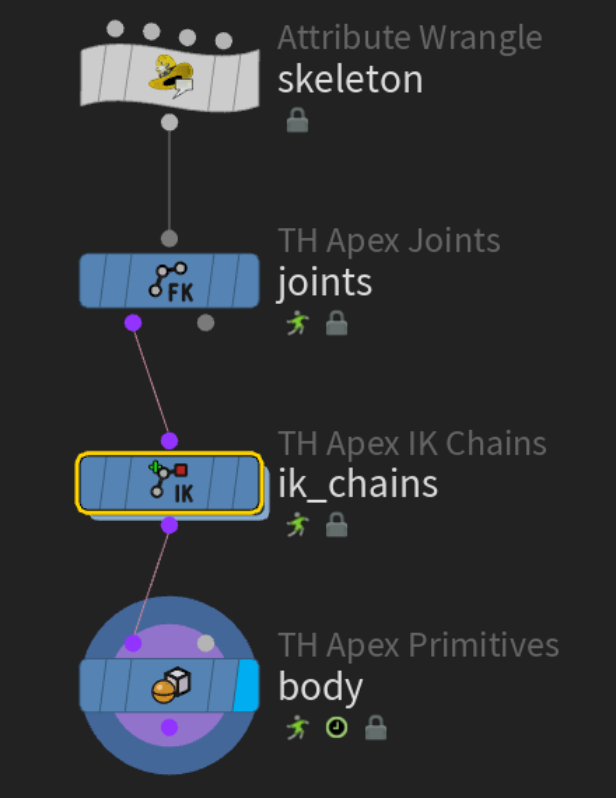
Node setup. Apex Joints into IK Chains 2.11; Match Rest Twist is in its Controls folder, on by default.
Node setup Node setup. Apex Joints into IK Chains 2.11; Match Rest Twist is in its Controls folder, on by default.
UpdatedBeta

IK Spline 1.6 to 1.8

The spine no longer snaps or twists when the hip / COG turns with Bend Controls on, and the deform spline gets Smooth / Post Smooth.

Video Turn the hips. With Bend Controls on, the hip control swings 45 degrees each way and the spine follows smoothly, with no snap and no twist.
Node setup. Asset Browser > Changelog > IK Spline: Bend Controls on the Spine.
Node setup Node setup. Asset Browser > Changelog > IK Spline: Bend Controls on the Spine.
UpdatedBeta

Skeleton Builder: extend a fitted skeleton

When a fit gets you most of a skeleton, Skeleton to Extend takes it and adds the joints you click on top; the hover hint shows whether a click adds a joint or selects one.

2D menus and Version Update

Menus you pin, resize and type into, and a scene that moves to the newest nodes in one step.

Animate
ToolBeta

2D menus you can pin, resize and float

Every 2D menu (sliders, joysticks, the FK/IK limb menu, the Sim board) gets a header with pin, close and a move grip. Pinned menus stay on screen across Animate, resize, or float into their own window, and work with several characters in a shot.

ToolBeta

Number fields and keys

Turn on Number fields (TumbleRig settings > 2D menus) and every slider gets a field you type a value into. Keys show as dots in Houdini's key colours: Alt+click to key, Shift+click for the Animation Editor. Small sliders show their number in the tooltip.

Video Type, then key. 0.6 is typed into the Squash number field; Alt+click on the slider keys it and the green key dot appears.
ToolBeta

Version Update

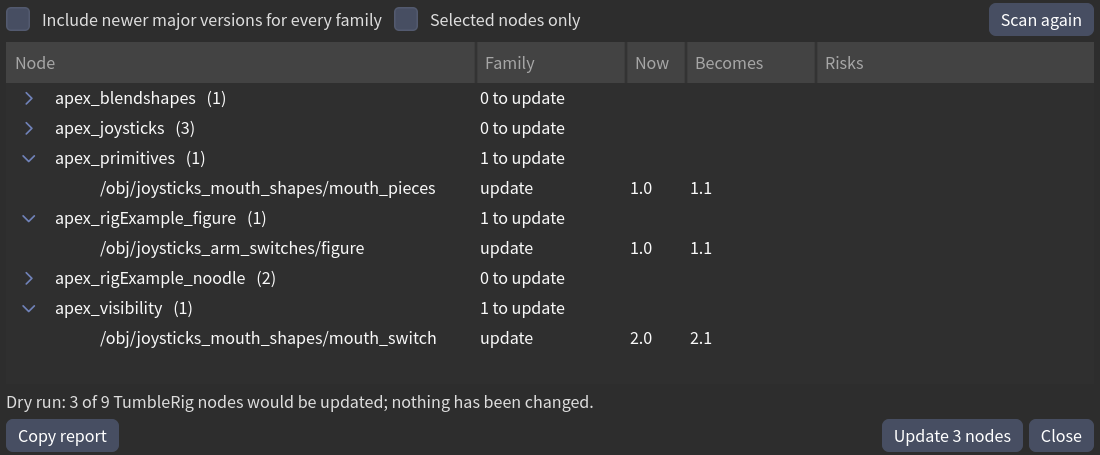
Swap a scene's TumbleRig nodes to the newest installed version: a dry run first, one undo step, parms and wires kept. Open it from TumbleTrove Settings > TumbleRig or the tool header: it lists every node it would move before anything changes.

Dry run first. Version Update lists every TumbleRig node it would move to the newest version (here three of nine); nothing changes until Update is pressed.

Capture and shapes

Smoother weights on the GPU, weights copied between meshes, and shapes edited on the pose.

Capture and deformation
UpdatedBeta

Joint Capture 1.2: Smooth on the GPU

Smooth runs in the capture's own GPU pass: 3.0 s down to 0.9 s on a 415k-point mesh, and the weights go straight to Bone Deform on the GPU. 1.1 put Mirror and Keep Sides at the top and added Isolate Islands.

NewBeta

Capture Transfer

Copy capture weights from one piece or mesh to another on the GPU, then blur them: dress a jacket from the body's weights.

UpdatedBeta

Constraints 2.2: Match Sides

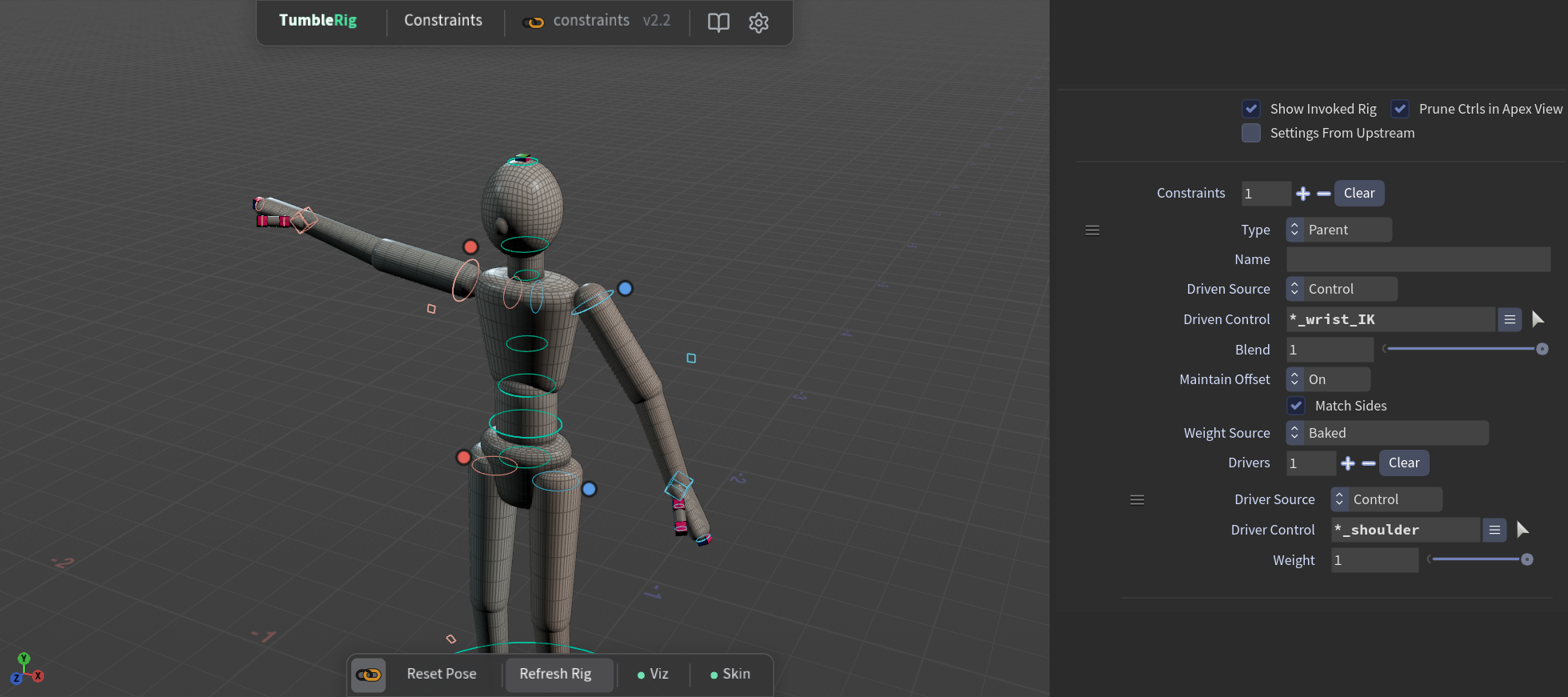
Wildcard driver and driven rows (like *_wrist_IK driven by *_shoulder) pair left with left and right with right; the Match Sides checkbox on the row is on by default.

Left drives left. One row: Driven Control *_wrist_IK, Driver *_shoulder, Match Sides on. Rotating the left shoulder swings only the left hand, the right shoulder only the right.
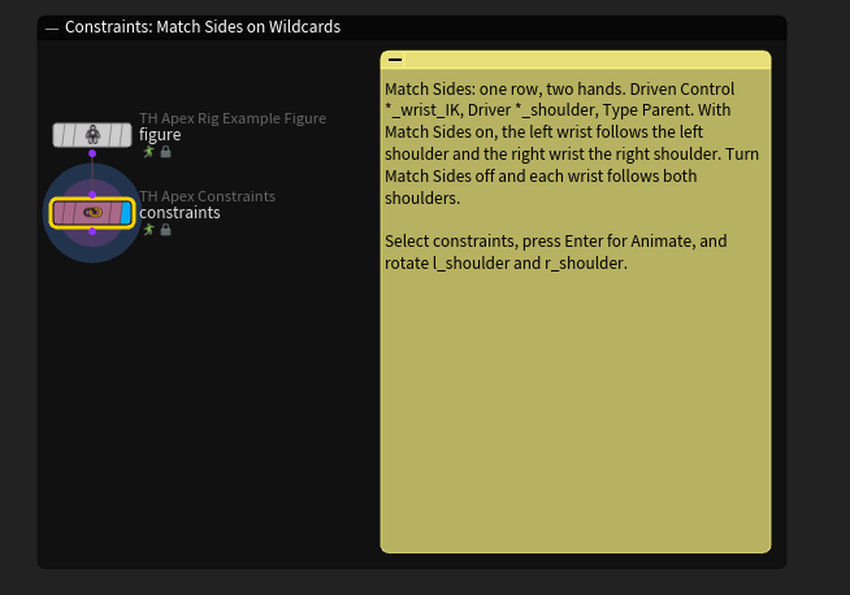
Node setup. Figure into Apex Constraints, one Parent row with wildcards.
Node setup Node setup. Figure into Apex Constraints, one Parent row with wildcards.
ToolBeta

Shape Editor

Blend shapes used to be a list of sliders with no way to see what drives what. The Shape Editor puts them in the apex_blendshapes Shapes panel: click a shape to pick it, type or drag its value, and see the combination shapes it drives under it.

Video Pick a shape, set it. Click a name in the Shapes panel and type its value; Pout shows the combo it drives under Smile_L.
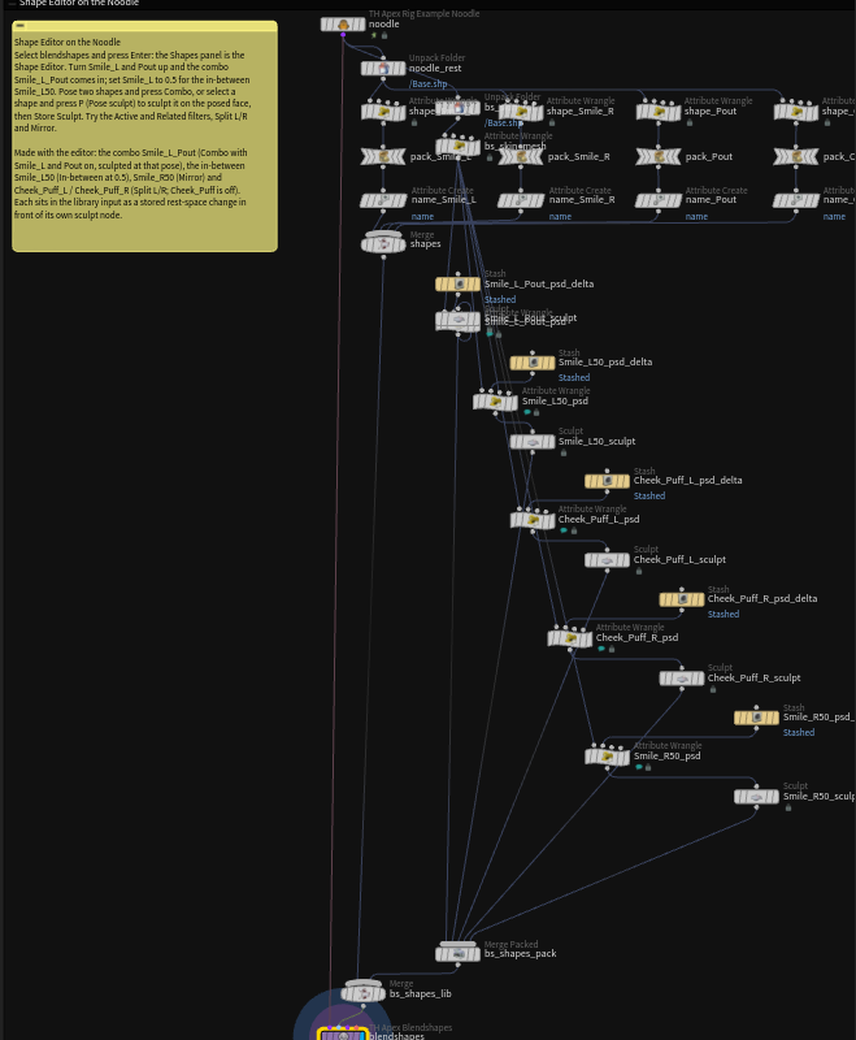
Node setup. Asset Browser > Changelog > Shape Editor on the Noodle.
Node setup Node setup. Asset Browser > Changelog > Shape Editor on the Noodle.

Fixed since 1.18

Out in the 1.18.x hotfixes and on main.

Fixes
Fixed

Fixed

Upgrading

New versions install next to the old ones; saved scenes keep theirs until you swap (Version Update does it in one step).

Every change: 162 commits since v1.18.0

New in 1.19.0 (147)

  • Shot slate moves to TumblePipe; the camera rig plugs into it
  • Capture picker after the live check: names for splines and picks only, a pair's names on their outer sides, Others switch in the panel, the match count refreshes
  • Shot slate: the TumblePipe shot you are on, in any look-through camera
  • Apex Sticky Ctrls: round falloff Along the Surface (the mesh walk only gates the reach)
  • Joint Capture picks joints by chain: whole splines in one click, drivers greyed out
  • Spline joints are a joint chain: th::spline stamps @attr tokens; Apex Spline 6.5, IK Spline 1.9
  • Import LOP Camera: Transfer Keys ignores the Camera LOP's expression parms
  • Import LOP Camera: Transfer Keys moves the LOP camera's own keys onto the rig
  • Sticky Controls in a shot: Add sticky control here from TumbleRig's Shift + right click menu
  • Skeleton Builder panel: the Chains list starts folded
  • Skeleton Builder 1.2 chains UX: see and name the joint chains
  • Apex Sticky Ctrls: its own Animate tool (Place on the skin, Weights tint, [ ] radius, Del) and Tool Panel
  • Eye Rig 2.0: each lid skinned in its own pass; Blink 1 closes the lid skin (19.5 -> 1.25 mm)
  • Brow Rig 1.0: Above the Eyes finds the brow ridge; Height is measured from it (the brows sat 2 cm up the forehead)
  • ctrl2d: the resize grip of a pinned 2D menu reads the rig's pin state
  • Apex Sticky Ctrls: Sticky Controls on the Noodle recipe (EX_deformation/stickyCtrls v0001), feature map entry
  • Apex Sticky Ctrls 1.0: click-the-skin controls with a soft, paintable falloff that ride the surface
  • Import LOP Camera: solve track_t in its parent's frame (2 m drift on a turned first frame)
  • Ragdoll examples: republished on the final Ragdoll Setup 1.1
  • Ragdoll Setup 1.1: verified in the Animate Ragdoll tool (top-level Ragdoll.skel, cones never thinner than 10 degrees)
  • Selection Sets 1.1: Chains template (body-part sets from the skeleton's joint chains)
  • Orient Joints recipes place 1.2 (EX_skeleton_orient_joints_examples_v0004, Write Chains on)
  • Slide on Surface: Follows menu reads "Its Joints", surface wire off by default there
  • Slide on Surface: Surface Follows Its Joints (bone deform), th::slideOnSurface::1.2
  • Ragdoll Setup 1.1: natural ragdolls (anatomical limits, relaxed pose, per-joint tension and friction) and a ragdoll skeleton with proper frames
  • Orient Joints 1.2: Write Chains, Auto Chains from the input's joint chains
  • tag_menus: joint chains lead every %tag() pattern menu (%group(@chain=arm_l))
  • Orient Joints 1.1: icon by name (th-orient_joints), so gen_operators keeps it in hpm.toml
  • apex_spline 6.4: Selection Mode Chains (CVs from a named joint chain, named after it); chain_name_resolver chain-aware
  • Slide on Surface UX round: surface wire, row switches, hint line, S / M
  • IK Spline 1.8: the spine from a joint chain (Selection Mode Chains, Spine Chain)
  • Slide on Surface: a row takes only animator controls
  • Recipe: Brow Rig 1.0 on a human head (EX_rig_building/brow_rig v0002)
  • Inverse Foot 1.2: feet from joint chains (Chains leg_*, Foot span), Match By Role
  • Brow Rig 1.0: smooth brow line, joints on the spline, brow Delta Mush, Squeeze never crosses the middle
  • Slide on Surface: landing crosses sized from the character, Show / Marker Size
  • apex_camera 1.1: TumbleRig drags the depth-of-field capsules itself, with a live band
  • Apex Brow Rig 1.0: brows from the skin, before the skinning (face rig phase 4)
  • IK Chains 2.11: hide Geo Type in Chains mode; joint-chains.md Phase 3 status
  • IK Chains 2.11: pick IK chains by name (Selection Mode Chains, default arm_* leg_*, Limb span)
  • Name the new version in the DialogScript header of Markers 1.3, Fit Skeleton 3.2, Apex Tags 1.1, Skeleton Builder 1.2
  • apex_spline 6.4: Independent CVs (From Mesh Edges CV controls as roots, not an FK chain)
  • selection_pattern: Selection Mode 3 Chains (joint chains by name, Whole Chain / Limb span)
  • Selection Sets: pole controls stay in sets made from the selection
  • apex_camera 1.1: depth-of-field handles are a plain rounded capsule along the view
  • Apex Tags 1.1: name joint chains, Mirror From Name, finger / face regions, chain findings
  • Eye Rig recipes v0011: Fit Skeleton Markers 1.3, Pupil Dilate on in Realistic eyes, coloured demo eyes
  • Joint chains Phase 2 writers: Fit Skeleton Markers 1.3, Fit Skeleton 3.2, Skeleton Builder 1.2
  • Eye Rig 2.0 demo eyes: coloured pieces (sclera, iris, pupil), sclera open in front of the iris
  • Joint chains Phase 1: th::chains subgraph library, TumbleRig.joint_chains, chains/* lint rules
  • Apex Eye Rig 2.0: Pupil Dilate (a slider per eye, -1 constricts, 1 dilates)
  • Examples: eye rig scene v0009 (Cornea Push)
  • Apex Eye Rig 2.0: Cornea Push (on by default), the lids ride over the cornea as the eye turns
  • Apex Zipper 3.3: Cornea Push, open lids ride over the cornea as the eye turns
  • Examples: Orient Joints scene v0003 on 1.1 (Auto Chains, Split at Branches, Fix Flips; the 1.18 starter box swapped to 1.1), 4 recipes published
  • apex_camera 1.1: live depth of field + near / far handles that set the f-stop
  • Examples: eye rig scene v0008 (Fleshy on the realistic eyes)
  • Apex Eye Rig 2.0: Fleshy Upper / Lower (the lids ride the look)
  • Apex Zipper 3.3: Follow A / B, fleshy lids that ride the look
  • Eye Rig 2.0 skinning: the face pass leaves the eye ends and look joints out; realistic example with Look Targets
  • orient_joints 1.1 + tool UX pass: chains you can read
  • apex_camera 1.1: minimal, rounded camera controls; the model is display-only
  • Shape Editor: room to breathe in the shape list (round 3, option B)
  • Fit Skeleton Markers 1.2: Look Targets (eye_look, l_eye_look, r_eye_look) for Eye Rig 2.0's look
  • Sim board's click-outside filter on Qt's windows, not QApplication (window_filters.all_windows)
  • Viewport event filters on the viewport windows, not QApplication: an idle scene no longer segfaults on macOS
  • Shape Editor: review fixes and panel polish
  • apex_camera 1.1: Fill Focus Plane (see-through, shows what the focus cuts)
  • Examples: Eye Rig 2.0 realistic eyes (sclera, cornea, iris, pupil); the other two on three-pass skinning
  • apex_visibility 2.1: Mirror on Replacement switches (a swapped piece can point left or right)
  • Apex Eye Rig 2.0: realistic eyes (sclera, cornea, iris, pupil pieces)
  • Camera HUD: pull focus through the lens (Focus chip drag, Pick focus)
  • Apex Zipper 3.3: Bulge, so closing lids go over the cornea
  • Shape Editor: Blue Steel style editing in the apex_blendshapes Shapes panel
  • Examples: IK Chains boxes on 2.10; 9 recipes republished
  • apex_camera 1.1 + camera plates: calmer guides, the Camera panel, plates behind / over / in a corner
  • 2D menus: number slots review pass (clip fields, follow the drawn picture)
  • Restore two generated lines another agent's uncommitted work leaked into the apex_ik_chains 2.10 commit
  • apex_ik_chains 2.10: Match Rest Twist cancels the roll rig::MultiBoneIK gives curved 3+ bone chains
  • Recipe: Brows, mGear Layout (one apex_spline 6.4, Layer 2 Rest on the Source, no Rig Defaults)
  • 2D menus: small sliders show their number in the tooltip
  • 2D menus: number fields in slots inside the menu
  • Examples: Eye Rig 2.0 on a human head, and its eyelids as vanilla nodes
  • Apex Eye Rig 2.0: lid splines on Apex Spline 6.4 (the newest)
  • Apex Eye Rig 2.0: eyelids from the modelled lids, a chain of TumbleRig nodes with Unpack
  • Apex Zipper 3.3 Blend Around: lid joints turn with the arc, not toward the other lid
  • 2D menus: key dots instead of filled values; field windows stop moving every tick
  • apex_spline 6.4: Layer 2 Rest On the Source (brow arch in the rest), several edge runs per node make joints
  • apex_selectionSets 1.1 example: recipe selection_sets_body_picker (the figure with a body-shaped picker)
  • apex_camera 1.0: the camera prim gets its USD path, /cameras/<Camera Name>
  • Apex Zipper 3.3: Blend Around, so closing eyelids slide over the eyeball
  • 2D menus: Houdini key colours, Alt+click keys, Shift+click Animation Editor, number fields
  • apex_selectionSets 1.1: a Character Picker shaped like the character, see-through buttons, a live Sets panel
  • Fix IK Chains segfault on rigs that already have IK (Figure 1.1, Noodle 1.4)
  • Import LOP Camera: bake an animated LOP camera onto th::apex_camera
  • Version Update from the tool header: no more crash after the swap
  • 2D menus: open menus drawn in front of the scene, keys as Animate, snap settings, info button and tooltips
  • apex_selectionSets: 'Apex Picker' Tab-menu alias (type picker to place the node)
  • Examples: the figure scenes' other nodes on their newest versions; 46 recipes republished
  • apex_spline 6.3: Front and Invert for Closed Loops (lip halves on any head)
  • apex_ik_spline 1.7: the spine no longer snaps or twists when the hip / COG turns with Bend Controls on
  • 2D menus in a shot with several characters: clicks reach the menu, pinned menus draw right on 22.0.466
  • Skeleton Builder 1.1: Skeleton to Extend input (fitted skeleton + clicked extras)
  • Figure 1.1: Jade Apex Ctrls fitted to the body; the figure examples move to 1.1
  • Fit Skeleton Markers 1.2: Face step (jaw, eyes, ears) and Head Only
  • Selection Sets: its own icon and its 1.18 What's New line
  • Recipe: Selection Sets and a Character Picker (changelog 1.18), published from EX_skeleton_selection_sets_examples_v0004
  • Animate tools write poses back onto TumbleRig rigs: Mirror, Ragdoll Bake, Secondary Motion
  • Fit Skeleton Markers 1.2 (Joint Set) and Figure 1.1 built on it: proper joint orients
  • Selection Sets: picker buttons in their set colours, short set labels, Spine without Main/Viz controls, Tool Panel labels that fit
  • Mode pill keeps out of the selection's transform handle too
  • Recipes bring their frame range: placing one sets the timeline
  • Freeze the Show Invoked tap's frame: no more random time dependency
  • 2D menus: resize a pinned menu, keep pinned menus across Animate, float a menu into its own window, sharp sliders
  • One joint-attached shape system: Primitives, Skeleton and Attach Joint Geo 1.1 feed Ragdoll Setup
  • Mode pill keeps clear of the tool's bottom bar (Primitives, Skeleton)
  • Ragdoll Setup: collision capsules from the bones, sized to the skin
  • Skeleton 1.0 + Primitives 1.1 layout polish; Skeleton's Shape menu labels fixed
  • 2D menus: a move grip (six dots) in the middle of every header
  • Apex Ragdoll Setup 1.0: get a character ready for Animate's Ragdoll tool
  • apex_skeleton 1.0: no phantom unsaved Round/Taper edits; add the missing Prune Ctrls toggle
  • Camera examples: keys named like Animate's, so Scene Animate can enter
  • Animate tools read TumbleRig rigs: control->joint mapping and mirror patterns
  • Skeleton + Primitives review page; record Skeleton's Tool Panel (built)
  • IK limb menu: square top corners on the FK | IK and Match pose row, so the header joins flush
  • 2D menus: every kind gets the in-panel header (pin, x, drag to move), the dot hides while pinned, labels on narrow board sliders
  • 2D boards: pin and x in the panel's header, pinned panels fixed in screen space at full size, drag the backdrop to move, Ctrl snaps
  • fit_skeleton_markers 1.1: the wrist frame, knee arrows and heel removal ship as a new minor version
  • fit_skeleton_markers: drop the heel control and joint (inverse_foot places its own heel / toe pivots)
  • SOP Block example: noise from the root by speed (Temporal joint_speed on Base.skel x root gradient); refresh the two skeleton recipes
  • fit_skeleton_markers tool: knee / elbow direction arrows, tip drags the Out slider (side to side)
  • SOP Block examples: noise on the skeleton (mask from the root) and noise by motion (Keep History), both edit Base.skel
  • Capture Transfer 1.0: copy boneCapture between pieces or meshes on the GPU binding, then blur it
  • apex_primitives 1.1: Handle Style, the Nomad Sculpt dots are back and the default
  • apex_joysticks 1.0: a new board draws its 2D menu Same as the Board (saved boards keep List)
  • Capture Blur 1.1: one CUDA verb (th::cuda_capture_blur) instead of SideFX Smooth 2.0, weights reach Bone Deform on the GPU
  • Node panel: Layer 2/3 (apex_spline) and Layer controls + Middle layers follow (apex_lattice) first in Settings
  • apex_lattice 1.2-1.4: Group picker and menu read the target shape, not the rig graph
  • apex_ik_spline 1.6: Smooth / Post Smooth settings on the deform spline, Bend Controls defaults to Middle
  • Joint Capture 1.2: Capture Blur in the CUDA verb (Smooth 3x faster, weights reach Bone Deform on the GPU)
  • Version Update: swap a scene's th:: nodes to the newest installed version (dry run, one undo step, Settings page, batch script)
  • Pin and close for the 2D menus (joysticks, sliders, FK/IK) and the Sim board
  • apex_rigExample_spider 1.1: the body chases the fly (a chase Temporal node ahead of the walker); 1.0 stays
  • Joystick Designer on a 2D board: 2D menu layout toggle + list warning, Layout button opens the Designer instead of the dead 3D overlay
  • apex_collisions 1.2: Collider Geometry can come from the character stream (Source + Stream Shape), 1.1 untouched
  • apex_inverse_foot 1.1: the ball rides the solved ankle, not the handle, when IK Stretch < 1
  • fit_skeleton_markers: wrist frame flat in the front plane like fit_skeleton 3.1 (Y along the arm, Z front)

Shipped in 1.18.2 (6)

  • Remove Quad Remesh: moved to the hModel package
  • Camera examples also in the 1.18 changelog: @changelog 1.18 on the seven shipped camera boxes (EX_camera v0007), recipes republished, slugs kept
  • Thumbnails: Quad Remesh icon hash for this checkout
  • Quad Remesh ships with TumbleRig: th::quad_remesh::1.0 HDA + th::quad_remesh_core::1.0 verb
  • Joint Capture: a Group that matches nothing errors and captures nothing, never the whole mesh
  • What's New 1.18: Collisions 1.1, Joint Capture 1.1, Constraints 2.2

Shipped in 1.18.1 (9)

  • Thumbnails: Constraints 2.2, Joint Capture 1.1
  • cns subgraph: recompile from the LF sources (manifest hashed a CRLF worktree copy)
  • apex_camera: fix the crash on selecting a camera control. Free axes were locked to +-1e6, and Animate draws a selected control's rotation limits as rings every 5 degrees (apex.xformlimits: copyxform with ~400k copies of a ~400k-division circle -> SEGV). Free channels now get no lock at all; a partly locked rotation uses +-720 (placement yaw, crane swing), the crane arm +-100 m. Battery 75/75 (checks every control's lock range)
  • apex_selectionSets: the Character Picker canvas takes its layout size (was 0x0, empty picker)
  • apex_constraints 2.2: Match Sides checkbox (on by default) pairs left/right in wildcard driver/driven rows
  • cuda_joint_capture 1.1: Mirror and Keep Sides near the top, Isolate Islands with an island count, Smooth by capture_blur
  • Node thumbnail: Collisions 1.1
  • Collisions examples on 1.1: a foot rolls onto a step (Collider Geometry, Rotate Parent / Move), eyes that dodge a poke (collider on the fingertip, Move Around Parent); the 1.17 recipes moved to 1.1
  • Collisions 1.1: colliders and the Collisions tool