TumbleRig 1.26

Try them Every recipe is in the Asset Browser: search for the node's name.

New and updated nodes in 1.26

Highlights

In depth

Put a second rig into a character

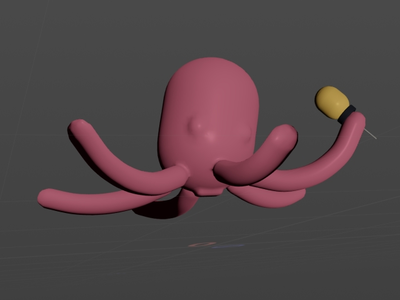
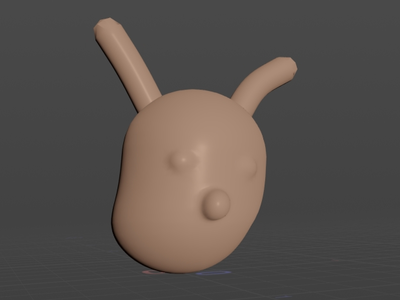
Tentacles, extra arms, a lure, ears: build them as their own rig, then merge them in.

Rigging layers
New

TH Merge Rigs

A second rig used to mean wiring graphs by hand. Wire the character into the first input and the new rig into the second, then answer three questions in the panel: what it Follows, what Its Mesh does, and how Its Skeleton joins. Find it from the TAB menu as TH Merge Rigs.

  • Follows: Main (as Merge Graph 1.0 did), A Control, A Point on the Skin, or The Skin. Pick a control from a drop-down of the character's controls.
  • Its Mesh: keep its own mesh, join the character's mesh, or deform the character's skin.
  • Its Skeleton: two Apex Skeleton rigs share one mode switch.
  • Two merges in a row on A Point on the Skin keep both parts' rest.
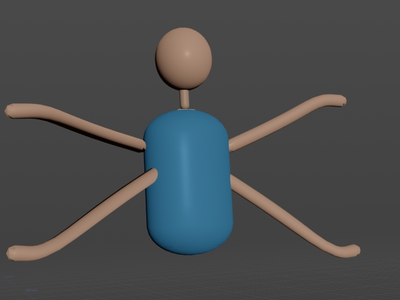
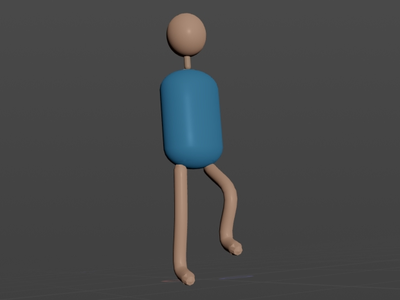
  • Recipes: Tentacles, Lure, Ears on a stretchy head, Four Arms (with Apex Duplicate) and Mix and Match Legs (with a Switch), plus Slide Merged Collider and Sticky Merged Mesh. Search for Merge Rigs in the Asset Browser.
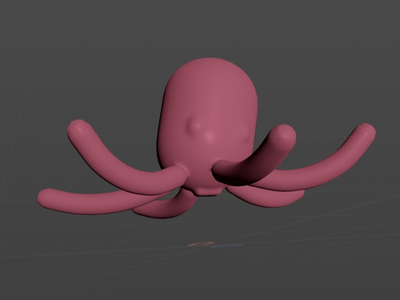
TentaclesLureFour armsEarsMix legs
The recipes. Tentacles ride the body's bend, a lure rivets on after the merge, four arms from one, ears on a stretchy head, legs mixed and matched.
Updated

Blendshapes 3.9

Live rows are for shapes. Limbs and parts on a skinned body now go in with Merge Rigs instead.

A point setup and animation clips for crowds

Say who stands where and what they play, then copy characters onto the points.

Characters in numbers
New

TH Point Setup

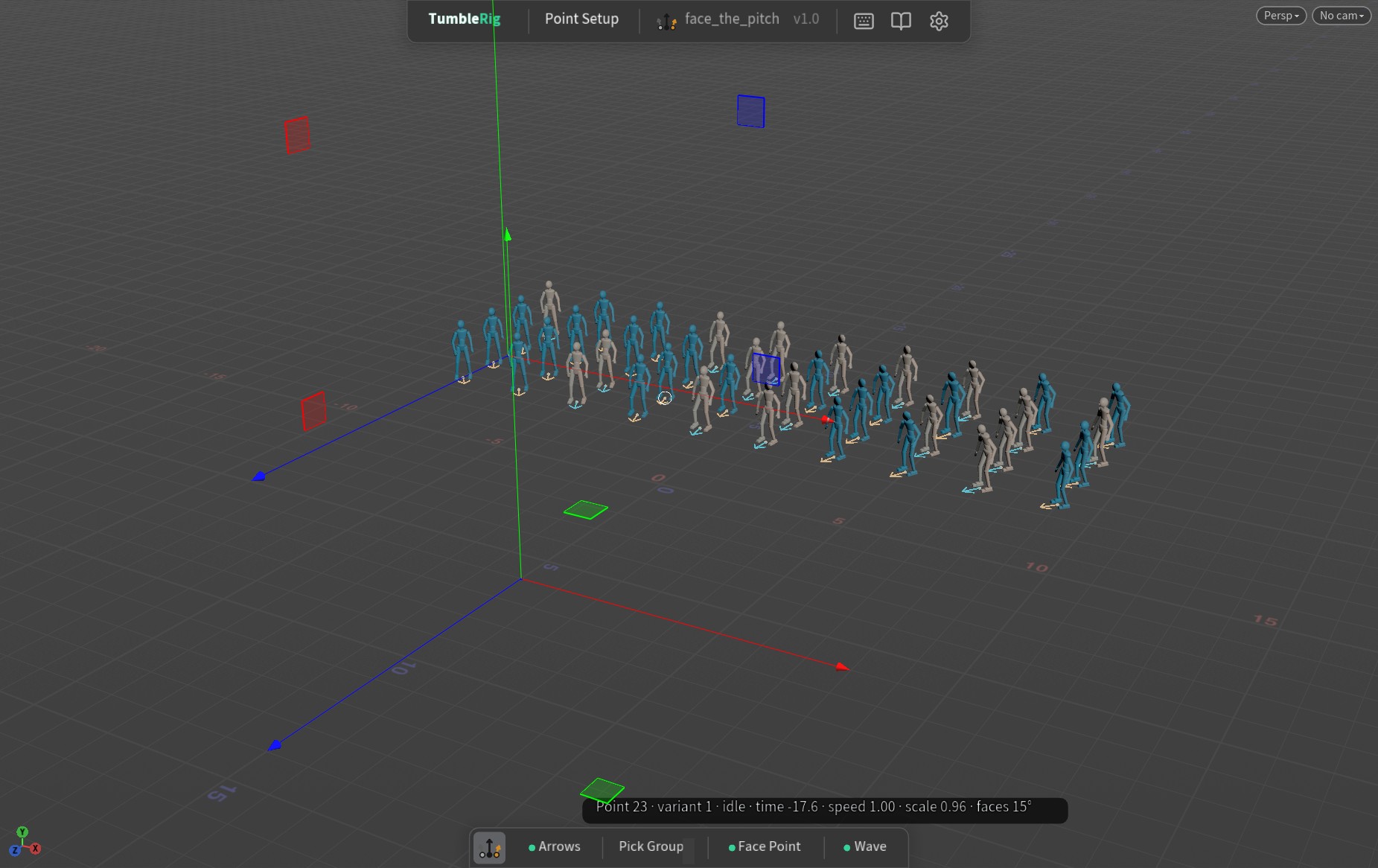
Setting up a crowd meant a pile of wrangles on the points. TH Point Setup writes who, which way they face and which clip they play, in folders you switch on and off, and its viewport tool draws the arrows so you can pick a group and face a point. Use it before Copy to Points.

  • Arrows by Piece take the colour of the character each piece becomes.
  • A Clips folder with weights, Pick By, Blend and a Clip Time that can wave from a point.
The viewport tool. Arrows, Pick Group, point facing and Wave sit on the strip at the bottom.
New

Animation Clip 1.1

A mocap clip needs no input now, and plays on a Figure in the viewport so you see it at once. Clips merge, chain, or go out packed for crowds.

Updated

Figure 1.5

The Figure's look is one bone-deformed Primitives mesh, and a Color parm sets the colour for both looks.

Apex Primitives 1.8

Built from an artist's recorded test: the Tube, Plane and Cone behave the way you expect.

Shapes
Updated

Tube points stay where you put them

A Tube point snapped back after a drag. Now points stay put; Del, Add Point and Remove act on the selected point, and Reset Points puts them back. Switch to Shape mode on a Tube and click a point.

  • Sizes stay put on a type change, and Move's scale is kept apart from Size.
  • A Tube's line and handles are drawn in the 2D kit's look, and the line follows the curve.
Updated

Twist turns and Corners

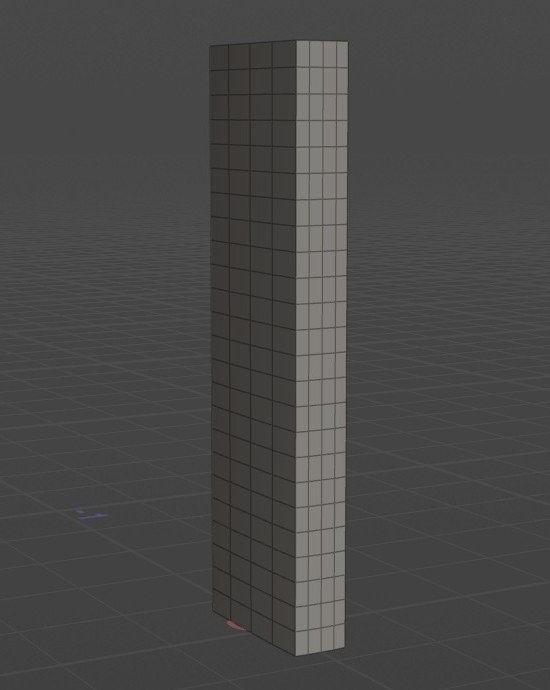
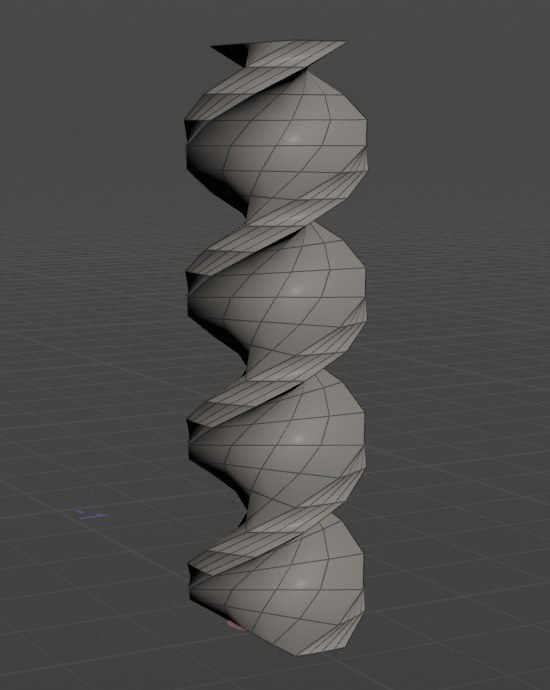
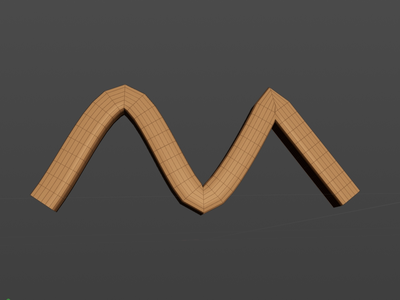
A Tube twists as many turns as you like: 720 degrees now draws two full turns. Each point has its own Corner amount, next to Thickness under Add Point. Corner 1 is a sharp corner, lower values bend smoothly.

1.7. The same 720 degrees drew no twist.1.8. A Tube twisted two full turns.
Before 1.7. The same 720 degrees drew no twist.Now 1.8. A Tube twisted two full turns.
Recipe: Tube Corners. Each point bends by its own Corner.
Updated

A flat Plane and an even Cone

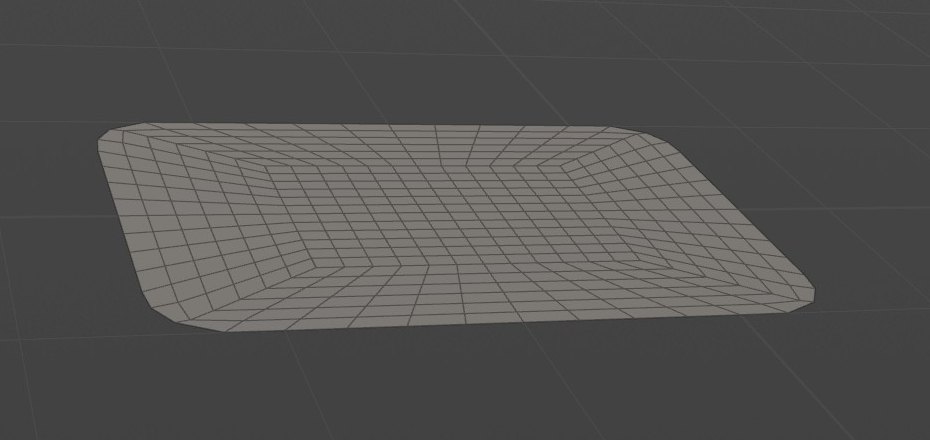
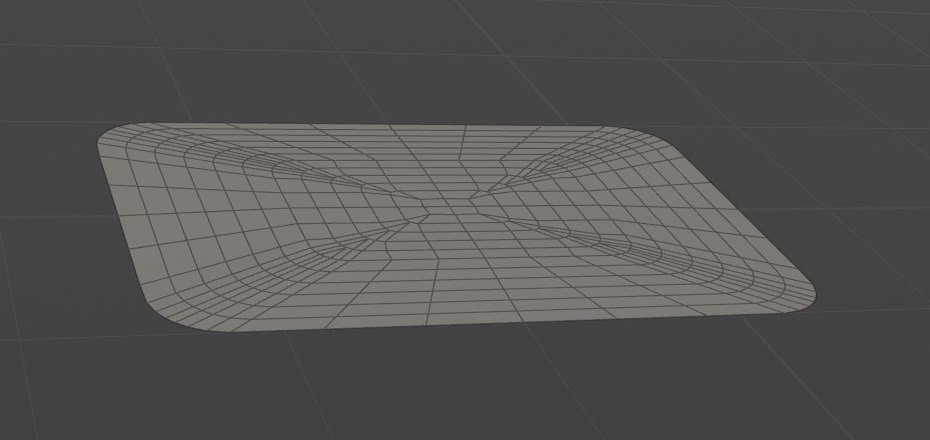
The Plane was a slab with its rings pinched into a star. It is flat now, rounded only at the corners, and the Cone's lines are even. Tube ends (Round, Flat, Open) all come out the same length.

1.8. A flat Plane.1.7. The Plane's rings pinched into a star.BeforeNow
Before 1.7. The Plane's rings pinched into a star.Now 1.8. A flat Plane.
Recipe: Plane and Cone.
Tool

More Primitives recipes

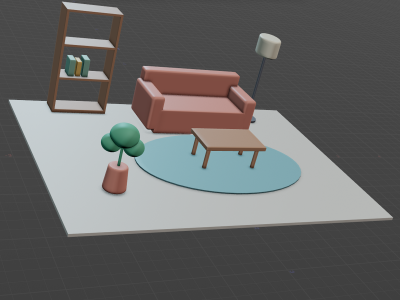
A Tube through joints into a Box, Move scale, and a living room blocked out with Primitives 1.8. Search for Primitives in the Asset Browser.
Tube Through Joints to Box.
Living Room Blockout.

TH Skeleton Builder and TH Biped Skeleton

Mirror the way you mean it, rename many joints at once, and fit a biped without flipped fingers.

Skeleton and fitting
Updated

TH Skeleton Builder

Mirror now has a choice: Mirror as Behaviour (a twin moves the other way) or Orientation (a twin keeps the same axes), with Far Side on every twin. The Name field renames several joints at once and says so, no F2 needed.

Tool

The Skeleton tool, after an artist's test

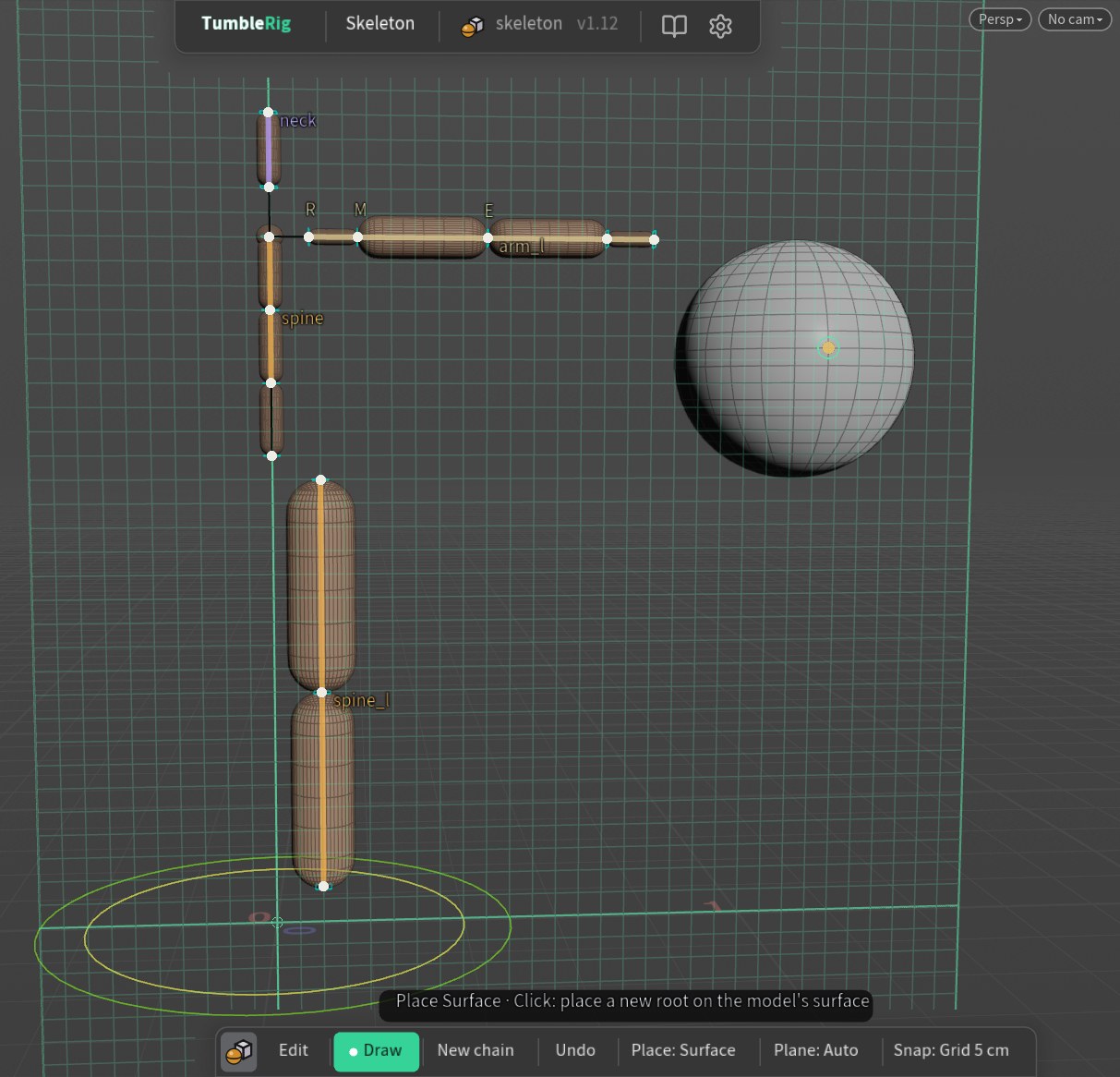
Place Inside, Surface or Plane is named on the Draw row, in the panel and in the hint line: Inside puts a joint halfway through the model. Edit and Draw come first on the row, the bone bar stays by the selected bone and greys out what does not apply, shape types sit on the bar, box select works in Edit, and Parent flashes the new bone.

Place Surface. Named on the row and in the hint line.
Updated

TH Biped Skeleton

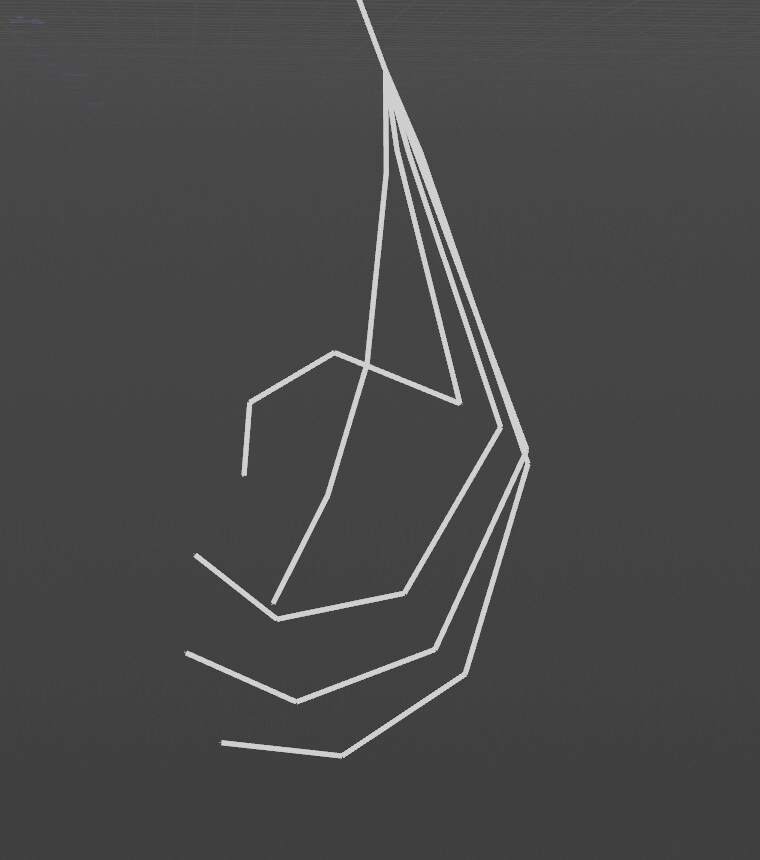
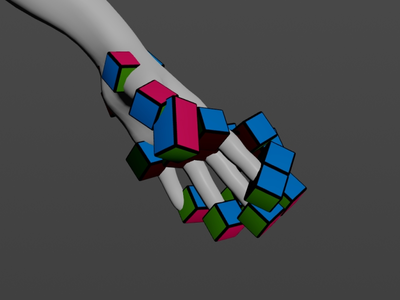
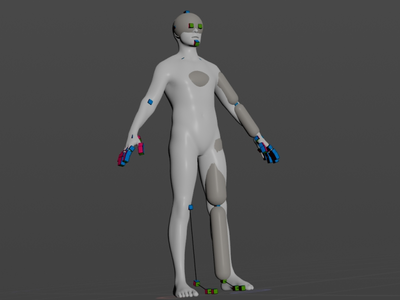
Curling a hand far used to flip the pinky and the ring finger backwards. In 1.8, Curl, Pinky Curl and Thumb Curl never bend a finger back, Cup arches the knuckles and carries the fingers, and the tool's children follow, with side picking and a swing ring. Then add shapes on top with Apex Primitives.

1.7 at Curl 60. The pinky and ring finger bend back.1.8 at Curl 60. Every finger keeps curling toward the palm.
Before 1.7 at Curl 60. The pinky and ring finger bend back.Now 1.8 at Curl 60. Every finger keeps curling toward the palm.
Recipe: Hand Sliders.
Recipe: Biped Skeleton, then shapes.

Tool Panels, the work light and fixes

The viewport tools get one look and a few long-standing fixes.

Tools and panels
Tool

Tool Panels on the shared kit look, with a work light

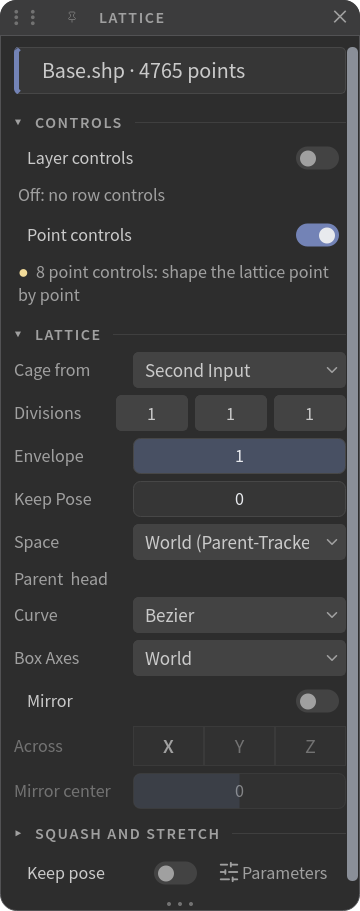
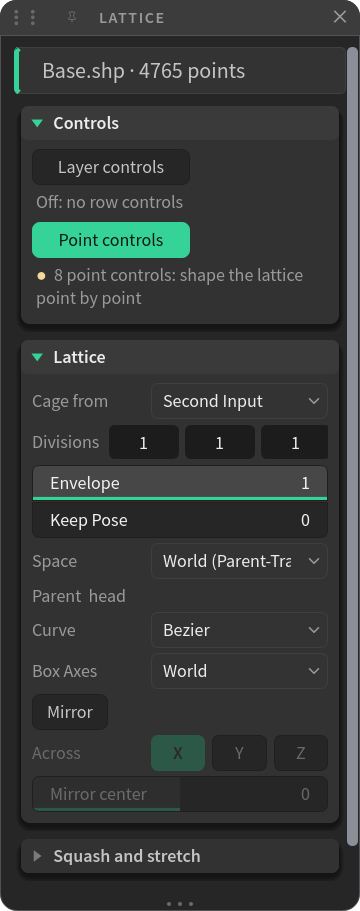
Every TumbleRig Tool Panel is built from the same parts as GPU Sculpt: sections are boxes with a title bar that folds them, sliders carry their name inside with the value on the right, and switches are toggles. Tools can switch on a work light from the viewport header: a lamp toggles it, and a chevron opens the Lighting panel.

1.25. The Lattice panel before.1.26. Section boxes, sliders with the name inside, toggles.
Before 1.25. The Lattice panel before.Now 1.26. Section boxes, sliders with the name inside, toggles.
Fixed

Channel Box: Lock to Range

Lock to Range now holds typed values, drags and keys on sliders.

Fixed

Ctrl+Z and Ctrl+S

Ctrl+Z no longer undoes a status line first: cook-time status and info lines are not undo steps. Saving a scene no longer adds a hidden undo step, and Ctrl+S saves the scene from the Fit Markers sliders and the Orient Joints pop-ups.

Upgrading

New versions install next to the old ones; a saved scene keeps its version until you update it. Merge Rigs 2.0 with Follows = Main matches Merge Graph 1.0.

Every change: 107 commits since v1.25.0

New in 1.26.0 (93)

  • thumbnails: 1.26.0 node versions
  • Anim Clip 1.0/1.1, Crowd 1.1/1.2, Skeleton 1.13: hide/disable conditions compare menu tokens (rows hid for every value); parm-name gate skips HDAs release.json keeps out
  • recipes: publish examples for 1.26.0 (24 boxes written)
  • whats_new: 1.26 (Merge Rigs 2.0, Point Setup, Animation Clip, Primitives 1.8, Skeleton 1.13, Biped Skeleton 1.8)
  • Merge Rigs 2.0: two Apex Skeleton rigs share one mode switch; merge recipes posed thumbnails
  • Living Room Blockout recipe on Apex Primitives 1.8 (was 1.2)
  • Merge Rigs 2.0: two A Point on the Skin merges in a row keep both parts' rest
  • Apex Primitives 1.8 recipes: Tube corners, twist turns, flat Plane + even Cone, Move scale, Tube through joints to Box
  • Merge Rigs recipes round 2: stacked deformation + modular parts
  • Primitives tool: audit fixes (type-switch scale, Tubes through joints, undo, keys, press order)
  • Apex Primitives 1.8: the rest shape in the new look too (flat Plane, even Cone, Round Tube ends)
  • Primitives Tube: the 2D line follows the tube's curve (Corner, Smooth), not straight between points
  • Tab bar: Mirror Pose / Live Record buttons toggle their own HUD; the node tile brings its own tool back
  • sim replay: a settle no longer cooks a node that reads the settling SOP back
  • Point Setup: arrows by Piece take the colour of the character each piece becomes
  • Merge Rigs 2.0: keep sepparm_output as a hidden separator
  • Primitives Tube mode on the kit's 2D marks (ttkit.hud.world2d)
  • Show Invoked Rig survives a scene load: AfterLoad sync from show_invoked
  • Every face tool's button row in groups (footer A): button_groups.arrange gives each button its bar and icon by key
  • Recipes: Slide merged collider + Sticky merged mesh on TH Merge Rigs 2.0
  • Fit Markers sliders + Orient Joints pop-ups: Ctrl+S saves the scene
  • pose_session: saving no longer pushes a hidden undo step
  • Merge Rigs 2.0 review: artist labels, control/joint lists, Configure Controls out (~80 ms per cook)
  • Animate: skip the draw inside a network editor's setCurrentNode / cd
  • Point Setup: the Clips folder's Over Time note fits the pane
  • Point Setup tool: Pick Group drawn as a live button, Color By on its own row, chip counts; recipe boxes get their sticky note
  • hda-io-map: TH Merge Rigs / TH Join Skeleton Branches display labels, Merge Rigs Node Panel rows
  • TH Point Setup 1.0 round 2: folders with on/off, Houdini words, a viewport tool
  • Skeleton 1.12: type chips keep the shape's drawn size
  • Rig edit cache: warnings survive a reuse (scene save + reopen)
  • ctrl2d_lod: the 2D control zoom and fade live in the kit (ttkit.hud.ctrl_lod, kit 0.7.0); TumbleRig registers its images, skeleton, pinned menus, Animate state and cook guard
  • Primitives tool: typed values reach the handles; Save and Discard resets stick
  • Viewport controls language step 2: Fit Skeleton Markers, Helper Joints, markers tools wear the kit's roles
  • Merge Rigs recipes: tentacle chains start at the skin, not the body centre
  • TH Merge Rigs (Merge Graph 2.0): one node for putting a second rig into a character
  • TumbleRig.screen_ctrls is the kit's ttkit.hud.controls (kit 0.7.0)
  • Figure 1.5: a Color parm for both looks
  • Primitives 1.8 step F: a Corner amount per Tube point, Thickness next to Add Point
  • Apex Blendshapes 3.9: take out the rigging layers before it ships
  • Apex Primitives 1.8: Move's scale kept apart from Size, Size resets, no dots, hover outline (Jesper step E)
  • Figure 1.4: Look Primitives is one bone-deformed mesh in Base.shp
  • Channel Box: Lock to Range holds typed values, drags and keys on sliders
  • Apex Layer Rig 1.0: every layer control rides its own joint's body frame; recipes
  • Apex Primitives 1.8: flat Plane, even Cone, Round Tube ends inside the end points (Jesper step D)
  • Biped Skeleton (Fit Skeleton Markers 1.8) recipes: hand sliders curled far, then shapes with Apex Primitives
  • Fit Skeleton Markers tool: name the node by its label (1.8: Biped Skeleton)
  • Mocap to Controls: joints past the hand, foot and head slots keep their rest translate
  • Figure 1.4: Look Primitives is one bone-deformed mesh in Base.shp
  • Fit Skeleton Markers tool: children follow, swing ring, side picking, Joint offsets words, Next buttons
  • Apex Skeleton 1.13 label: TH Skeleton Builder (step H, label only)
  • Apex Skeleton 1.13: Mirror as Behaviour or Orientation (Far Side on every twin)
  • Fit Skeleton Markers 1.8 (TH Biped Skeleton): no finger flip, Cup carries the fingers, face rides on the head
  • Apex Primitives 1.8: a Tube's twist goes as many turns as you like (Jesper step C)
  • Part rules move into the kit: state_ui_parts.extra_qss and hud_looks._qss add nothing now (panels pixel-identical); bump shared
  • Primitives: sizes stay put on a type change, Divide and Ends (Jesper step B)
  • Look check is the kit's (ttkit.lookcheck), now also fixed 2D drawing colours (baseline adopts rgb); ctrl2d's fallbacks marked; ctrl2d_gallery feeds the kit gallery; bump shared
  • Viewport tab rail: skip the tick inside a pane tab's cd / setPwd too
  • Viewport tab rail: no tick inside a hou state change; forget cached viewports when the viewers change
  • 2D controls take the kit's look: ctrl2d colours from ttkit.theme, kit look key in the picture stamp (redraws in place); bump shared
  • Apex Layer Rig 1.0: a second rig whose skin runs after the body skin
  • Primitives: Tube points stay where you put them; Del, Add Point and Remove act on the selected point; Reset Points
  • Rig Defaults: Set on a control a wildcard row poses no longer adds the pose twice
  • Skeleton tool: Jesper's UX pass (placement mode, Edit | Draw, action bar, box select)
  • Tool Panels on the kit parts: hand-built fields, combos, buttons and switches in 44 panel files move onto state_ui_parts; non-panels listed; panel-look baseline 372 -> 2
  • Skeleton tool: Jesper's four bugs (artist test 2026-11-24)
  • state_ui_parts: icon_button, set_icon, text_field, choice (kit-look icon button, text field and drop-down; candidates for ttkit.hud.parts 0.7.0)
  • Blendshapes 3.9 recipes: Rigging Layers (tentacles on a spline body) + Follow Skin with no skin below (@test)
  • Apex Blendshapes 3.9: rigging layers (Add Before the Skin, Follow Skin)
  • HUD hotkeys: name each Animate tool by its node type (kit 0.6.0 hotkeys keep the artist's keys per tool; every Animate tool is one RigSubtool class), title from the Viewport Tab label
  • Tool Panels: colours from the kit's roles, no hex in a panel's own stylesheet
  • Tool Panels on the kit's parts (ttkit.hud.parts, kit 0.5.0): every family wears GPU Sculpt's design by default, TUMBLERIG_HUD_LOOK=classic is the way back (and the fallback with a kit before 0.5.0)
  • Tool Panels in GPU Sculpt's design (prototype, look 'tumbletrove' only): state_ui_parts builds sections, sliders, toggles, choices, button rows and keys from the kit's widgets (TumbleRig.panel_look); the kit's widgets follow TumbleRig's Viewport UI size
  • Channel Filters, Animation Filters, Animation Noise: the result cache hits on a frame change
  • Signal Viewer: node strip shows which node the curves come out of; hover tips on every button
  • Signal Viewer: cached curve drawings (a click redraws labels only, 47 -> 7 ms), zoom / pan / resize draw without antialiasing until still, scrub sets one frame per event-loop turn
  • Mocap to Controls 1.1: SideFX library clips key the same in a shot at 1001
  • Signal Viewer: no sideways scroll in the Inspector
  • Signal Viewer: an Inspector docked at the right (or floating) with the picked filter's settings or the picked curve's filters, mappings and actions; a connect button on every curve and clickable Set Driven Keys tags open Map to Rig
  • Keys and clicks: plain clicks, click rings and camera moves are settings, off by default; repaint only what changed
  • Signal Viewer: remove the settings functions a splice had copied twice in 523d1930e (identical copies, no change in behaviour); shorter ruler hint
  • Signal Viewer: rows fit the pane (Fit), a Height slider with minimum row heights, the wheel scrolls the list when it overflows (Ctrl+wheel zooms), and a settings panel behind a gear (wheel, Fit, stretch limit, smallest row, decimals, follow the playhead, Overlay, tags, hints; kept per user)
  • Signal Viewer: a scrub follows the cursor anywhere (over the names, outside the pane) until the left button is let go; the ruler and the input's name bar scrub too
  • Signal Viewer: zoom and pan the time axis (wheel round the cursor, middle- or Alt-drag, F whole sound, H playback range; Shift+wheel scrolls the list); curves below zero stay in their lane; focus fills the pane once laid out
  • Keys and clicks: dark glass keycaps instead of white pills
  • Signal Viewer: M mutes a filter or a curve's filters (instead of eye / solo), a focus button on each curve, + New Curve asks what to start from
  • Shoot Director: keys and clicks on screen (live overlay for tutorials and streams) and in clips
  • Signal Viewer + Channel Filters: filters belong to the curve; expand a curve into its steps, drag to reorder, double-click to focus
  • Signal Viewer: build Channel Filters chains in the viewer (filter bar, right-click menus, chip panel, drag and drop) and hide / solo curves
  • Signal Viewer: Overlay toggle draws each input's curves on top of each other in one lane instead of one lane each
  • Face nodes: one marker set per part (the drawn line's markers are the joints' markers)
  • Signal Viewer: playhead reads hou.frame() on playbar events (the callback's frame lags one behind, so the playhead stepped ahead and back during playback)
  • Signal Viewer: input vs derived at a glance; the input drawn like a Resolve audio clip
  • Lip Markers / Brow Joints: the drawn line stays on its own edges from any angle

Shipped in 1.25.6 (7)

  • Fit Markers sliders + Orient Joints pop-ups: Ctrl+S saves the scene
  • pose_session: saving no longer pushes a hidden undo step
  • Viewport tab rail: skip the tick inside a pane tab's cd / setPwd too
  • Viewport tab rail: no tick inside a hou state change; forget cached viewports when the viewers change
  • Channel Box: Lock to Range holds typed values, drags and keys on sliders
  • Mocap to Controls: joints past the hand, foot and head slots keep their rest translate
  • Skeleton tool: Jesper's four bugs (artist test 2026-11-24)

Shipped in 1.25.5 (1)

  • Skeleton tool: the Name field renames several joints, and says so (no F2 needed)

Shipped in 1.25.3 (1)

  • Rig Defaults: Set on a control a wildcard row poses no longer adds the pose twice

Shipped in 1.25.2 (1)

  • Box select in Animate no longer crashes right after a 2D menu closes

Shipped in 1.25.1 (4)

  • Skeleton tool: the action bar keeps its labels after a click (no empty dark box)
  • Give P back to Houdini in Scene Animate: no P in Animate tools
  • animate_viewer: _viewport_widget from rig_subtool (also in 1.24.x, where state_ui has no such name; the window lookup then fell back to the one state)
  • 2D menus: a click belongs to the viewer it lands in (Space menu dropdown and Blends dead in a second Animate viewer)