Radial / menus
SOP Network
Opens over a Network Editor that shows anything other than a LOP network (SOPs, objects, VOPs, DOPs, COPs), context network, with X by default. Its label reads SOP Network whatever the network type. It holds actions on the nodes that are there: moving between networks, displaying, templating, bypassing and tidying. It makes no nodes; showing attributes and isolating parts are on the viewport's SOP menu, where you look at them; the node-creation buttons it used to have are in the menu builder's catalog for a menu of your own.
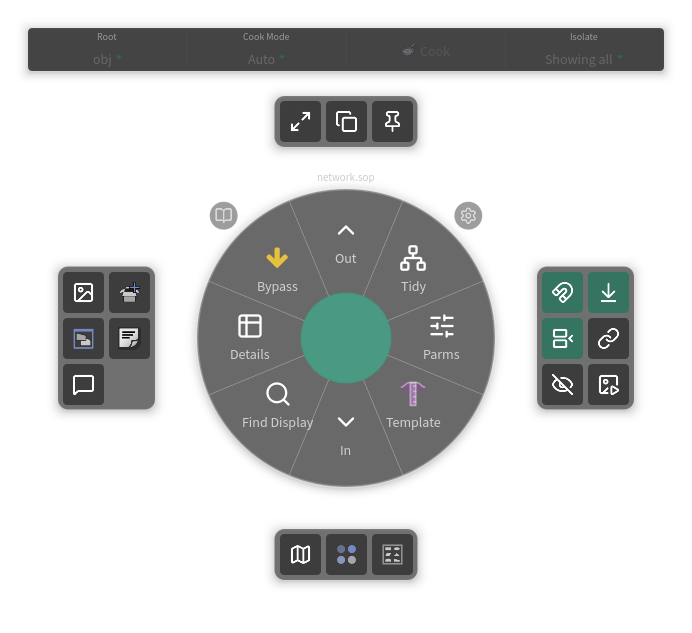
Opening it
Hold X over the network editor. Release on a button to fire it. A quick tap toggles the editor's inline parameter dialog, the same as pressing P. "The target node" below is the node under the cursor when you pressed X. Over empty canvas, the target is the current selection.
Ring
The buttons run clockwise from the top.
| Position | Button | What it does | Shift / other |
|---|---|---|---|
| N | Out | Goes up to the nearest editable parent network. Greyed out when the parent is the root. | — |
| NE | Tidy | Lays the network out with Radial's own layout, described under Tidy. | Shift tidies only the target nodes. |
| E | Parms | Opens a floating parameter editor for each target node. Greyed out with no target. | — |
| SE | Template | Puts the template flag on the target nodes, or takes it off. They all follow the first one. Greyed out with no target, or when the target has no template flag. | Lit when the target is templated. |
| S | In | Enters the editor's current node if it is a network with editable contents. Greyed out otherwise. | — |
| SW | Find Display | Takes the editor to the node the viewport shows: into the network that holds it, with that node current and framed. While parts are isolated, the node above __isolate. |
— |
| W | Details | Opens a floating geometry spreadsheet pinned to the target node. Greyed out with no target. | — |
| NW | Bypass | Bypasses the target nodes, or takes the bypass off. They all follow the first one. Greyed out with no target. | Lit when the target is bypassed. |
Tidy
Tidy puts the main stream (input 0) straight down and a node that only feeds another right above it. It puts the long wires of one output on one straight rail with dots, and keeps network boxes and for-each loops together beside the flow. Positions, dots and box sizes change, and a box takes in the nodes wired between two of its members. A sticky note in a box moves with it. A dot with no input and a pinned dot stay put. Every wire and parameter stays. If a wire would change, Tidy undoes itself and says so. One undo puts everything back.
Shift+Tidy lays out only the target nodes: the selection, plus the hovered node when it is not part of the selection. It needs at least two. A locked asset's network is left alone.
Centre
The centre is Display: it sets the target node's display flag, and its render flag where it has one, and selects it. A click on the centre does it, and so does letting go of X on the centre.
Top zone
| Button | What it does | Shift / other |
|---|---|---|
| Maximize | Maximizes the pane under the cursor, or restores it. | — |
| Copy Window | Clones the pane tab into a floating, pinned window. | — |
| Pin Tab | Pins the pane tab, or unpins it. | Lit when pinned. |
Left zone
These buttons organise what is in the network.
| Button | What it does | Shift / other |
|---|---|---|
| Thumbnail | Flipbooks the current frame of the viewer to $HIP/thumbnails/<node>.png and attaches it beside the target node as a background image. With no target it makes a free-floating poster under $HIP/posters/, anchored to a transparent sticky note at the cursor. |
— |
| Subnet | Collapses the target nodes into a subnet, or drops an empty subnet at the cursor when there is no target. | — |
| Net Box | Wraps the target nodes in a black network box, or drops an empty one at the cursor. | — |
| Note | Adds a sticky note beside each selected item, or one at the cursor when nothing is selected. | — |
| Comment | Opens a dialog to edit the target node's comment, and shows the comment on the node. Greyed out with no target. | — |
Right zone
These are network editor preferences. Each is a toggle, lit when on.
| Button | What it does | Shift / other |
|---|---|---|
| Snap to Nodes | Toggles snapping while you move nodes. | Lit when on. |
| Drop on Wires | Toggles dropping a node onto a wire to insert it. | Lit when on. |
| Make Room | Toggles moving nodes aside to make room for new ones. | Lit when on. |
| Dep Links | Shows or hides dependency links. | Lit when shown. |
| Dim Unused | Dims nodes that do not feed the displayed result. | Lit when on. |
| BG Images | Shows or hides background images. | Lit when shown. |
Bottom zone
| Button | What it does | Shift / other |
|---|---|---|
| Overview | Switches the network overview between Always On and Off. | Lit when Always On. |
| Colors | Switches the palette mode to colours, or back. | Lit when on. |
| Shapes | Switches the palette mode to shapes, or back. | Lit when on. |
Menubar
| Button | What it does | Shift / other |
|---|---|---|
| Root | Shows the current top-level network. Click it to list every child of /, and choose one to go there. The radial closes after you choose. |
— |
| Cook Mode | Shows Auto, Mouse Up or Manual. Click it to pick Auto Update, On Mouse Up or Manual. The dropdown stays open until you click away. | — |
| Cook | Forces a cook, as the status bar button does. Enabled only in Manual mode. | — |
| Isolate | Shows "Showing all", or what is isolated or hidden, such as "Isolated name: head, arm_l". Click it to show everything. You isolate parts on the viewport's SOP menu. | Lit while parts are isolated or hidden. |
Other clicks
A middle click clears the selection.
Right-click anywhere on the open menu to get the View radial, whose buttons run clockwise from the top. Release the right button on one to fire it.
View radial
| Button | What it does | Shift / other |
|---|---|---|
| Spreadsheet | Opens a floating geometry spreadsheet pinned to the target node. | — |
| Parms | Opens a floating parameter editor for the target. | — |
| Preview | Opens a floating, pinned context viewer. | — |
| Edit Parms | Opens the Edit Parameter Interface dialog for the target node. | — |
A quick right tap in its centre sets the target node's display and render flags and selects it. These buttons are greyed out with no target.
Related
- LOP Network: the same menu for Solaris networks.
- Shader Network: the menu for shader networks, with Preview.
- The built-in menus
- The radial, surface by surface
- Menu builder: put any of these buttons on a menu of your own, including the node-creation ones (Null, Merge, Output, ObjMerge, Fetch, Reference Copy).