Radial
Radial menus for Houdini. Hold X and a ring of actions opens under the cursor, made for the pane you are over: modelling in a SOP viewport, brushes while you sculpt or paint, posing while you animate, wiring and layout in the network editor, and a preview of any node in a shader network.
- Hold X
- Flick toward an action
- Let go to fire it
In use
How to use it
Install Radial and start Houdini. There is nothing to enable: hold X over a viewport or a network editor and the menu is there. These are all the moves.
| Do this | What happens |
|---|---|
| Hold X | The menu for the pane under the cursor opens at the cursor. |
| Move to a sector and let go | The sector fires and the menu closes. |
| Flick and let go | The same, without waiting for the menu. Move fast toward a sector you know and let go. |
| Tap X | The menu's quick action. Over a network editor it shows or hides the parameters on the node. |
| Click an item | It fires and the menu stays open, so you can flip several toggles in one press. |
| Click a sector with an arrow | Its submenu opens. |
| Right-click | A second radial: the viewport layouts over a viewer, View over a network. |
| Middle-drag | Moves the menu. The scroll wheel zooms the viewport behind it. |
| Esc | Closes the menu and does nothing. |
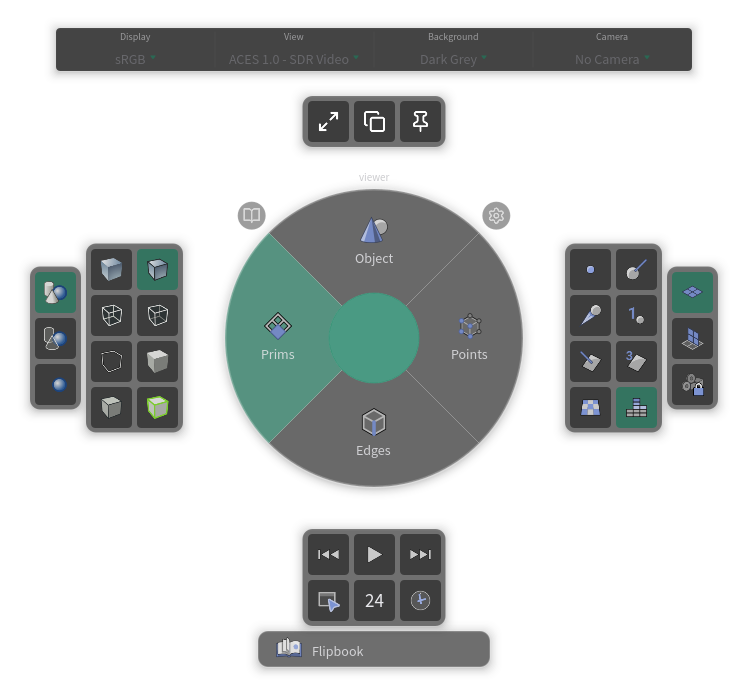 12334567
- Ring. The main actions. A lit sector is a toggle that is on. A dimmed one can't be used right now.
- Centre. A button too. Over a viewer, a quick click switches perspective and a longer click opens the view types.
- Zones. Grids of icons beside the ring. Hover a cell for its name, click it to fire it.
- Menubar. Settings with their current value. A click opens a list to pick from.
- Drawer. Actions you need less often, and sliders you drag.
- Book. Opens a page that explains every button on the menu.
- Cog. Opens Radial's settings: the key, which panes get a menu, the timings and the colours.
Without TumbleTrove
Radial needs neither the TumbleTrove desktop app nor the TumbleTrove package in Houdini. The X menus, the gestures above and the Radial Menu Builder all work on their own.
The menus
Radial picks the menu from the pane under the cursor and the state it is in. Each menu has a page with a picture and every button explained. In Houdini, the book button at the top left of a menu opens the same page.
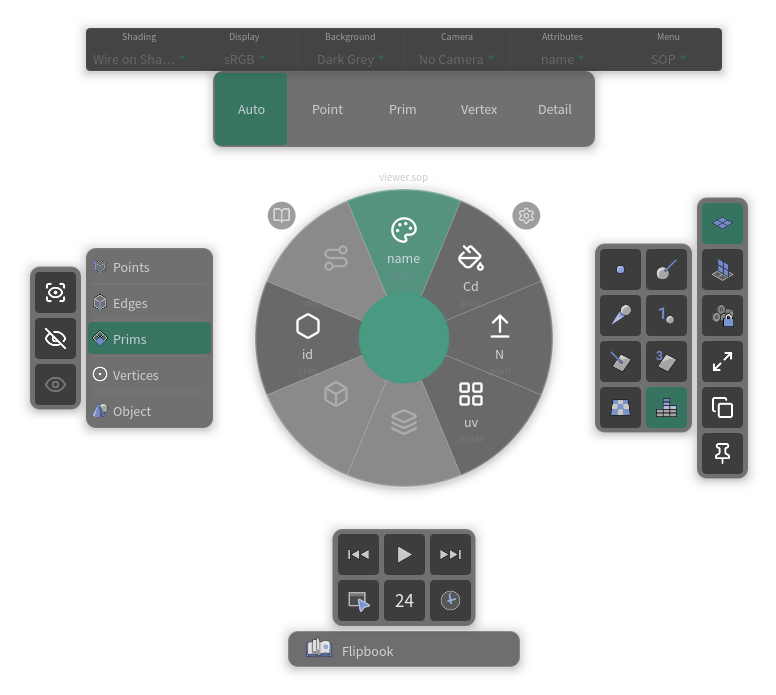 SOPX over a SOP viewport
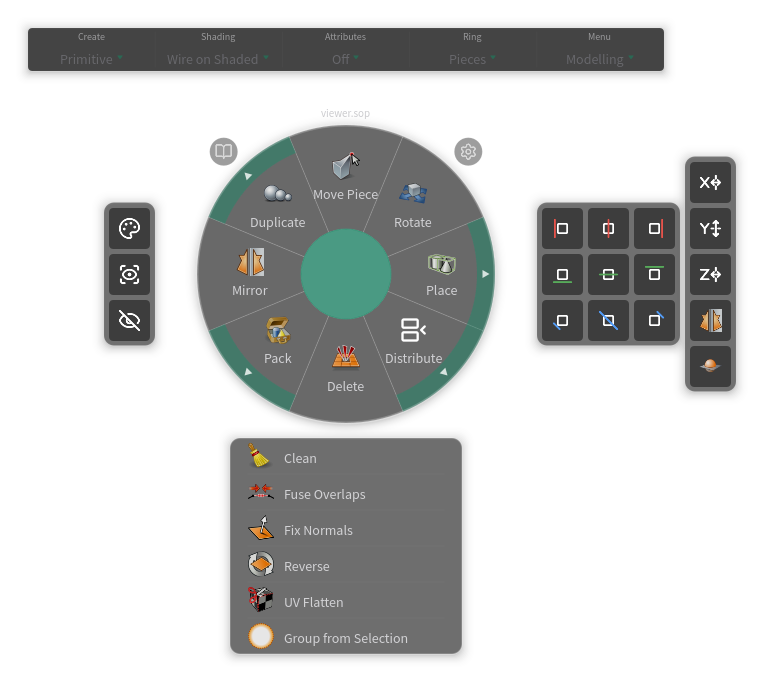 ModellingX over a SOP viewport, set to Modelling
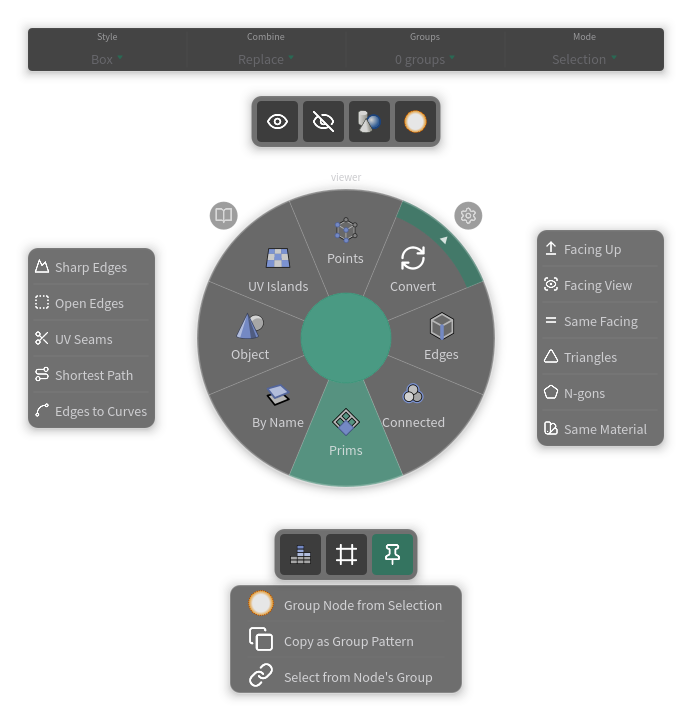 SelectionA held right mouse button over a viewport
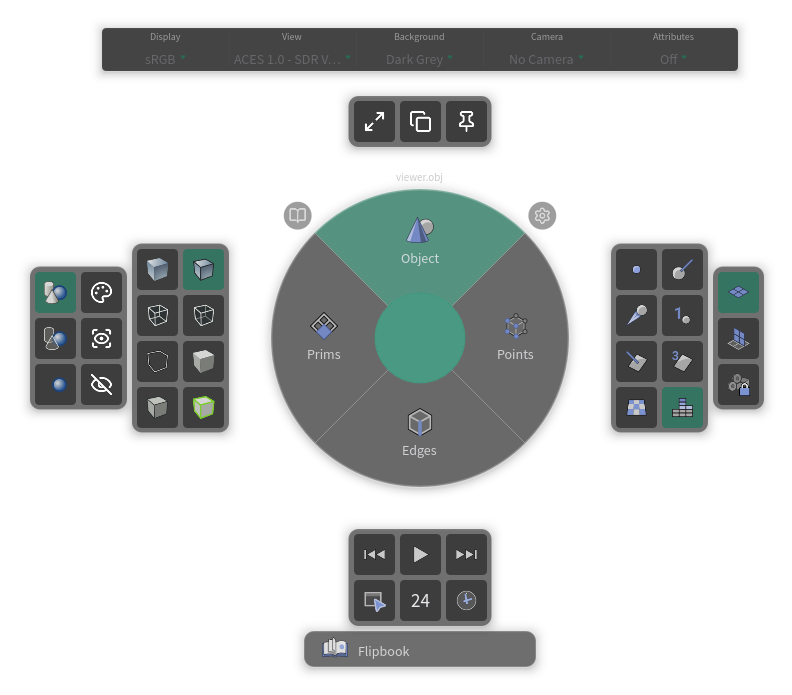 SOP ViewerX over other viewports
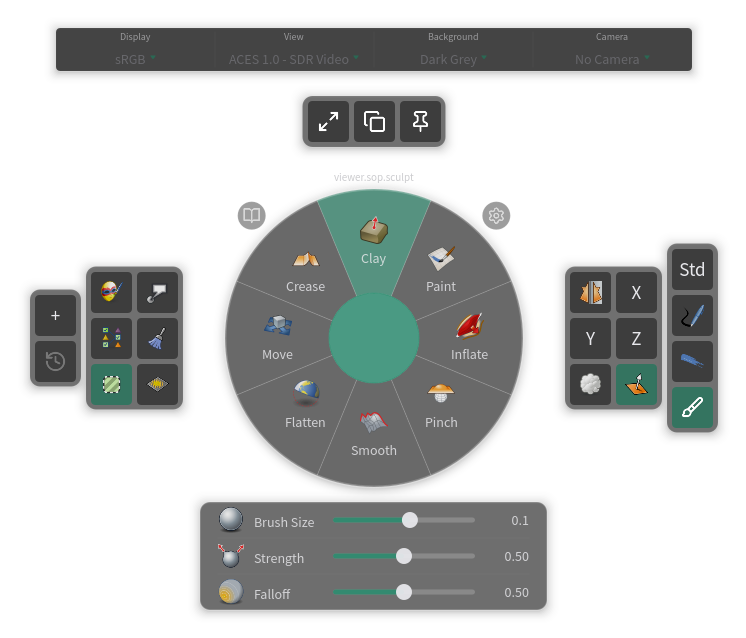 SculptX in the Sculpt SOP's state
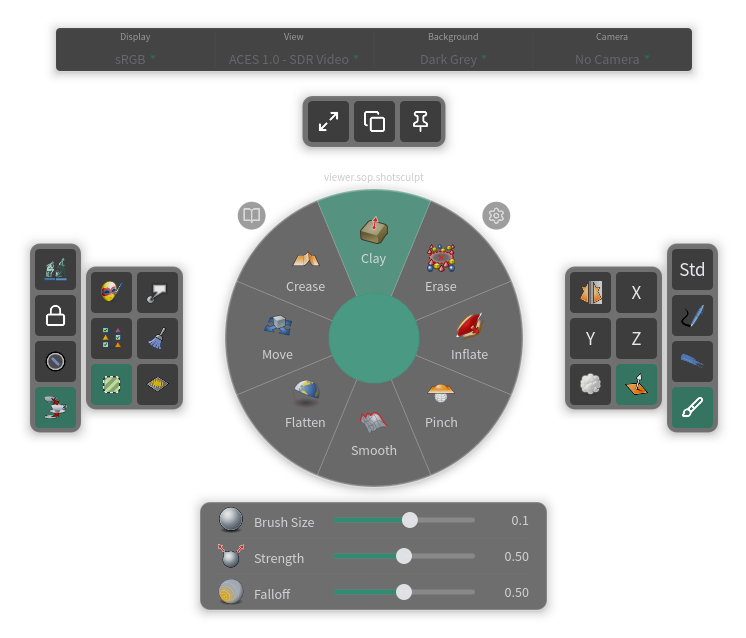 Shot SculptX in Shot Sculpt's state
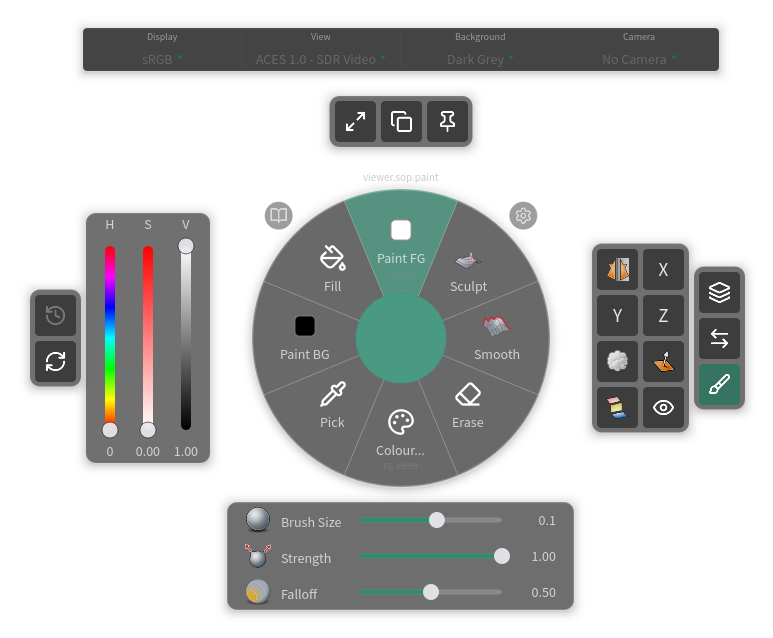 PaintX in the Attribute Paint SOP's state
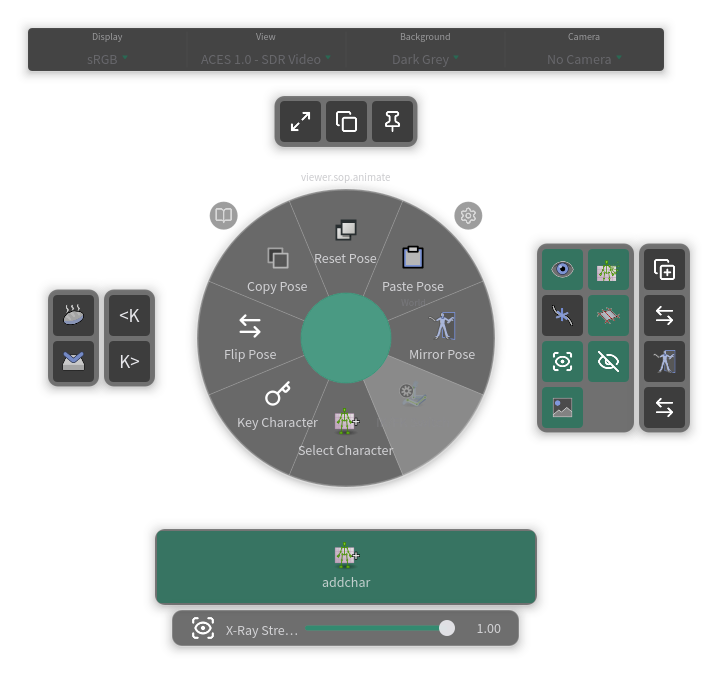 AnimateX in APEX Scene Animate's state
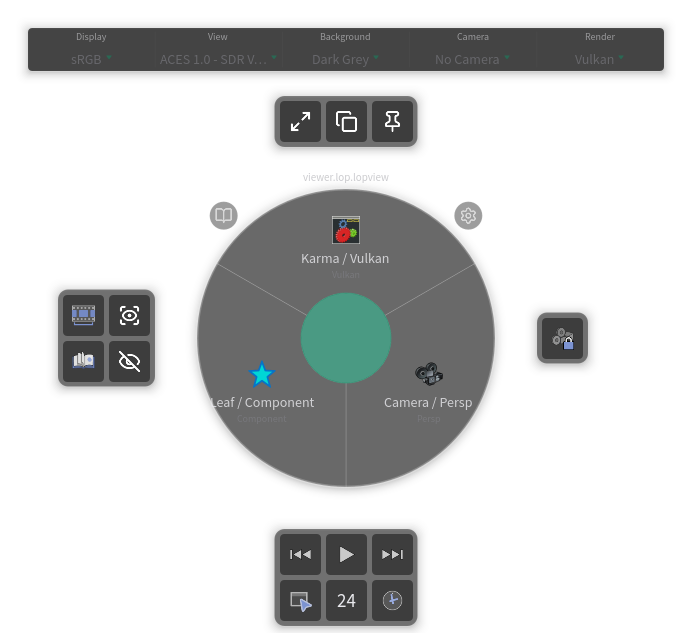 LOP ViewerX over a Solaris viewport
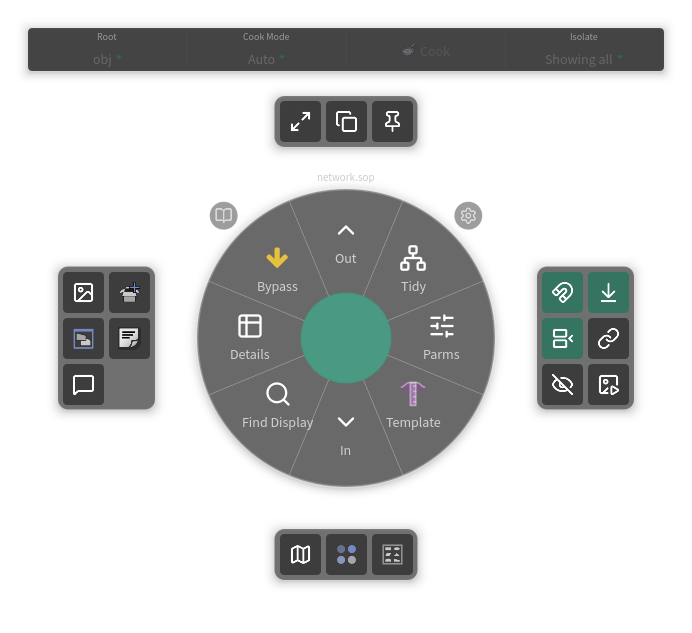 SOP NetworkX over a network editor
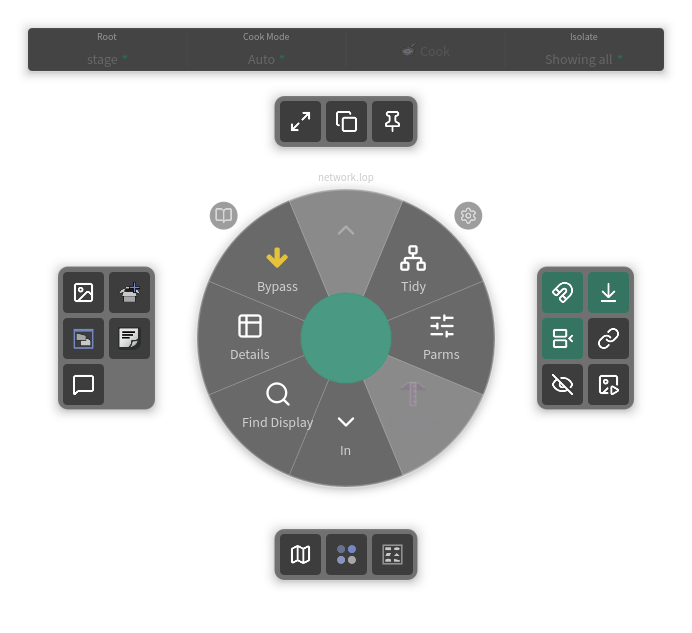 LOP NetworkX over a Solaris network editor
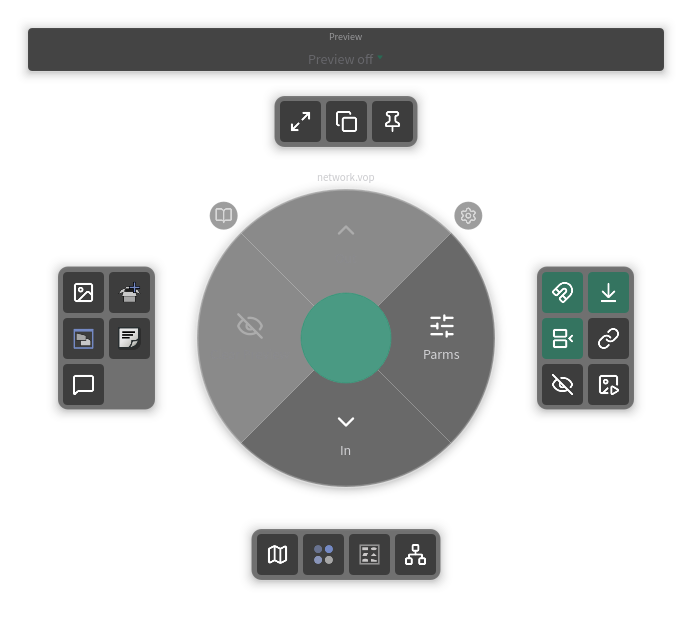 Shader NetworkX over a shader network editor
The centre, the top zone and the menubar are the same on most viewport menus: Shared parts.
Make your own
The Radial Menu Builder panel makes menus by dropping actions onto a canvas, with no Python: any action from the built-in menus, any node, Houdini's own tools. Menus can open for one pane or viewer state, or for a department, and a studio can share them through the project.
Requirements
- Houdini 21 and later, on Windows, macOS and Linux. Pure Python.
- Runs on its own. With TumbleTrove installed it adds Settings and Documentation to the TumbleTrove menu and renders the manual offline.
- With TumbleRig installed, the Animate menu's mirror and flip use TumbleRig's Mirror Pose.
Loading it in Houdini
There are two ways to get Radial into Houdini. Both load the same package, and Radial needs no other package to be loaded with it.
With TumbleTrove Desktop
- Open a project in TumbleTrove Desktop, or make one.
- Add Radial to the project's packages.
- Launch Houdini from the project and hold X over a viewport.
Desktop downloads Radial and hands it to that Houdini session. Each project keeps its own version, updates are one click, and nothing is written to your Houdini preferences.
By hand
- Download the Radial archive and unpack it, for example to
C:/tools/radial. The folder you point at is the one that holdshpm.toml. - In the
packagesfolder of your Houdini preferences (on WindowsDocuments/houdini22.0/packages), make a fileradial.jsonwith this line:{"hpath": "C:/tools/radial"} - Start Houdini and hold X over a viewport.
Every Houdini you start loads that one copy. To update, replace the
folder. hpm can do the download and the update for you.
Did it load? Hold X over a viewport: the ring opens. If nothing happens, open
Windows ▸ Python Shell and look for a line that starts with [radial] startup error:.
With the TumbleTrove package installed, TumbleTrove ▸ About TumbleTrove lists Radial and its
version.