Radial / menus
Animate
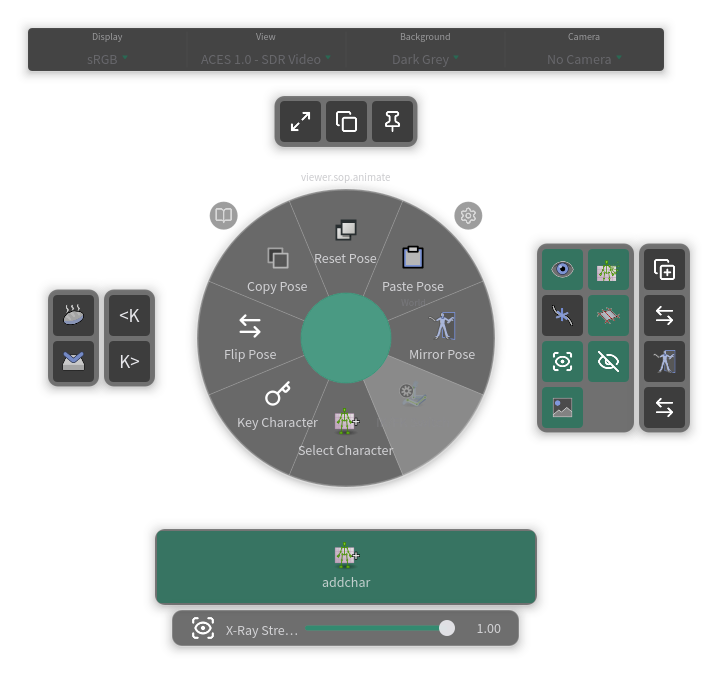
Opens over a Scene Viewer in APEX Scene Animate's state, context viewer.sop.animate, with X by default. It is the menu for posing and keying an APEX character: copy, paste, mirror and flip poses, switch IK and FK, key and reset, step between keys, and set what the state shows. Leave the state and the SOP Viewer menu opens again.
Opening it
Hold X over the viewport to open the menu, move to a button and release to fire it. A quick tap of X switches to the view state and back, as on the SOP Viewer. Every action runs on the Animate state the viewport is in, so the state's HUD follows along, and one Ctrl+Z undoes each action.
Working without a selection
The buttons work on the selected controls. With no control selected, they work on every control of the active character instead, so you can key, reset, copy, paste, mirror or flip a whole character without selecting it first. The active character is the one the selection is on. With nothing selected, it is the one last picked in the Character zone under the ring, or the scene's first character. Mirror Selection, Flip Selection and IK/FK Switch still need a selected control.
The centre, its right-click Layout radial, the top zone and the menubar are the viewport menus' shared parts. They are described on Shared parts.
Ring
| Position | Button | What it does | Shift / other |
|---|---|---|---|
| N | Reset Pose | Puts the selected controls back to their rest values. Keys stay where they are. With nothing selected, resets the active character. | Shift resets every control on the character the selection is on. |
| NE | Paste Pose | Pastes the transforms you copied with Copy Pose onto the selected controls, in world space. It pastes onto whatever is selected, so you can also copy one control and paste it onto another to snap it there. With nothing selected, it pastes onto the active character. The same as Ctrl+V in the state. | Shift pastes local transforms. |
| E | Mirror Pose | Mirrors the selected controls' pose to the other side. With a range picked on the timeline, it mirrors the keys in that range. With TumbleRig installed this is TumbleRig's Mirror Pose, which works on TumbleRig characters. Without it, this is SideFX's Mirror with Default. With nothing selected, mirrors the active character. | Shift flips instead of mirrors (needs TumbleRig). |
| SE | IK/FK Switch | With any control of a limb selected, IK or FK, switches the limb to the other mode, matches it to the pose it is in, and selects the control's twin on the other side, so the hand stays where it was. It needs a limb with an IK/FK switch control, as the autorig limb, arm, leg and biped components make. Greyed out for anything else. | Shift also keys the switch on this frame and the one before, so the pose does not pop. |
| S | Select Character | Selects every control on the character the selection is on, or the active character with nothing selected. | Shift selects every control in the scene. |
| SW | Key Character | Keys every control on the character the selection is on, at the current frame. The selection stays as it was. One selected control is enough; with nothing selected, keys the active character. | — |
| W | Flip Pose | Swaps the two sides of the selected controls' pose. Each control takes its twin's pose, mirrored, and a middle control turns over. Works over a timeline range like Mirror Pose. Needs TumbleRig and is greyed out without it. | — |
| NW | Copy Pose | Copies the selected controls' transforms, or the active character's with nothing selected. The same as Ctrl+C in the state. | — |
Left zone
| Button | What it does | Shift / other |
|---|---|---|
| Previous Key | Jumps to the previous key on the selected controls. Shows a message when there is none. | — |
| Next Key | Jumps to the next key on the selected controls. Shows a message when there is none. | — |
Left zone, outer column
| Button | What it does | Shift / other |
|---|---|---|
| Bake Keys | Runs the state's Bake (B). | — |
| Save Pose | Saves the selection's pose to the Animation Catalog. | Shift saves its animation. |
Right zone
| Button | What it does | Shift / other |
|---|---|---|
| Controls | Shows or hides every control. | Lit when controls are showing. |
| Characters | Shows or hides every character. | Lit when characters are showing. |
| Motion Path | Draws the selected control's motion path, and takes it away again. With no control selected it shows a message. | Lit while a path is drawn. |
| Skin Controls | Turns the state's Use Skin Controls setting on or off. | Lit when on. |
| X-Ray | Turns the state's Use Control XRay setting on or off, so controls show through the geometry. | Lit when on. |
| Hide in Play | Turns the state's Hide Controls During Playback setting on or off. | Lit when on. |
| 2D Controls | Hides the controls drawn as pictures: the autorig's config panels, the Main Manager and TumbleRig's 2D menus. Click again to show the same ones. | Lit while they are showing. |
Right zone, outer column
| Button | What it does | Shift / other |
|---|---|---|
| Mirror Selection | Adds each selected control's twin on the other side to the selection. Shows a message when no selected control has a twin. | — |
| Flip Selection | Swaps each selected control for its twin and keeps a middle control. | — |
| Mirror Animation | Mirrors the animation over the range picked on the timeline, or the whole playback range when none is picked. Needs TumbleRig and is greyed out without it. | — |
| Flip Animation | Flips the animation over the same range. Needs TumbleRig and is greyed out without it. | — |
Twins come from TumbleRig's pairing when it is installed. Without it they come from the rig's mirror patterns, then from left and right names (an L_ prefix, an _L suffix, or Left and Right, in either case).
Character zone
| Button | What it does | Shift / other |
|---|---|---|
| One per character | Makes it the active character, which the buttons work on when no control is selected. The active one is lit. The menu stays open, so you can pick a character and then a button. Opening the menu with a control selected makes that control's character the active one. | Shift selects every control on it. |
Drawer
| Button | What it does | Shift / other |
|---|---|---|
| X-Ray Strength | A slider under the Character zone: how strongly controls show through the geometry, 0 to 1. | A click sets it back to full. |
Menubar
The menubar is the same as on the SOP Viewer. See Shared parts.
Other clicks
A middle click clears the selection.
In the catalog only
These actions are registered for the Animate context but have no button. Put them on a custom menu with the menu builder.
| Action | What it does |
|---|---|
| Key Selection | Keys just the selected controls. |
| Paste Local | Pastes local transforms. |
| Mirror with Plane | The state's Mirror with Custom Plane. |
| Select All Controls | Selects every control. |
| Reset Character | Resets every control on the selection's character. |
| Save Animation | Saves the selection's animation to the Animation Catalog. |
| Click and Drag | Toggles the state's Click and Drag setting. |
| Hide Control Groups | Toggles the state's Hide Control Groups setting. |
Hotkeys
The state's own hotkeys keep working beside the menu: Ctrl+A selects every control, Ctrl+C and Ctrl+V copy and paste, Ctrl+Shift+M and Shift+M mirror, B bakes and C opens the state's tool menu. With TumbleRig installed, Ctrl+M runs its Mirror Pose.
Related
- Shared parts: the centre, Layout radial, top zone and menubar.
- SOP Viewer: the menu this one replaces outside the Animate state.
- The built-in menus
- The radial, surface by surface