Radial / menus
SOP Viewer
Opens when you hold X over a Scene Viewer that shows anything other than a LOP network: objects, DOPs, and SOPs when the SOP viewport menu is set to Classic. Context viewer, key X by default. It is also called the Classic menu. It sets the selection mode and the shading, switches the display options, and runs playback.
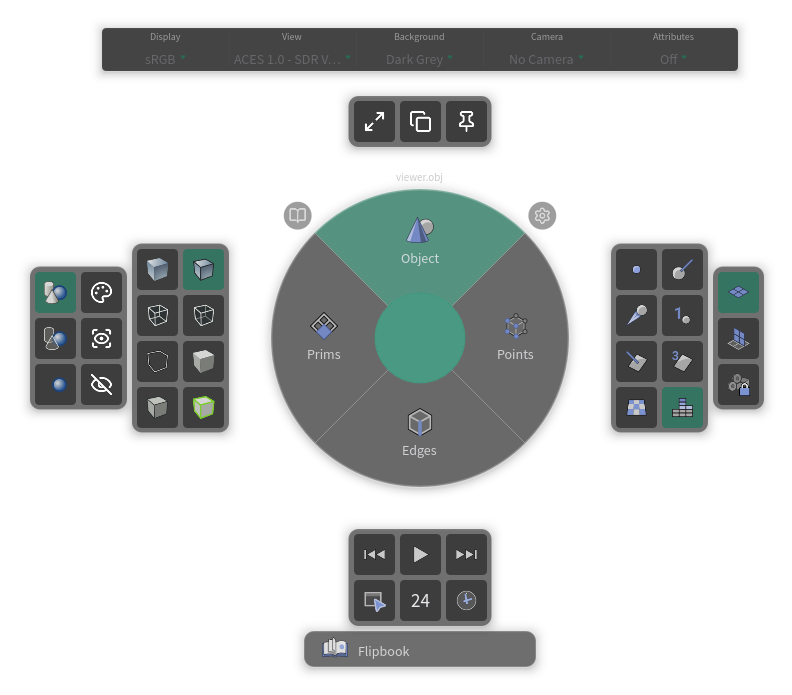
SOP viewports open the SOP menu instead, or the Modelling menu, as the SOP viewport menu setting says. With that setting on Classic they open this one too. OBJ and DOP viewports always open this menu. See Settings.
Opening it
Hold X over the viewport. Move to a sector or a zone cell and release to fire it. Clicking a zone cell fires it and leaves the menu open, so you can change several things in one press. A quick tap on X switches between the view state and the current node's state, whichever you are not in.
The centre, its right-click Layout radial, the top zone and the menubar are the same on every viewport menu: see Shared parts.
Ring
Four sectors. Each sets the selection mode and enters the select state. The current mode is lit.
| Position | Button | What it does | Shift / other |
|---|---|---|---|
| N | Object | Selects whole objects. | Lit while Object mode is on. |
| E | Points | Selects points on the geometry. | Lit while Points are the pick type. |
| S | Edges | Selects edges on the geometry. | Lit while Edges are the pick type. |
| W | Prims | Selects primitives on the geometry. | Lit while Primitives are the pick type. |
Left zone
A grid of eight shading modes, two columns wide. They set the shading of the viewport under the cursor. The current one is lit.
| Button | What it does | Shift / other |
|---|---|---|
| Smooth | Smooth shaded. | — |
| Smooth+Wire | Smooth shaded with the wireframe on top. | — |
| Wire | Wireframe. | — |
| Wire Ghost | Wireframe with a faint ghost of the shaded surface. | — |
| Hidden | Hidden line: wires with the hidden ones removed. | — |
| Flat | Flat shaded. | — |
| Flat+Wire | Flat shaded with the wireframe on top. | — |
| BBox | Shaded bounding box. | — |
Left zone, outer columns
Two columns. The first sets how objects other than the current one are shown in the viewport. Houdini does not report this setting, so the lit cell is what Radial last set. It starts on Show All and may not match a change you made elsewhere.
| Button | What it does | Shift / other |
|---|---|---|
| Show All | Shows every object. | — |
| Ghost | Shows the other objects as ghosts. | — |
| Hide Others | Hides every object except the current one. | — |
The second works on the parts of the displayed geometry inside a SOP network: see them by name, select them, isolate them. They add a Visibility SOP named __isolate, as on the Modelling menu.
| Button | What it does | Shift / other |
|---|---|---|
| Name | A colour per name, and clicks in the viewport pick whole named parts (By Name picking, the same as on the Selection menu). Again to turn the colours off, and By Name picking with them. Picking By Name also gives this menu its Pieces ring. |
Lit while names show as colours. |
| Isolate | Shows only what you selected; with nothing selected, the part under the cursor when you pressed X. Picking By Name, it isolates the selected parts by name, so they stay isolated when the geometry above changes. Otherwise it isolates exactly the selected primitives. While something is isolated or hidden, a click shows everything again. | Shift adds the selection, or the part under the cursor, to what is isolated. Lit while something is isolated or hidden. |
| Hide | Hides what you selected, or the part under the cursor. While parts are isolated, it takes them out of what is isolated. | — |
Right zone
A grid of eight display toggles, two columns wide. Each one switches an option on every display set the display options toolbar controls. A lit cell is on.
| Button | What it does | Shift / other |
|---|---|---|
| Points | Shows point markers. | Lit when on. |
| Normals | Shows point normals. | Lit when on. |
| Trails | Shows point trails. | Lit when on. |
| Point Nums | Shows point numbers. | Lit when on. |
| Prim Norms | Shows primitive normals. | Lit when on. |
| Prim Nums | Shows primitive numbers. | Lit when on. |
| UV | Uses the UV map in the viewport. | Lit when on. |
| Visualize | Turns the Scene and Common visualizers on or off together for the current viewport. Houdini's own toolbar button may keep showing the old state until something repaints it. | Lit while either is on. |
Right zone, outer column
One column of viewport controls.
| Button | What it does | Shift / other |
|---|---|---|
| Ref Plane | Shows or hides the reference plane, the grid in orthographic views. | Lit when on. |
| Constr Plane | Shows or hides the construction plane. | Lit when on. |
| Lock Camera | Locks the camera to the view, so moving the view moves the camera you look through. | Lit when locked. |
Bottom zone
Playback controls, in a grid of three columns.
| Button | What it does | Shift / other |
|---|---|---|
| First Frame | Goes to the first frame of the playback range. | Shift: steps back one frame, by the playbar's frame increment. |
| Play | Starts playback. It becomes Stop while playing, and a click stops it. | Shift: plays in reverse. |
| Last Frame | Goes to the last frame of the playback range. | Shift: steps forward one frame, by the playbar's frame increment. |
| Anim Panel | Opens the Global Animation Options dialog and closes the radial. | — |
| FPS | Shows the current frame rate. A click sets the next value in 12, 24, 25, 30, 48, 60, and wraps from 60 to 12. | Shift: steps down the list, wrapping from 12 to 60. |
| Realtime | Turns the playbar's real-time playback on or off. | Lit when on. |
Drawer
| Button | What it does | Shift / other |
|---|---|---|
| Flipbook… | Opens the flipbook dialog for the viewer. | — |
Menubar
The same four cells as every viewport menu: Display, View, Background and Camera. See Shared parts.
Other clicks
A middle click clears the selection, and Escape closes the menu. See Shared parts.
Related
- Shared parts
- LOP Viewer
- Modelling
- Settings
- Custom menus