Radial / menus
Selection
Opens over a Scene Viewer when you hold the right mouse button, on viewer for SOP viewports. Over a Solaris viewport you get a shorter ring, described at the end. It picks the component type, finds components by rule, and sets how your clicks select.
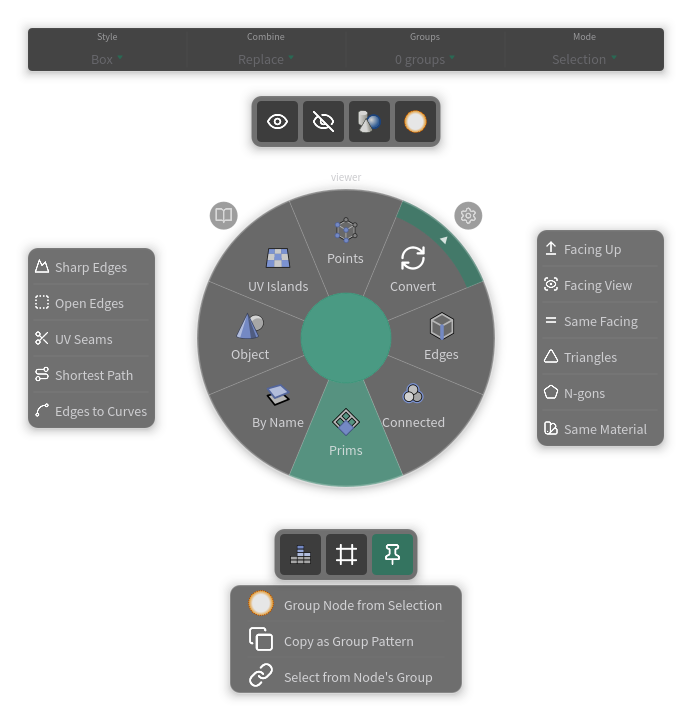
Opening it
Hold the right mouse button over a viewport. The button is Selection menu with in Settings. The menu opens after the button has been down for Mouse-button hold, or at once if you drag. Release over a button to pick it. A quick right-click goes back to Houdini, so its own right-click menus still open. Alt and right-drag (dolly) is never taken. In the view state, where right-drag dollies the camera, only holding the button still opens the menu.
Every pick leaves you in the select tool. Whatever you choose here, the viewer leaves the view state or a node's state, so your next click selects.
Ring
| Position | Button | What it does | Shift / other |
|---|---|---|---|
| N | Points | Picks points. What is selected converts to points. | Lit while it is the pick type. |
| NE | Convert ▸ | Opens the Convert submenu. | — |
| E | Edges | Picks edges. What is selected converts to edges. | Lit while it is the pick type. |
| SE | Connected | Picks prims, and each click takes the whole connected piece. It grows the current selection to whole pieces. It gives the Modelling menu its Pieces ring. | Lit while on. |
| S | Prims | Picks prims. What is selected converts to prims. | Lit while it is the pick type. |
| SW | By Name | Picks prims, and each click takes every prim sharing the clicked prim's name attribute. It grows the selection to whole named pieces and gives the Modelling menu its Pieces ring. |
Lit while on. |
| W | Object | Switches to Object mode. | Lit while on. |
| NW | UV Islands | Picks prims, and each click takes the whole UV island. | Lit while on. |
Connected, By Name and UV Islands use Houdini's own group picking, the same as its Select menu. Points, Edges and Prims turn whole-piece picking off and go back to single components.
Convert
| Button | What it does | Shift / other |
|---|---|---|
| To Points | Converts the selection to points. | — |
| To Edges | Converts the selection to edges. | — |
| To Prims | Converts the selection to prims. | — |
Centre
| Button | What it does | Shift / other |
|---|---|---|
| Select | A quick click goes back to the component type you used before the current one. Its second line says which, for example back to edges. A longer click opens the Style submenu. | — |
Style
| Button | What it does | Shift / other |
|---|---|---|
| Box | Selects by dragging a box. | Lit while it is the style. |
| Lasso | Selects by drawing a lasso. | Lit while it is the style. |
| Brush | Selects by painting with a brush. | Lit while it is the style. |
| Laser | Selects with the laser pick style. | Lit while it is the style. |
Top zone
A row of four icons that change what you see and save the selection.
| Button | What it does | Shift / other |
|---|---|---|
| Isolate | Shows only the selection. Picking By Name, the selected parts by name; otherwise exactly the selected primitives. With nothing selected, it shows everything again. | — |
| Hide Selected | Hides the selection. While something is isolated, it takes the selection out of it. | — |
| Unhide All | Shows everything again. | — |
All three use one Visibility SOP named __isolate below the display node, which holds the display flag while something is hidden; Unhide All gives the flag back and deletes it. The Modelling and SOP Network menus share it: see Isolate. Unhide All also removes the Visibility SOPs older versions of this menu stacked at the end of the chain.
| Save as Group | Runs Group Create on the selection. | — |
Left zone
The Edges panel. Each button is a one-click setup. It adds a node after the display node, displays it and selects the group it makes. The node stays current, so its angle or spread is one look away in the parameter pane. Click the same setup again while its node is still the display node and it updates that node from the new selection instead of adding another. Edges to Curves always adds new nodes, because its result is new geometry.
| Button | What it does | Shift / other |
|---|---|---|
| Sharp Edges | Group Create of edges where faces meet at more than 30 degrees. Selects them. | — |
| Open Edges | Group Create of unshared edges. Selects them. | — |
| UV Seams | Group from Attribute Boundary on uv. Selects the seam edges. It needs a uv attribute on the geometry. |
— |
| Shortest Path | Group Find Path through the selected points. Selects the edges along the path. Select two or more points first. | — |
| Edges to Curves | Turns the selected edges, or the outline of selected faces, into polylines joined where they meet. It uses a Group Create, a PolyCut and a PolyPath. | — |
Right zone
The Faces panel. These setups work like the Edges panel and select prims.
| Button | What it does | Shift / other |
|---|---|---|
| Facing Up | Group Create of faces whose normal is within 45 degrees of straight up. | — |
| Facing View | Group Create of faces turned toward the viewer, within 45 degrees of the view direction. | — |
| Same Facing | Group Create of faces turned the same way as the selected ones, within 10 degrees. Select faces first. | — |
| Triangles | Group Expression selecting faces with three vertices. | — |
| N-gons | Group Expression selecting faces with more than four vertices. | — |
| Same Material | Selects every face with the selected face's material. Select a face first. It needs a shop_materialpath attribute. |
— |
Bottom zone
Houdini's selection rules, as toggles. Clicking one leaves the menu open.
| Button | What it does | Shift / other |
|---|---|---|
| Visible Only | Toggles Houdini's rule to pick only geometry you can see. | Lit while on. |
| Contained Only | Toggles Houdini's rule to pick only geometry fully inside your box or lasso. | Lit while on. |
| Secure Selection | Toggles Houdini's Secure Selection rule. | Lit while on. |
Drawer
| Button | What it does | Shift / other |
|---|---|---|
| Group Node from Selection | Runs Group Create on the selection. | — |
| Copy as Group Pattern | Copies the selection to the clipboard as a pattern such as 0-12 15, ready to paste into a group field. |
— |
| Select from Node's Group | Selects whatever the group field of the selected node names. With no node selected it uses the display node. It needs a node with a group field. | — |
Menubar
| Button | What it does | Shift / other |
|---|---|---|
| Style | Opens a list to choose Box, Lasso, Brush or Laser. Its second line shows the current style. | — |
| Combine | Opens a list that sets how a plain click combines with the current selection: Replace, Add, Toggle, Remove or Intersect. | — |
| Groups | Opens a list of the groups of the current component type on the displayed geometry. Picking one selects it. The second line counts the groups. With none, the status line says so. | — |
| Mode | Opens a list to choose Selection or Group. In Group mode the Modelling tools read a named group made from your selection instead of component numbers. See Group mode. | — |
Other clicks
| Button | What it does | Shift / other |
|---|---|---|
| Middle click | Clears the selection. Turn this off with Middle click clears the selection in Settings. | Middle-drag moves the radial. |
Solaris selection
Over a Solaris viewport the menu is a ring of four buttons, one per scene-graph selection kind. Each pick switches to the scene graph select state. The current one is lit.
| Position | Button | What it does | Shift / other |
|---|---|---|---|
| N | Component | Selects prims of kind component. | Lit while on. |
| E | Leaf Prim | Selects leaf prims. | Lit while on. |
| S | Xform | Selects by transform, the prim kind Houdini calls xform. | Lit while on. |
| W | Pt Instance | Selects point instances as leaf instances. | Lit while on. |