Radial / menus
LOP Viewer
Opens when you hold X over a Scene Viewer that shows a LOP network (Solaris). Context viewer.lop, key X by default. It switches the Hydra renderer, the camera and the scene-graph selection kind, and runs playback.
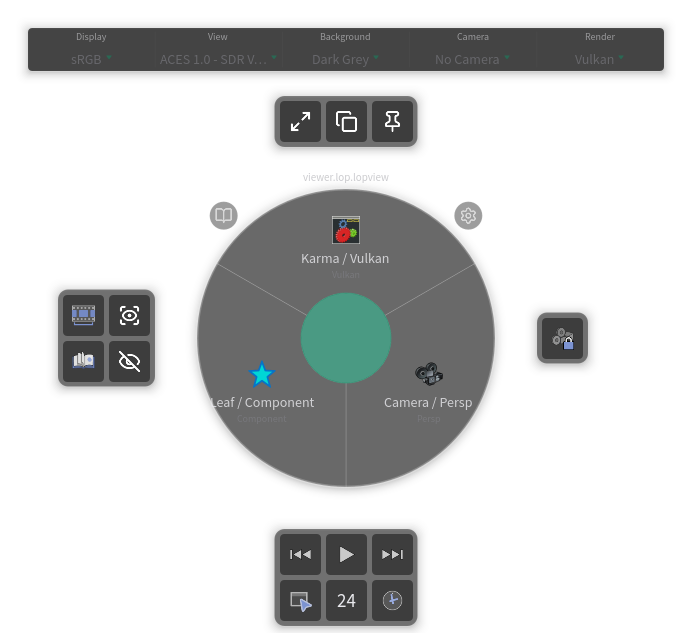
Opening it
Hold X over the viewport. Move to a sector or a zone cell and release to fire it. Clicking a zone cell fires it and leaves the menu open. A quick tap on X switches between the view state and the current node's state, whichever you are not in.
The right-click Layout radial and the top zone are the same as on every viewport menu: see Shared parts. The centre and the menubar differ in the camera and render parts, described below.
Ring
Three sectors. Each is a two-way toggle, and its label under the name shows the current choice.
| Position | Button | What it does | Shift / other |
|---|---|---|---|
| N | Karma / Vulkan | Switches the Hydra renderer between Karma and Vulkan. Going back to Karma picks the Karma variant you last left, else Karma XPU. The label reads CPU, XPU or Vulkan. | Lit while Karma is on. |
| SE | Camera / Persp | Looks through a camera, or goes back to the free perspective view. The label shows the camera name, or Persp. See the Camera button under Centre for how the camera is chosen. | Lit while you look through a camera. |
| SW | Leaf / Component | Switches the scene-graph selection kind between Leaf Prim and Component, and enters the scene-graph select state. From Xform or point-instance selection it goes to Component first. The label shows the current kind. | — |
Centre
The centre button View works as on the other viewport menus: its label shows the view type and View or Node, a quick click toggles Perspective, and a click opens the view types. See Shared parts. Persp, Left, Front, Top, Right and UV are the same. Only Camera differs.
| Button | What it does | Shift / other |
|---|---|---|
| Camera | If you look through a camera, it returns to the free perspective view and remembers that camera. Otherwise it looks through the camera you last left, if it is still on the stage, else the first camera prim on the stage. With no camera on the stage it adds a Camera LOP named camera1 after the display node, sets its primitive path to /cameras/render_camera, copies the current view into it, looks through it and locks the camera to the view. The Houdini free camera is not counted. |
Lit while you look through a camera. |
Left zone
| Button | What it does | Shift / other |
|---|---|---|
| Stage Range | Turns on or off Stage controls playbar, so the playbar follows the stage's time range. | Lit when on. |
| Isolate | Shows only the selected prims. It adds a Prune LOP named __isolate below the display node; see Isolate on the LOP Network page. While prims are isolated or hidden, a click shows them all again. |
Lit while prims are isolated or hidden. |
| Flipbook | Opens the flipbook dialog for the viewer. | — |
| Hide | Hides the selected prims. | — |
Right zone
| Button | What it does | Shift / other |
|---|---|---|
| Lock Camera | Locks the camera to the view, so moving the view moves the camera you look through. | Lit when locked. |
Bottom zone
The playback controls are the same as on the SOP Viewer: First Frame, Play, Last Frame, Anim Panel, FPS and Realtime. See the SOP Viewer's bottom zone, including the Shift actions.
Menubar
Five cells. Display, View and Background are the same as on every viewport menu: see Shared parts. Camera and Render are the LOP ones.
| Button | What it does | Shift / other |
|---|---|---|
| Camera | Lists the camera prims on the stage by name, with a tick on the one in use, plus No Camera and New Camera. A camera looks through it. No Camera goes back to the free perspective view. New Camera adds a Camera LOP as described under Centre. The cell shows the camera name, or No Camera. | — |
| Render | Picks the Hydra renderer from the ones Houdini offers, with a tick on the current one. Storm is left out and Houdini VK reads Vulkan. The cell shows CPU, XPU or Vulkan. | — |
Other clicks
A middle click clears the selection, and Escape closes the menu. See Shared parts.
The Solaris display toggles (Geometry, Materials, Lights, Cameras, Pause Render, Camera Effects, Selection) and the single selection kinds (Component, Xform, Leaf Prim, Pt Instance) are in the action catalog but not on this menu. Add them to your own menu in the Menu Builder.
Related
- Shared parts
- SOP Viewer
- LOP Network
- Custom menus
- Settings