Radial / menus
Paint
Opens over a Scene Viewer while you are in the Attribute Paint SOP's state (sidefx_attribpaint). Its context is viewer.sop.paint and it opens on the X key by default. Use it to pick what the left mouse button does, set the paint colour and mirror, and size the brush. The Sculpt menu's Paint lands here with a new Attribute Paint SOP that paints point colour (Cd), but the menu opens for any Attribute Paint node.
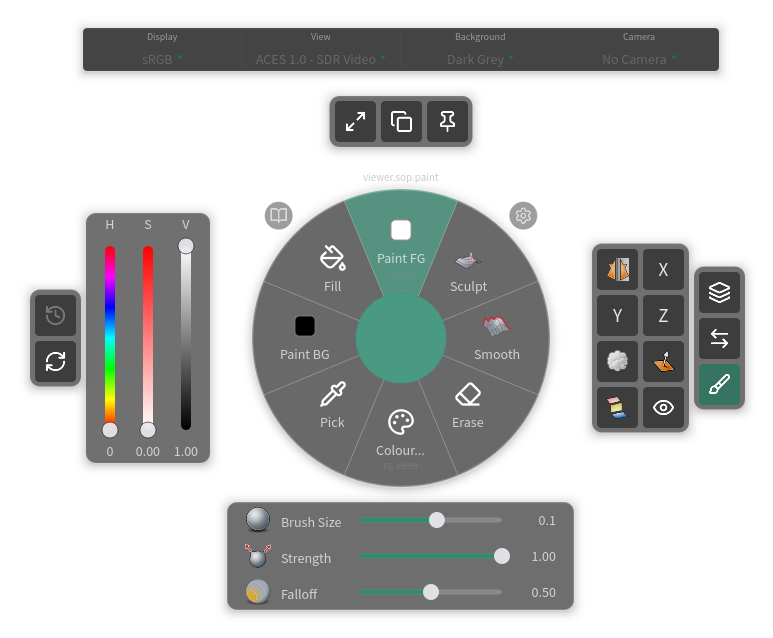
Opening it
Hold X over the viewport. Release on a button to fire it, or release in the centre to close the menu. A quick tap of X switches to the view state and back again, as on the SOP Viewer menu. With the setting Tap to keep a menu open on, a quick tap opens the menu and leaves it open instead: click and drag on it without holding X, then click outside it or press Escape to close it. Opening the menu also notes where the cursor was, which Pick uses.
Every button acts on the node you are painting, through its own parameters, and Ctrl+Z undoes each change.
Ring
The ring is what the left mouse button does. Attribute Paint keeps two colours. Paint FG paints the foreground colour and Paint BG the background colour. Each one's icon is a chip of the colour it paints. The one the colour controls set reads editing under its name (see Which colour the controls set). The current operation is lit.
| Position | Button | What it does | Shift / other |
|---|---|---|---|
| N | Paint FG | The left button paints the foreground colour. Also points the colour controls at the foreground. | — |
| NE | Sculpt | Adds a Sculpt SOP after this node and moves the state onto it, where the Sculpt menu opens. It starts with this brush's size, mirror, Volume / Surface and Front Faces. It sits where Paint does on the Sculpt menu, so the same flick goes back and forth. | — |
| E | Smooth | The left button blurs what is painted. | — |
| SE | Erase | The left button takes paint off. | — |
| S | Colour... | Opens Houdini's colour dialog, closing the menu first. The second line names the colour it sets (FG or BG) and shows its hex value. | Shift sets the other colour. |
| SW | Pick | Takes the colour under the point where the menu opened: hold X over the colour you want and pick it. Opened off the geometry, it makes the next left click on the geometry an eyedropper instead, then goes back to the brush you had. Lit while the eyedropper is armed. | Shift puts the picked colour into the other colour. |
| W | Paint BG | The left button paints the background colour. Also points the colour controls at the background. | — |
| NW | Fill | Paints whole connected pieces at a click. Choosing any other brush on the ring goes back to the shape you had before Fill. Lit while Fill is on. | — |
Centre
The View centre and its Layout radial are the same on every viewport menu. See Shared parts.
Top zone
The top zone is shared. See Shared parts.
Left zone
Hue, saturation and value of the colour the controls set, as three upright sliders beside the ring. Each track shows the colours it runs through at the other two's settings. Press on a track and drag up and down. The drag is one undo step.
| Button | What it does | Shift / other |
|---|---|---|
| H | Hue, from 0 to 360 degrees. | — |
| S | Saturation, from 0 to 1. | — |
| V | Value, from 0 to 1. | — |
Drag saturation or value to nothing and back and the hue you had is kept.
Left zone, outer column
| Button | What it does | Shift / other |
|---|---|---|
| Delete History | Folds the nodes Radial made into one Stash and carries on painting in a fresh Attribute Paint node with the same brush settings and colours. See Delete History. Greyed out on a node Radial did not make. | — |
| Clear Paint | Presses the node's Reset All Changes, which throws the paint away. One undo step. | — |
Right zone
Mirror, brush shape, facing and paint limits, in two columns.
| Button | What it does | Shift / other |
|---|---|---|
| Mirror | Turns mirroring on or off. The second line shows the axis: X, Y, Z or custom. Lit while on. | Shift steps the axis X, Y, Z and turns mirroring on. |
| Mirror X | Mirrors across X and turns mirroring on. Lit while X is the active axis. | — |
| Mirror Y | Mirrors across Y and turns mirroring on. Lit while Y is the active axis. | — |
| Mirror Z | Mirrors across Z and turns mirroring on. Lit while Z is the active axis. | — |
| Volume / Surface | Switches the brush shape between a sphere and the surface. Surface paints only what is connected along the surface. Lit on Surface. | — |
| Front Faces | Paints only faces that turn toward the camera. Lit while on. | — |
| Connected Only | Paints only what is connected to where the stroke lands. Lit while on. | — |
| Visible Only | Paints only what the camera can see. Lit while on. | — |
Right zone, outer column
| Button | What it does | Shift / other |
|---|---|---|
| Mode | Steps how paint lands: Over, Add, Max, Min, Multiply, then back to Over. The second line shows the current mode. | Shift goes straight back to Over. |
| Swap FG/BG | Swaps the foreground and background colours. | — |
| Per Brush | Turns brush memory on or off. Here each ring operation keeps its own size, opacity and soft edge. | — |
Drawer
Three sliders sit right under the ring, named as on the Sculpt menu. Press on a row and drag along it. The whole drag is one undo step.
| Button | What it does | Shift / other |
|---|---|---|
| Brush Size | The node's Radius, in scene units, on a log scale from a thousandth of the geometry's diagonal to half of it. | — |
| Strength | The node's Opacity, from 0 to 1. | — |
| Falloff | The node's Soft Edge, from 0 to 1. | — |
Menubar
The Display, View, Background and Camera menubar is shared. See Shared parts.
Other clicks
| Button | What it does | Shift / other |
|---|---|---|
| Middle click | Clears the selection, unless you changed the middle-click setting. | — |
| Right-click | Opens the Layout radial. | — |
Which colour the controls set
The H, S and V sliders, Colour... and Pick set one of the two colours: the one you last painted with. Until the first stroke that is the foreground. Paint a stroke with Paint BG, or with Ctrl, and they set the background. Paint with Paint FG again and they are back on the foreground. Picking Paint FG or Paint BG on the ring switches them too, so you can set a colour before painting with it. The ring shows which one with editing under it.
The menu notices strokes from the first time it opens over the node, so on a node painted before then it starts on the foreground.
An eight-colour palette (White, Black, Red, Orange, Yellow, Green, Blue, Purple) is in the builder's catalog for a menu at the Paint context. A click sets the colour the controls set, and Shift+click sets the other.
Hotkeys
The state's own controls still work while the menu is closed. The mouse wheel and Ctrl+Shift-drag size the brush, Shift-drag smooths, and the state's shape hotkeys pick the brush shape.
Related
- Sculpt, where the ring's Sculpt button leads, and the home of Brush memory and Delete History.
- SOP Viewer, the menu that opens outside the state.
- Shared parts, the centre, top zone and menubar.